Activate Shielding:Provide you to mask the sensitive area. Move cursor to “Shelter Area Set” and set the
area.
In the shelter area setup interface, there are four small panes. You can press “ ”, “ ”, “ ” and
“ ” keys to move the cursor. When you choose one pane, use direction keys to move the pane to your
hope position; And press “ENTER” key to fix the pane; Then use direction keys again to extend the pane.
This pane is the shelter area.
After you finish setup, press “ESC” key to exit.
Video Parameters: You can adjust brightness, contrast, hue, and saturation to get the best video image. You
can use “LEFT/RIGHT” key to adjust and can find the video image will be changed at the same time. Range
from00 to 99.
In the course of setting up the parameters, if the parameters needed to be set the same in all channels, you can
select ‘ALL’ after finishing the setup of parameters of one channel. The system will prompt a dialog box. When
pressing ‘OK’, parameters setup for all channels will be achieved.
Section 14 PTZ Setup
Only through DVR_WEB could control PTZ. About the DVR_WEB setting please refer “Chapter Ⅶ”.
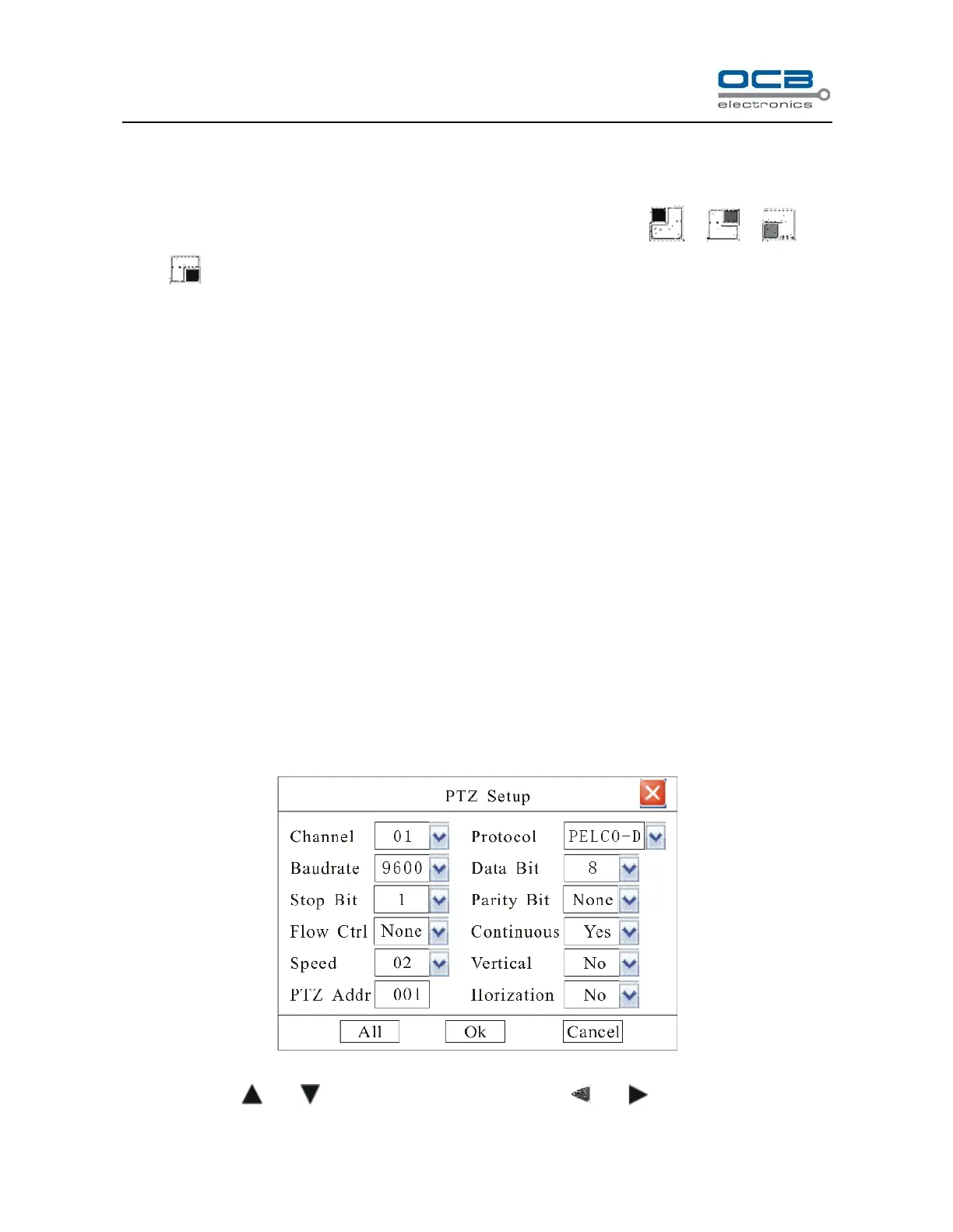
Enter “Main Menu-Advanced-PTZ ” as shown in Fig.37.
Fig. 37
Move cursor with and on the front panel and select item with and .



 To Next Page