Fig. 29
Move cursor with and on the front panel and select item with and .
User list: list administrator and new user name. Move cursor to select a user name and press ”ENTER” to
enter “User Operation” interface in where to modify password, setup local and remote right, delete user.
Admin:Administrator who has supreme right on operation. Move cursor to “Admin” and press “ENTER” to
modify password in input interface.
Add User
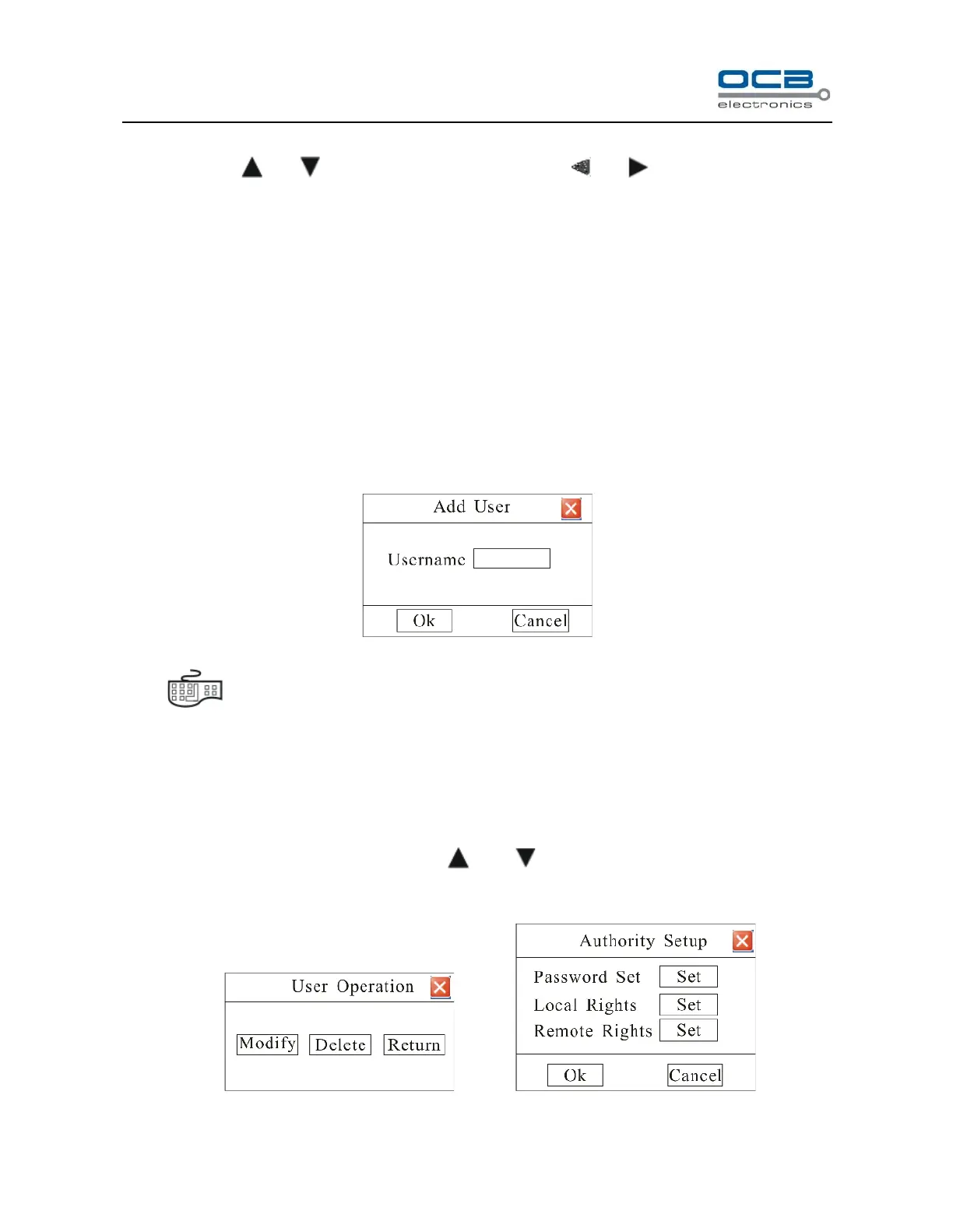
When you login as “Admin”, you can add new user. Select “Add” to enter into “Add User” menu as shown in Fig.
30.
Fig. 30
Press “ ” key to enter into input mode, then you can input the username.
Setup the password for new user
1、When you login as “Admin”, you can set the password for new user.
In the username list box of “User” menu, use “ ” and “ ” keys to select the new user name, then press
“ENTER” key to enter into the “User Operation” menu as shown in Fig. 31.
Fig. 31 Fig. 32



 To Next Page