Setting up the Océ 3050 Microfilm Scanner 67
4 In the Hollerith Elements window, click the elements that contain the new Size
Key. In this example click the elements 79 and 80
(see figure 43).
Note: The number of Hollerith elements must equal the number of
characters in the name of the Size Key.
Note: If ‘0’ is chosen for the number of copies the number of copies in the
control screen is free. If another number than ‘0’ is chosen this number will
overrule the number of copies in the control screen.
Note: The activated drawing size file in the Scanner Setup menu is the one
which will be activated here. To change resolutions or add specific drawing
formats you first have to edit the drawing size file (see section
“Edit
drawing Size File” on page 51).
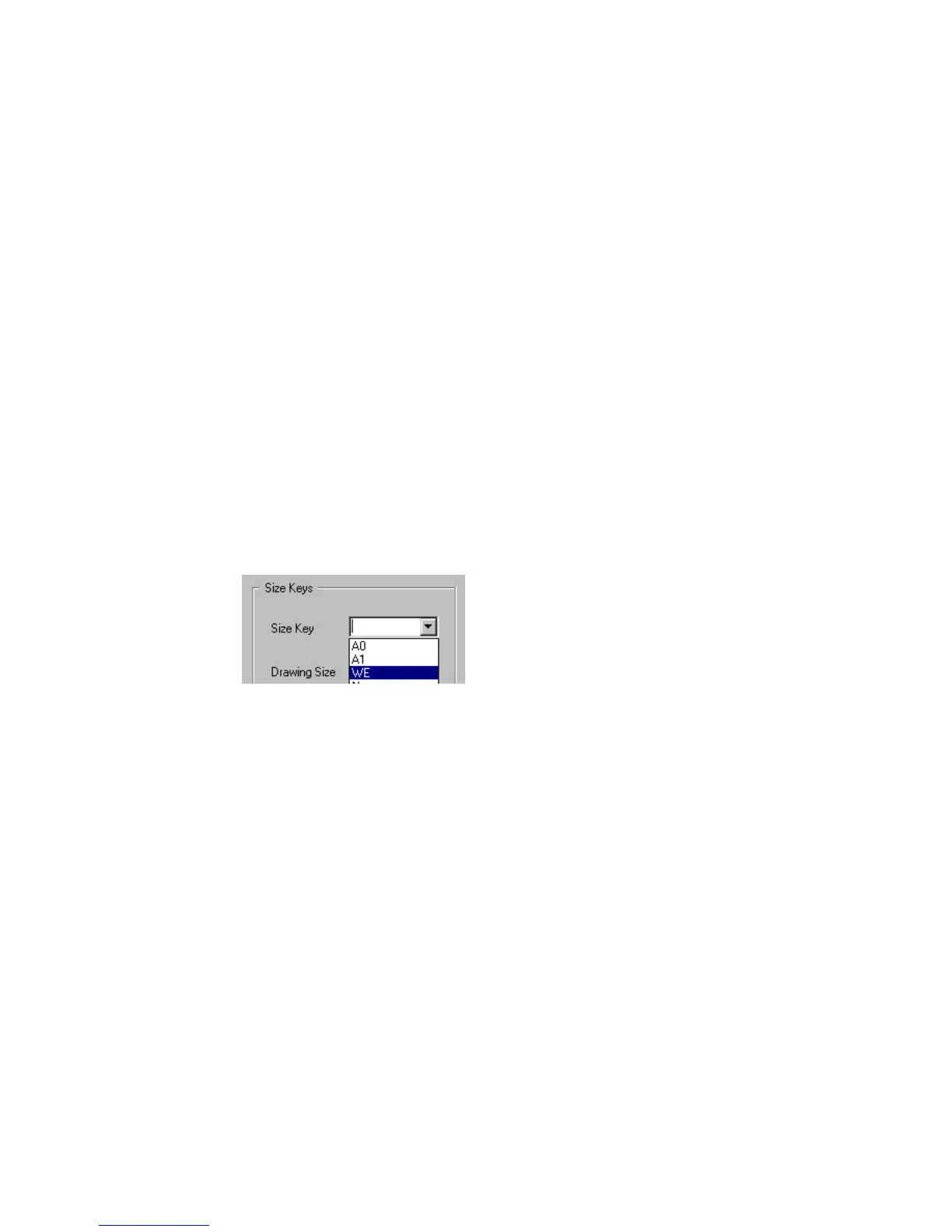
5 Select the other drawing format related elements in the Size Keys entry box
(similar to procedure of the editing in the Drawing Size entry box in the
Scanner Setup window, see section
“Drawing Size” on page 50).
6 Click Update to confirm and go back to the Scanner Setup window. If you want
to edit more in this window click Update later on.
▼ To delete a Size Key
1 Click the Size Key radio button in the Display window.
2 In the Key list, select the Size Key you want to delete.
[45] Deleting a Size Key
3 Click Delete Size Key.
4 Click Update to confirm and go back to the Scanner Setup window. If you want
to edit more in this window click Update later on.
Note: You cannot delete the last size key.


 To Next Page