EasyManua.ls Logo

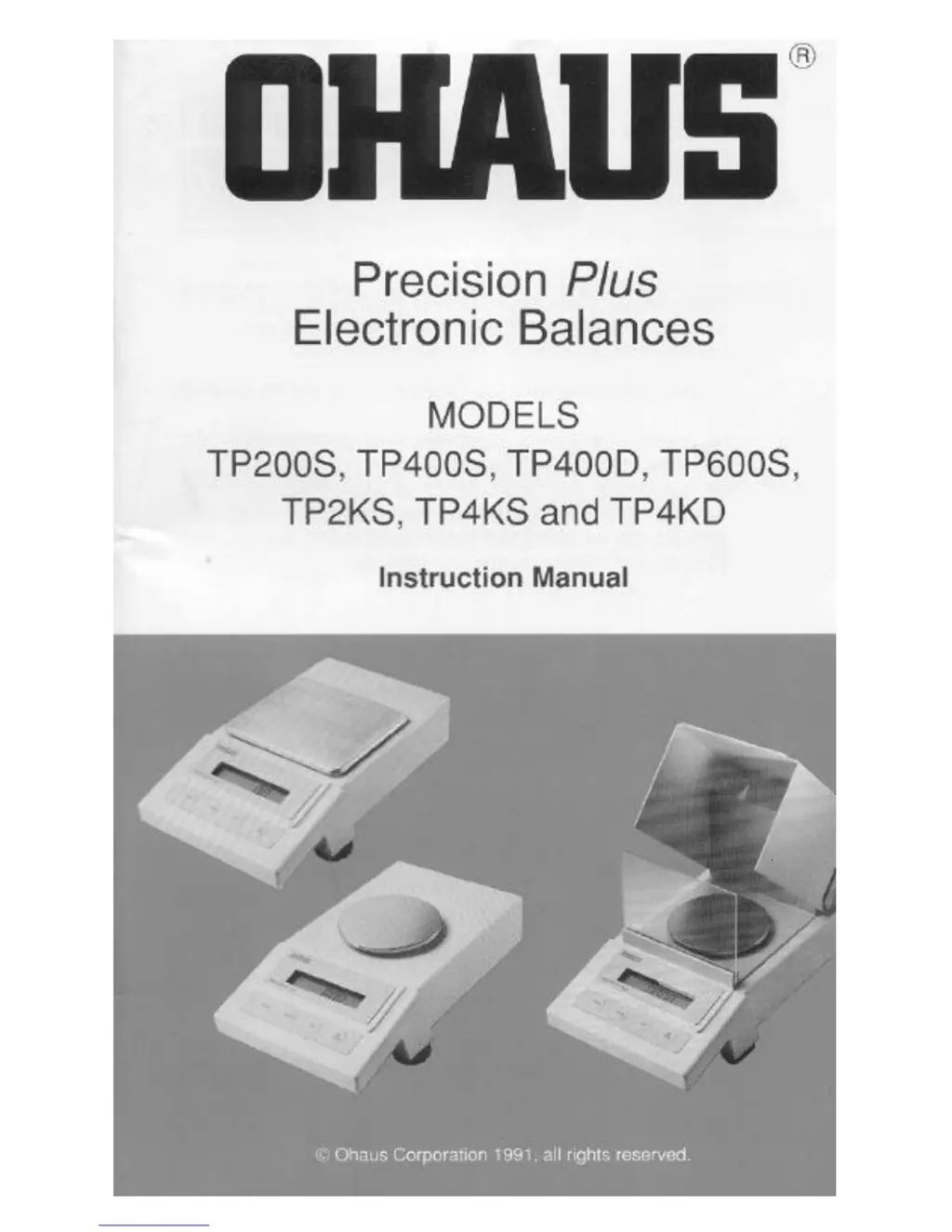
OHAUS TP4KD - User Manual

OHAUS TP4KD
116 pages
Print Icon
To Next Page IconTo Next Page
Loading...

Questions and Answers

  • I
    igreeneAug 4, 2025
    What to do if OHAUS TP4KD Scales unit will not turn on?
    • D
      Donna SnowAug 4, 2025
      If the OHAUS scale does not turn on, the power adapter may not be plugged in or properly connected to the scale. Check the power adapter connections to ensure they are secure.
  • D
    Donna PorterAug 9, 2025
    What to do if OHAUS TP4KD readings are unstable?
    • J
      Jennifer RobertsAug 9, 2025
      Unstable readings on the OHAUS scale can be caused by vibration on the table surface. Place the scale on a stable surface or change the averaging level.
  • J
    Joseph CastroAug 13, 2025
    Why OHAUS TP4KD showing incorrect weight reading?
    • A
      amandaleeAug 13, 2025
      An incorrect weight reading may occur if the OHAUS scale was not re-zeroed before weighing or if the scale is not properly calibrated. Press the TARE button with no weight on the pan, then weigh the item again. If the issue persists, recalibrate the scale correctly.
  • P
    pblankenshipAug 17, 2025
    What to do if OHAUS TP4KD Scales displays random segments or locks up?
    • J
      jacquelinehoffmanAug 17, 2025
      If the OHAUS scale displays random segments or the display locks up, it could be due to the microprocessor locking up. Turn the scale off, and then turn it on again. If the condition persists, the unit requires servicing.
  • C
    Courtney HigginsAug 22, 2025
    Why OHAUS TP4KD Scales RS232 interface not working?
    • A
      Amanda MatthewsAug 22, 2025
      If the RS232 interface is not working, the print menu settings might not be properly set up, or there may be an issue with the cable connections. Verify that the interface settings in the Print menu correspond to those of the peripheral device. Also, check the cable connections to ensure they are secure.
  • J
    Jennifer MontoyaAug 27, 2025
    How to store menu settings or changes on OHAUS Scales?
    • A
      Andrea RossAug 27, 2025
      To store menu settings or changes on the OHAUS scale, you MUST use the End function to exit the menus and save the settings.
  • T
    Travis SandersAug 30, 2025
    Why OHAUS TP4KD cannot display weight in desired unit or access desired weighing mode?
    • A
      Ashley CummingsAug 31, 2025
      If the OHAUS scale cannot display weight in the desired unit or access the desired weighing mode, it is possible that the desired unit/mode is not set to ON in the Unit Selection of the Setup menu. See Unit Selection section of Setup menu.

Summary

Installation Guide

Operating Your Precision Plus Balance

Checking Calibration Status

How to verify the balance's calibration status.

Standard Weighing Procedure

Step-by-step guide for performing a standard weighing.

Taring Procedure

How to zero the balance with a container or sample.

Parts Counting Function

Instructions for using the balance to count parts.

Percent Weighing Function

Guide to using the balance for percentage-based weighing.

Using Menus to Configure the Balance

Calibration Menu

Calibration Weights Requirements

Details on required calibration masses and their specifications.

Span Calibration Procedure

Procedure for calibrating the balance's weighing range.

Linearity Calibration Procedure

Procedure for calibrating the balance's linearity.

User Menu Settings

Reset to Factory Defaults

Steps to restore all user menu settings to factory defaults.

Setup Menu Configuration

Setup Menu Reset to Defaults

Steps to restore all setup menu settings to factory defaults.

Custom Unit Conversion Factor

How to create and enter custom weighing units.

Parts Counting Error Level

How to set acceptable error levels for parts counting.

Lockswitch Configuration

How to lock or unlock menu access.

Print Menu Configuration

Print Menu Reset to Defaults

Steps to restore RS232 print menu settings to factory defaults.

Baud Rate Setting

How to select the desired baud rate for RS232 communication.

Auto Print Feature

How to enable or disable the auto print feature.

Menu Lock-Out Protection

RS232 Interface

RS232 Commands

Explanation of ASCII commands for balance control and data retrieval.

Troubleshooting Guide

Error Codes Explained

List and explanation of error codes and their remedies.

OHAUS TP4KD Specifications

General IconGeneral
Power SupplyAC Adapter (included)
DisplayLCD
CalibrationExternal
Capacity4000 g
Units of Measurementg, lb, oz
InterfaceRS232

Related product manuals