61
Adjusting On Screen Displays (OSD)
OSD-DTV
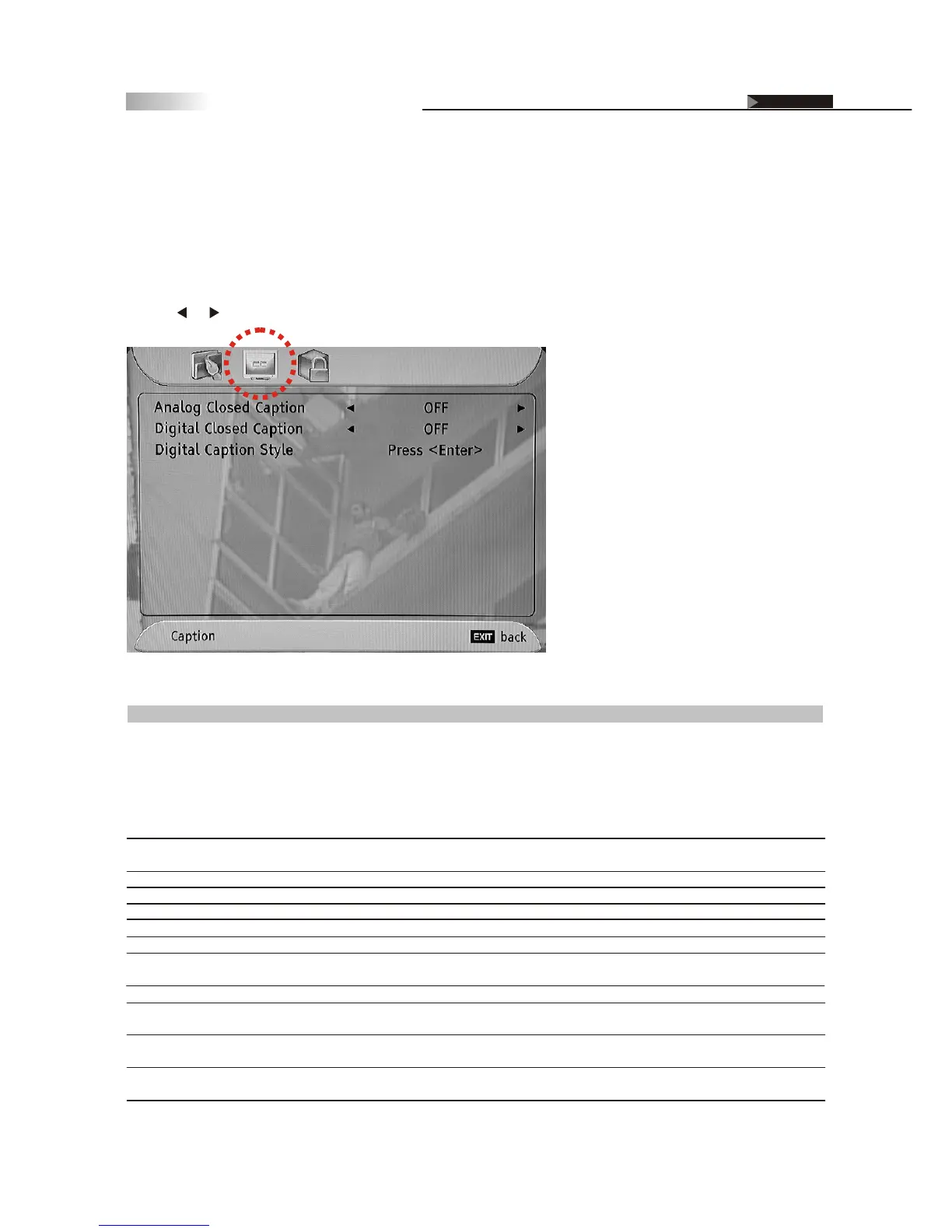
1. Press or button to highlight the "Caption" icon.
While the program you are watching supports this function, it will allow
you to read the voice content of TV program, such as the conversation or
dialogue, with the text boxes shown at the bottom of the screen.
To turn on closed captioning, do the following :
Closed Caption Options
Item
Analog Closed Caption
Digital Closed Caption
Digital Caption Style
Caption Style
As Broadcaster
Custom
Font Size
Font Color
Font Opacity
Background Color
Background Opacity
Window Color
Window Opacity
Adjustment
Off, CC1, CC2, CC3, CC4, Text1, Text2,
Text3, Text4
Off, Service 1~6
Medium, Large, Small
Black, White, Green, Blue, Red, Cyan,
Yellow, Magenta
Solid, Translucent, Transparent
Black, White, Green, Blue, Red, Cyan,
Yellow, Magenta
Solid, Translucent, Transparent
Black, White, Green, Blue, Red, Cyan,
Yellow, Magenta
Solid, Translucent, Transparent
Function
Selects the different types of closed caption shown on the
traditional analog TV channels.
CC1: is used for most of programs.
CC2: may be used for alternate languages.
Text: is used for the network and station information, such
as channel guides, schedules, or bulletin board, for
Closed Caption programs.
Selects the different types of closed caption shown on the
digital TV channels.
Selects the different styles of digital closed caption.
Selects the different font sizes of closed caption.
Selects the different font colors of closed caption.
Selects the different font opacity degree of closed caption.
Selects the different Background colors of closed caption.
Selects the different Background opacity degree of closed
caption.
Selects the different edge colors of closed caption.
Selects the different edge opacity degree of closed caption.
Description of Settings



 To Next Page