12-2
Appendix > Character Entry Method
Character Entry Method
To enter characters for a name, use the on-display keyboard in the touch panel following the steps as explained below.
Entry Screens
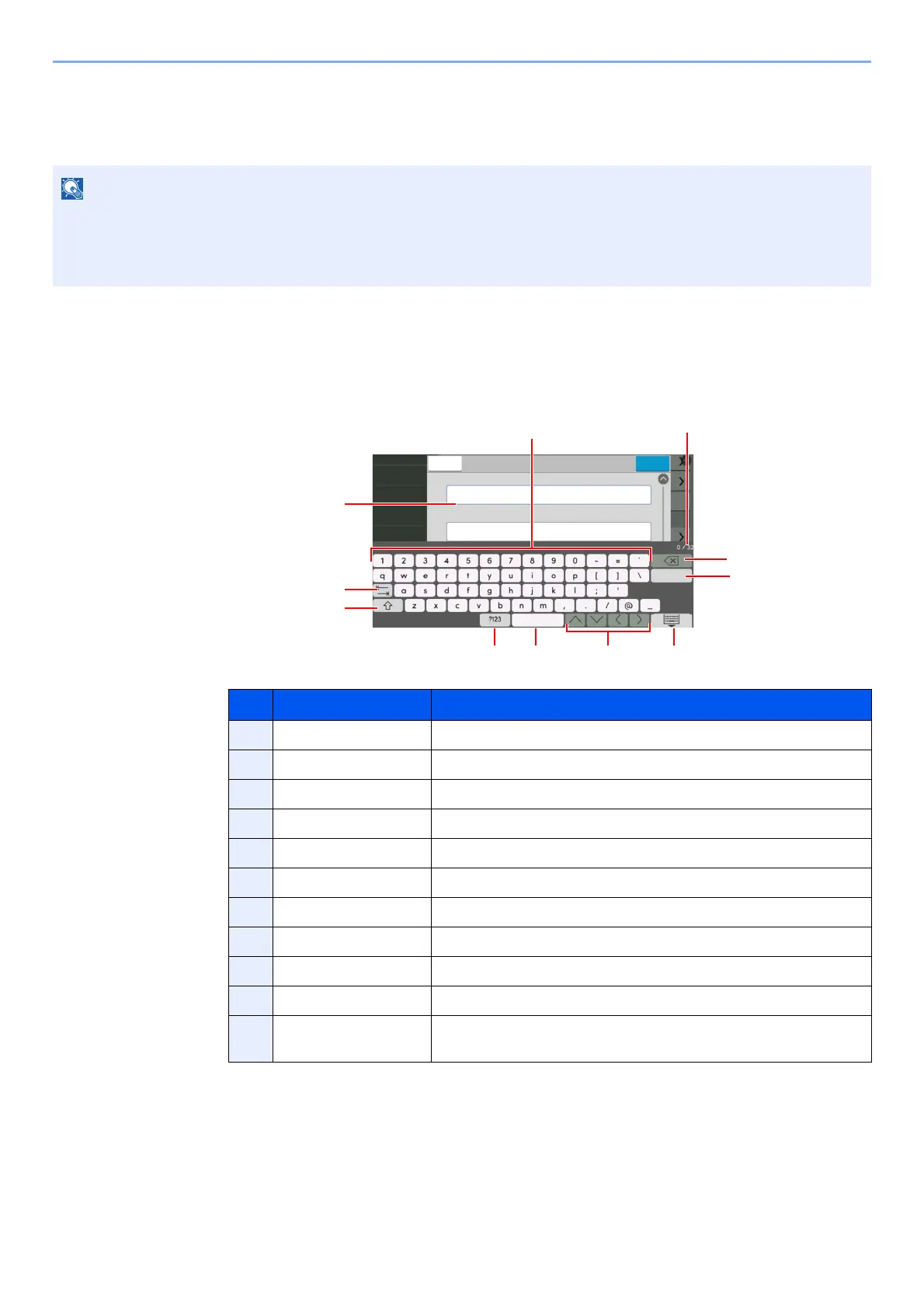
Lower-case Letter Entry Screen
Keyboard Layout
"QWERTY", "QWERTZ" and "AZERTY" are available as keyboard layouts the same as a PC keyboard. Select the
[Home] key > [...] > [System Menu], [Device Settings] and then [Keyboard] > [Keyboard Layout] to choose the
desired layout. "QWERTY" layout is used here as an example. You may use another layout following the same steps.
No. Display/Key Description
1 Keyboard Select the character to enter.
2 Input box Enter characters in the selected box.
3 Tab key Select to move to the next input box.
4 Shift key Select to switch between upper case and lower case.
5 [?123] / [Character] Select the characters that are entered.
6 Space key Select to insert a space.
7 Cursor key Select to move the cursor on the display.
8 Close key Select to close the entry screen.
9 Enter key Select to finalize entry and return to the screen before the entry.
10 Backspace key Select to delete a character to the left of the cursor.
11 Input / Limit display Displays maximum number of characters and the number of
characters entered.
Enter a name
8VHU1DPH
HQWHU
6SDFH
1HZ8VHU
&DQFHO 6DYH
'HYLFH
6HWWLQJV
4XLFN6HWXS
:L]DUG
1RWLILFDWLRQ
5HSRUW
)XQFWLRQ
6HWWLQJV
6\VWHP0HQX
Enter a user name
/RJLQ8VHU1DPH


 To Next Page