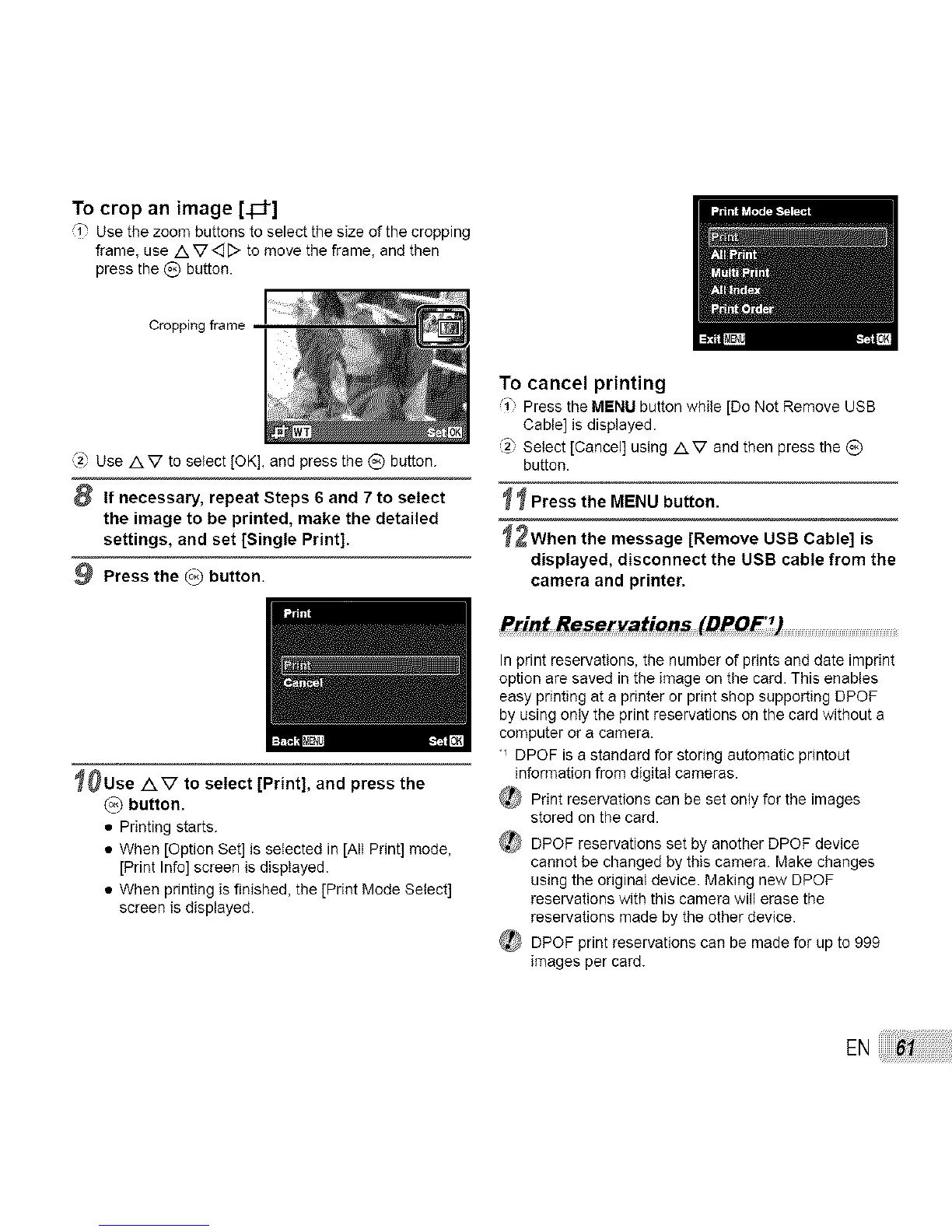
To crop an image [-ld']
'i" Use the zoom buttons to select the size of the cropping
frame, use Av<_D to move the frame, and then
press the _) button.
Cropping frame
._2"Use AV to select [OK], and press the (_) button.
8 If necessary, repeat Steps 6 and 7 to select
the image to be printed, make the detailed
settings, and set [Single Print].
9 Press the (°3 button.
_0Use AV to select [Print], and press the
(o_ button.
• Printing starts.
• When [Option Set] is selected in [All Print] mode,
[Print Info] screen is displayed.
• When pdnting is finished, the [Print Mode Select]
screen is displayed.
To cancel printing
i" Press the MENU button while [Do Not Remove USB
Cable] is displayed.
(2" Select [Cancel] using AV and then press the _)
button.
_ Press the MENU button.
_2When the message [Remove USB Cable] is
displayed, disconnect the USB cable from the
camera and printer.
Print Re_@_vations (DPOF _)
In print reservations, the number of prints and date imprint
option are saved in the image on the card. This enables
easy printing at a printer or print shop supporting DPOF
by using onty the print reservations on the card without a
computer or a camera.
"_ DPOF is a standard for storing automatic printout
information from digital cameras.
_' Print reservations can be set only for the images
stored on the card.
_ DPOF reservations set by another DPOF device
cannot be changed by this camera. Make changes
using the original device. Making new DPOF
reservations with this camera will erase the
reservations made by the other device.
_ DPOF print reservations can be made for up to 999
images per card.
EN


 To Next Page