40
5.2 Main Menu
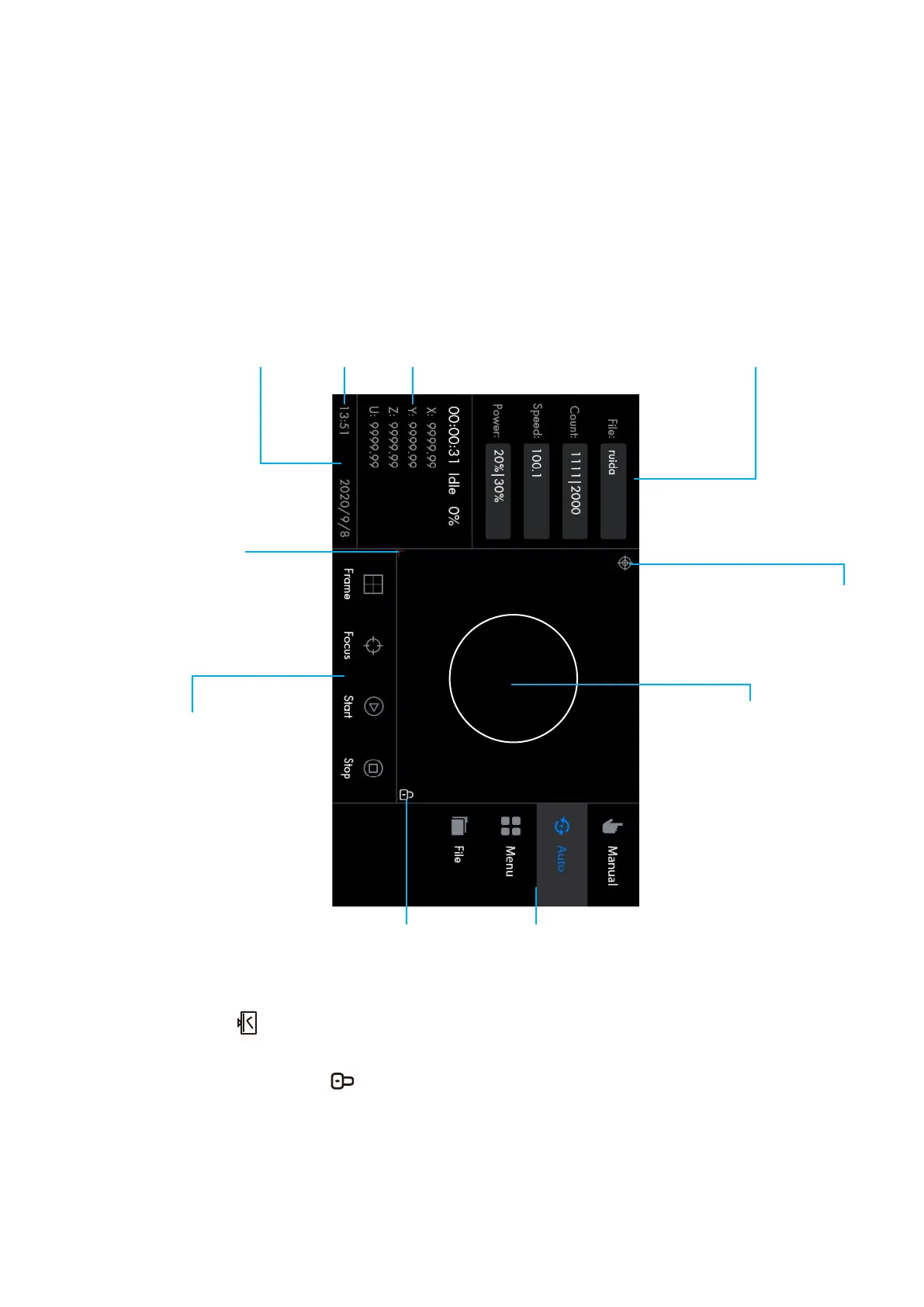
Graphic Display Area
This area shows the currently
loaded image and, during work,
the position of the laser head.
Keyboard Lock
When the strip of the display that shows the time
is tapped, the control panel will be locked, with
the panel displaying on the right corner of
the graphic display area. Tapping the strip again
unlocks the panel.
Internet Status
This icon indicates that the system is
connected to the Internet.
Screen Origin Position
The graphic display area
takes this coordinate
point as a reference for
displaying.
Position Mark
This icon shows up after the
positioning icon is tapped in
the manual menu.
Parameter Display Area
File: the name of the le that is being
processed
Count: the batch count and the total
count (the current batch count for work
with the currently loaded le; the current
total count for work with the engraver)
Speed: the speed value (the 1st route and
the 2nd route)
Power: the power value (the 1st route
and the 2nd route)
Function Area
Frame: This icon traces the outline of the current design for sizing
Focus: This icon enables the laser head to automatically focus
Start: This icon starts the current task.
Stop: This icon stops the current task.
System State Area
This area displays the system state (idle,
pause, complete, run, feed), processing
time and processing progress.
Coordinates Display Area
This area shows the current position
of the laser head along the X and Y
axes according to the system’s current
orientation and the current bed height
(U) and laser head position (Z).
Menu Area
Tapping “Manual” enters the manual menu
Tapping “Auto” enters the automatic function
menu, which the system displays by default after
being powered-on.
Tapping “Menu” enters the menu submenu.
Tapping “File” enters the le management menu.
System time


 To Next Page