42
USB Files
The system is compatible with FAT32 and FAT16 USB le formats. For best results, however, store your les
under the root directory of the USB ash drive so that the system can recognize them quicker and easier.
By default, the system dissects a le name exceeding 8 characters and shows it in more than one word. Also, the
system cannot recognize le whose names consist of characters other than English and Arabic numbers. All les
exported from the system to a ash drive are stored under the root directory of such storage gadget.
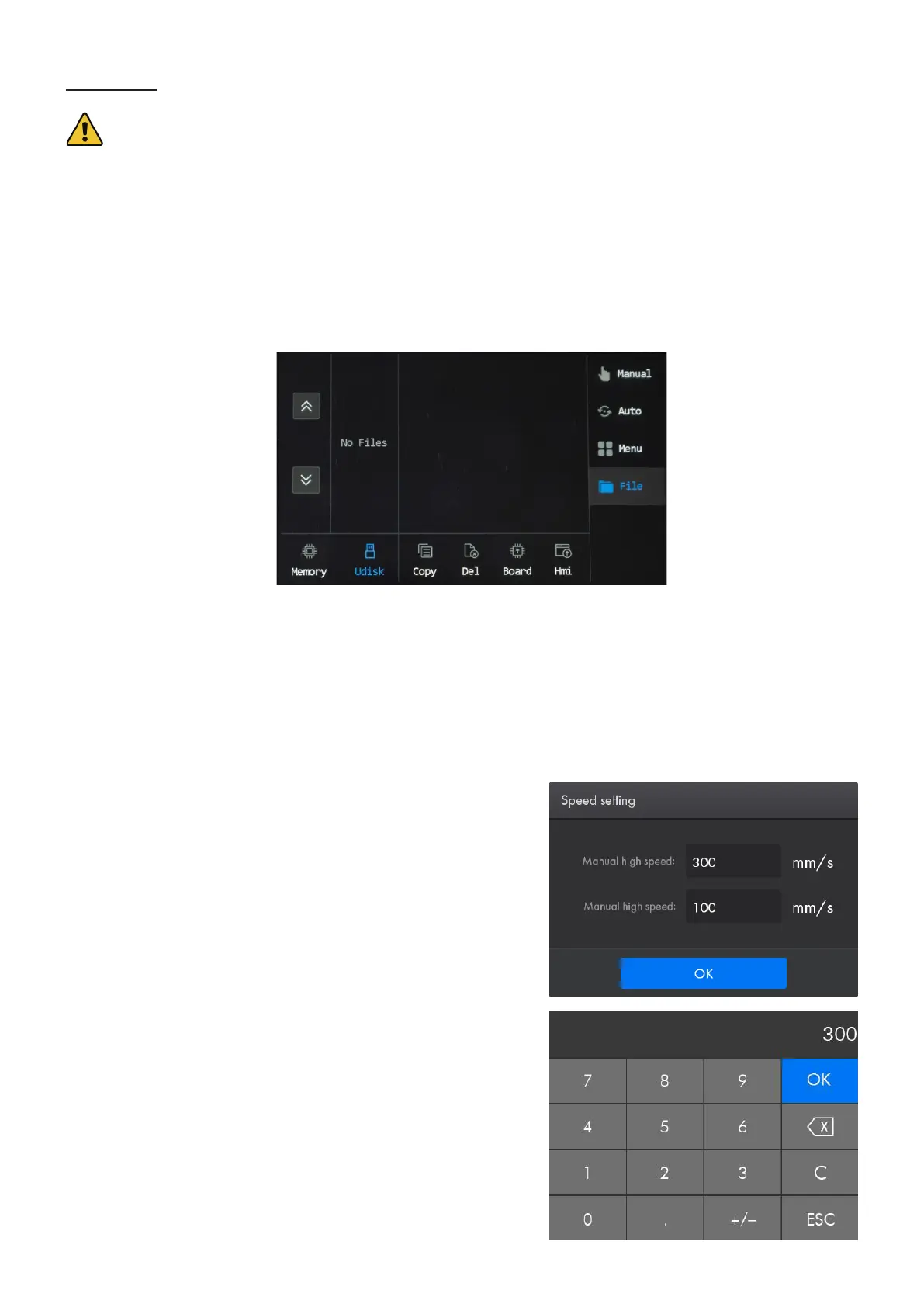
1. Tap “File” (if you haven’t done this), and the le management menu pops up.
2. Tap “Udisk” to switch the memory route to the USB ash drive that’s connected.
The 4 icons in the middle are for managing the USB les.
Copy: Copies the selected le from the ash drive to the system memory.
Del: Deletes the selected le.
Board: Upgrades mainboard program through the USB ash drive
Hmi: Upgrades the control panel program through the USB ash drive
5.4 Setting Speed Levels
1. Tap “Speed” in Parameter Display Area from the home menu,
and the following menu shows up.
When the system is idle, the speed parameters controls the
manual high speed and manual low speed. That is, the speed
range that the laser head can be manually moved to reach, which
is convenient for debugging and calibrating.
When the system is running or paused, those speed parameters
control the processing speed of the laser head.
2. Tap the parameter box to show the numeric keyboard as shown.
3. Set the value to that you desire.
4. Tap OK to conrm the modication and exit the current menu or
tap ESC to cancel the modication and exit the current menu.


 To Next Page