Crocus CNV Configuration attributes
Reference manual 83
crocusIfConv<2m/Nx64><Tt/Cv>/Load Saved Configuration
If you are in the progress of modifying the non-active configuration but made some mistakes, you might
want to revert to the active configuration. If you execute the Load Saved Configuration action, the non-active
configuration is overwritten by the active configuration currently used by the Crocus CNV.
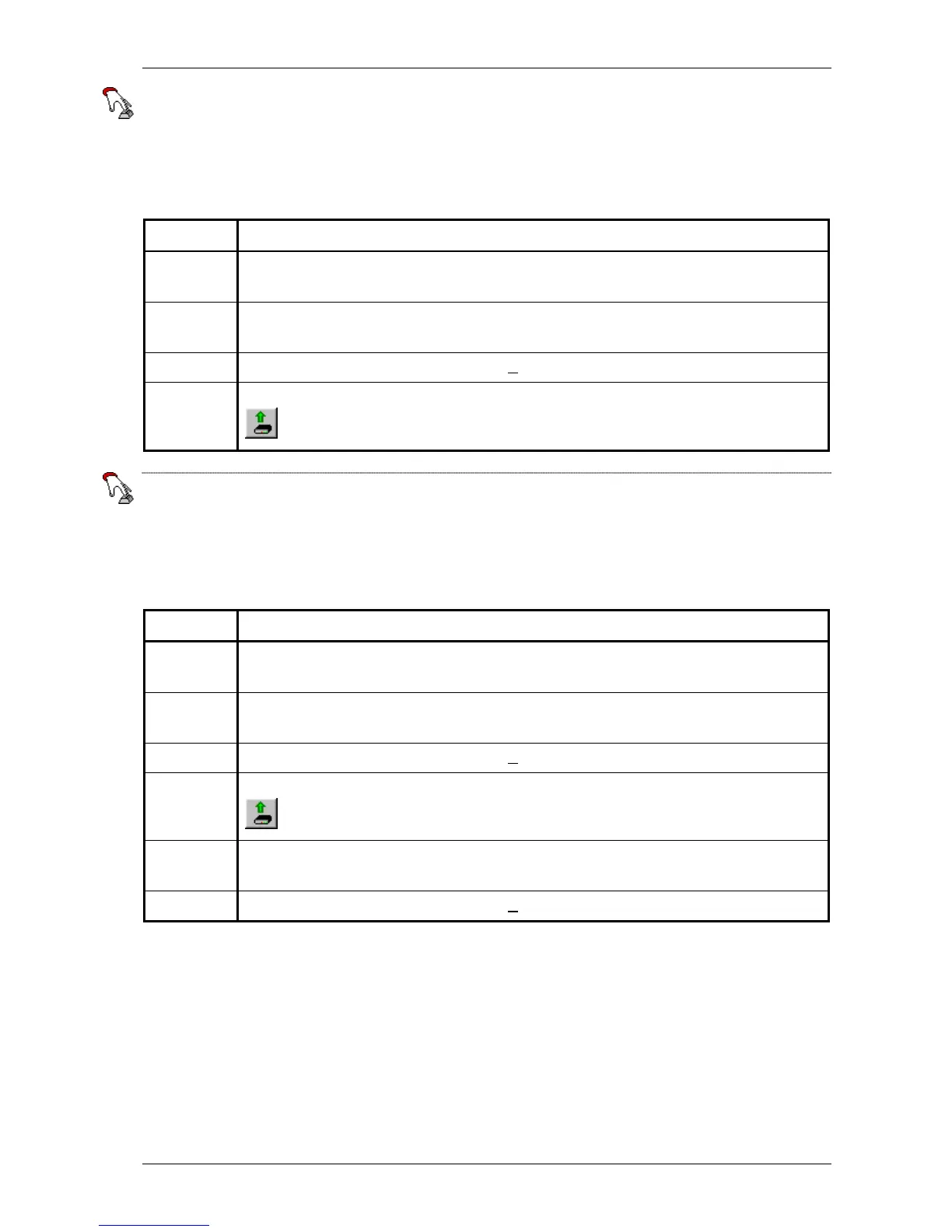
To reload the active configuration, proceed as follows:
Step Action
1
In the TMA window, select the top object crocusIfConv<2m/Nx64><Tt/Cv> and the group
Configuration.
2
In the action window of TMA, click the left mouse button on Load Saved Configuration so that
this action is selected.
3 Press the right mouse button and select Execute.
4 To see the active configuration, press the Retrieve all attributes from device button:
.
crocusIfConv<2m/Nx64><Tt/Cv>/Load Default Configuration
If you install the Crocus CNV for the first time, all configuration attributes are set to their default value. If
the Crocus CNV has already been configured a number of times and you want to reconfigure it starting
from scratch, you can load the default configuration.
To load the default configuration, proceed as follows:
Step Action
1
In the TMA window, select the top object crocusIfConv<2m/Nx64><Tt/Cv> and the group
Configuration.
2
In the action window of TMA, click the left mouse button on Load Default Configuration so
that this action is selected.
3 Press the right mouse button and select Execute.
4 To see the default configuration, press the Retrieve all attributes from device button
.
5
In the action window of TMA, click the left mouse button on Activate Configuration so that
this action is selected.
6 Press the right mouse button and select Execute.


 To Next Page