U
U
s
s
e
e
r
r
m
m
a
a
n
n
u
u
a
a
l
l
11
9. Basic operations
9.1. Turn on STB
First, press the [ POWER] to turn on the unit.
When the STB is first used, there will play the first
channel from the default Channel List. If the STB is
not first used, STB will play the same channel as
last time before turning off.
? Frequently Asked Question
Q: The power of my STB has been turned on and
not in Standby mode, but the TV screen showed
nothing:
A: Make sure the TV set has been set to the
correct video input (not the TV channels). For
example, if you have connected the unit with the
Video1 input of the TV set, the TV set has to be
switched to Video1.
Q: The power of my STB has been turn on and
not in Standby mode, but the TV screen showed
nothing except popup window with “No Signal”
information.
A: That means the channel, which you select, is no
signal. Check connection of signal cable or contact
operator.
9.2. Power
1.Press [ POWER] Key can enter the Standby state
2.In Standby state, press [
POWER] Key again can
call back the unit and go on play the previous
channel
3.User can also disconnect the device’s main
power to end the Standby state.
9.3. Channel Up/Channel Down
In full screen, press [↑/↓] to change channel.
9.4. Volume Up/Volume Down-
In full screen, press [←/→] to adjust volume.
9.5. Number
In full screen, use number key and press [OK] on
the Remote Control Unit to change channel.
9.6. Mute
1.Press [ MUTE] key to mute the sound and the
screen will show up mute OSD.
2.Press [
MUTE] key again to restore sound.
9.7. Pause
1.In playing mode, press [ PAUSE] key, the picture
will be paused, but the sound of the channel will
still continues.
2.Press [
PAUSE] key again, the screen’s picture will
skip over to the current playing picture, and the
sound of the channel will corresponding playing.
9.8. Recall
Press [ (PREVIOUS)] key will directly switch to the
previous channel that you played before current
channel.
9.9. Favourite
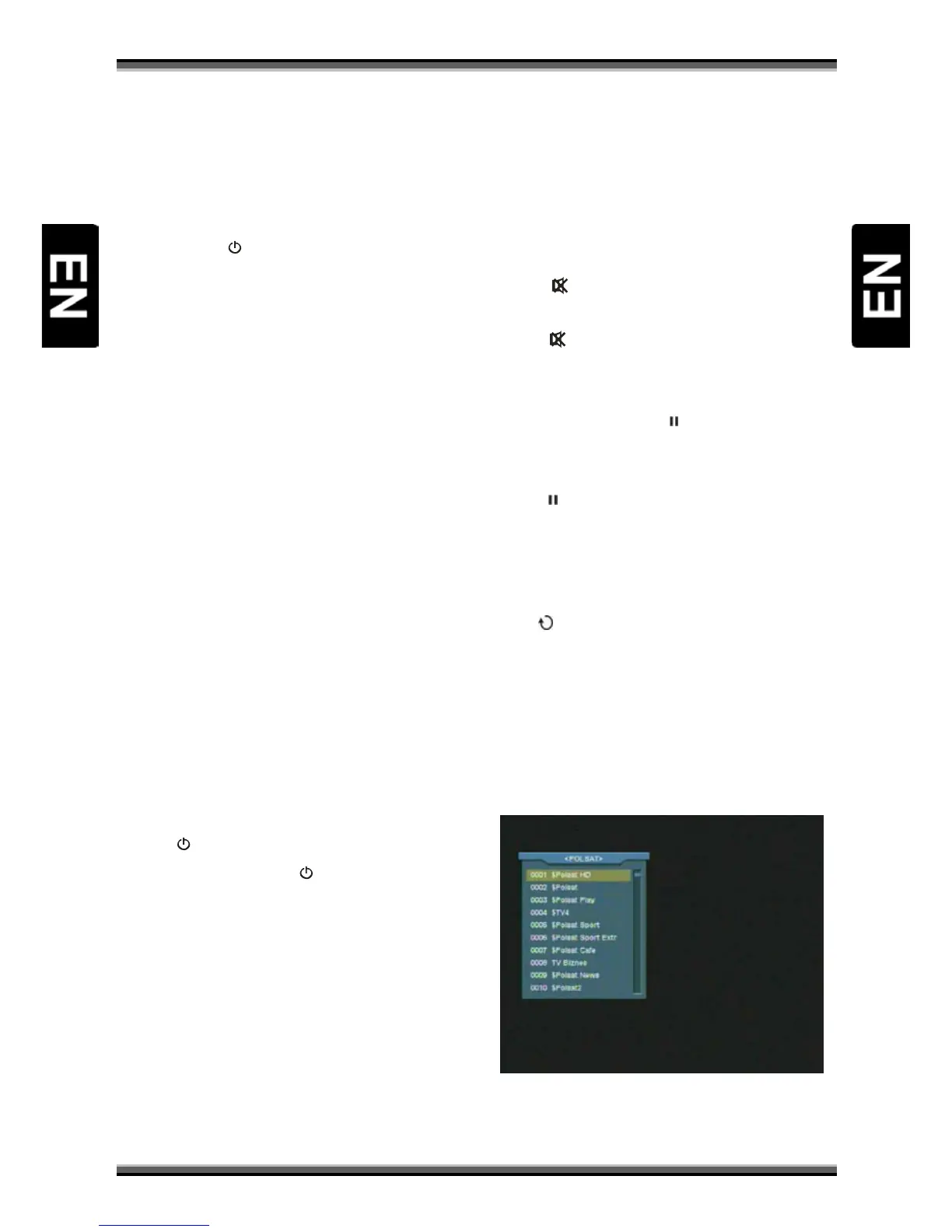
1.In full screen, press [FAV(FAVORITE)] key, it will
display a window of “Favorite Group” on the left
of the screen, which you can watch like below.
2.You can press [←/→] keys to select different
“Favorite Group”.


 To Next Page