U
U
s
s
e
e
r
r
m
m
a
a
n
n
u
u
a
a
l
l
23
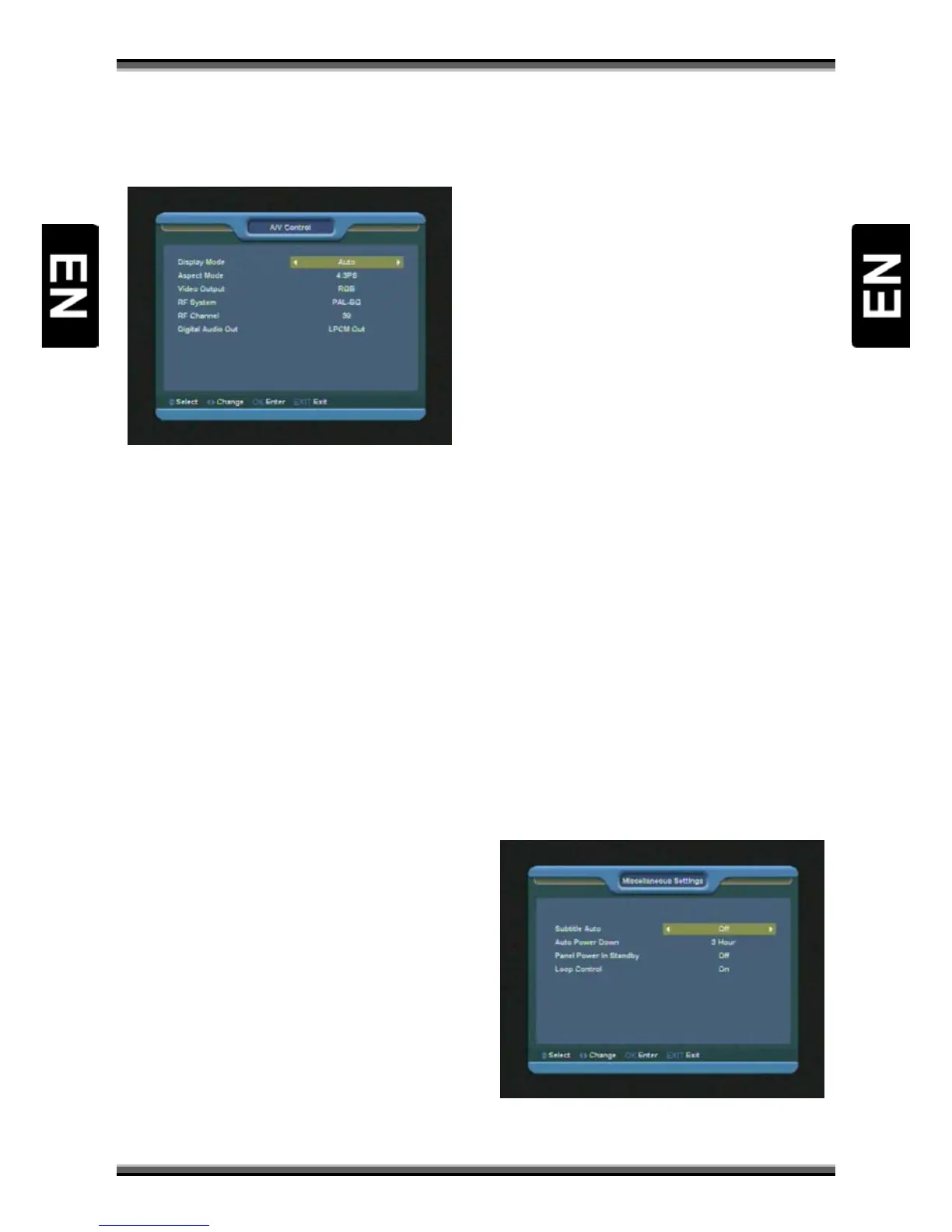
12.5. A/V Control
When you enter to “A/V Control” menu, you will
see the screen like below:
1.User can switch display resolution in view mode
using
P/N (WHITE KEY) button. Also Display Mode is
for switching the system outputting video
resolution. Move highlight on it and press left or
right key, it will switch video resolution circularly
by the sequence “by source<-> by native TV<->
480i<-> 480P<-> 576i<-> 576p<-> 720P<-> 1080i”.
By Source means system will set the video output
resolution according to the program it’s playing,
different resolution programs switching perhaps
will makes TV screen flickering. By Native TV
means system will be according to the HDMI TV’s
max supported resolution to set its resolution, if
system is not connected to a HMDI TV, it will set
resolution to be default. Depending on selected
video output, available resolutions may be
different than listed above.
2.Aspect Mode is for switching the screen aspect
ratio mode. Now we provide below options: 4:3
PS / 4:3 LB / 16:9/Auto. You can press [←/→] key
to select each mode circularly. 16:9 will provide
user pillar box mode it means user use 16:9 TV to
display but need to see a 4:3 full display picture.
System will force press wide screen picture to be
narrow and there’re black band on left and right
site. Auto means system won’t do any aspect ratio
translation, 16:9 picture source will be good
display on a 16:9 TV but will be too narrow on a
4:3 TV, and 4:3 picture source will be too wide in a
16:9 TV but will be good display in a 4:3 TV.
3.Video Output: Press [←/→] to select CVBS or
RGB.
4.RF system and RF channel (optional): are for
user to set the TV RF modulator output signal
VHF/UHF channel and TV system mode. If your TV
is too old to supports CVBS/RGB/HDMI, you can
use TV RF cable to connect STB’s TV RF output
port to TV Antenna input port. (optional)
5.Digital Audio Out is for setting the both SPDIF
and HDMI’s digital audio output mode, it has
options LPCM Out, Auto, You can press
[Left/Right] Key to select each mode circularity.
LPCM Out means system will decode no matter
AC3 or PCM audio track data to be LPCM, digital
audio decoder or HDMI TV will get LPCM digital
audio data. Auto means system will detect which
the connected HDMI TV can decode and then
output that data. If HDMI TV can decode AC3,
system just output RAW data, if HDMI TV can
decode LPCM only, system will just decode AC3 or
LPCM to be LPCM and then output.
6.Press [EXIT] key to draw back from “A/V Control”
menu.
12.6. Miscellaneous Settings
When you input to “OSD Setting” menu, you will
see a screen like below:
1.Subtitle Auto: You can press [←/→] key to select
“On” or “Off”. If the current channel has subtitle


 To Next Page