U
U
s
s
e
e
r
r
m
m
a
a
n
n
u
u
a
a
l
l
28
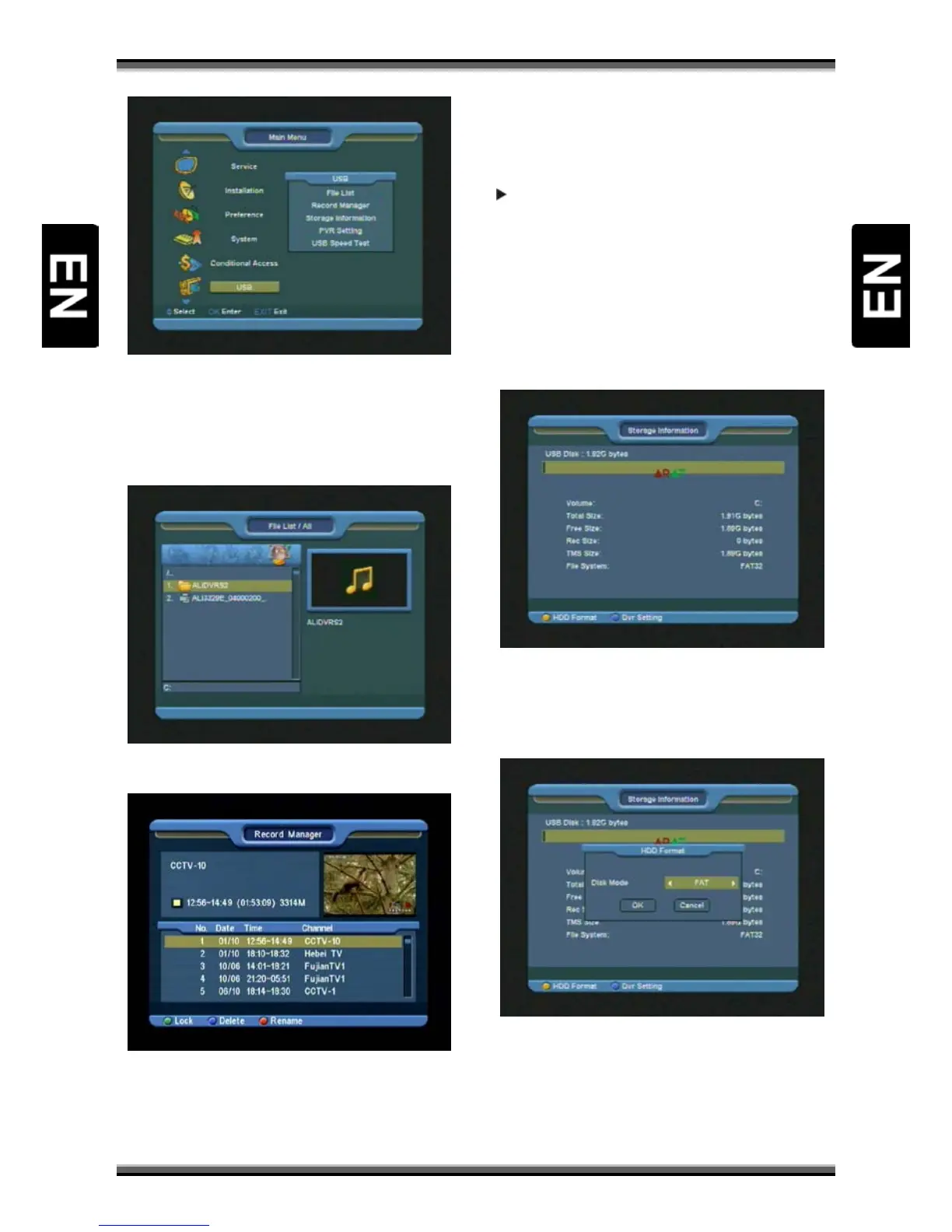
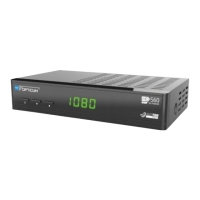
15.1. File List
In this menu you can check the files and folders of
the USB storage, and you can view files from 5
categories: Record, Image, Software, All.
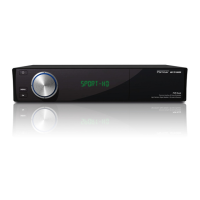
15.2. Record Manager
In this menu you can see the record files, and you
can edit it:
1.To Lock the file, please press [GREEN] button.
2.To Delete the file, please press [BLUE] button.
3.To Rename the file, please press [RED] button.
4.To play the file with small window, please press
[
] button.
5.To play the file with full screen, please press [OK]
button.
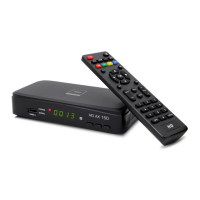
15.3. Storage Information
Press [OK] button to enter the HDD Information
menu like the below picture, in this menu you can
see the details information about the HDD.
1.If you want to format the HDD, press [YELLOW]
button. Then select the File System between the
"FAT" and the "NTFS". Press [OK] button to
confirm.
Note: If you format the HDD, all the files include
JPEG and the record files will be deleted from the
HDD.
2.If you want to change HDD function between
Record, Timeshift and REC & TMS (both previous),


 To Next Page