U
U
s
s
e
e
r
r
m
m
a
a
n
n
u
u
a
a
l
l
20
1.Press [↑/↓] key to select menu items among
Language, Parental Control, Time setting, T imer,
A/V Control, Miscellaneous, OSD Setting.
2.Press [OK] key to enter the selected item.
12.1. Language
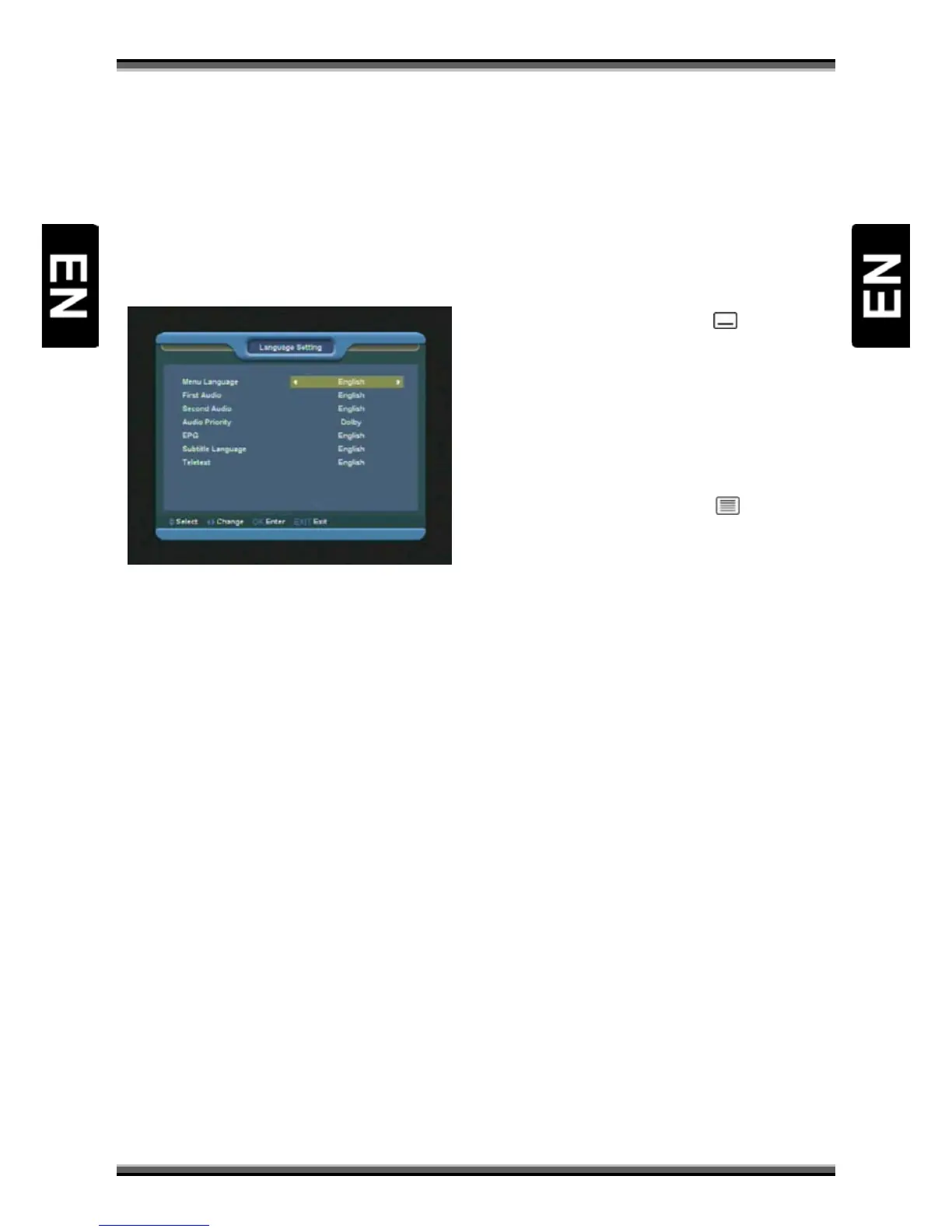
When you enter to “Language” menu, you will see
the screen like below:
1.Menu Language: Press [←/→] keys to select
OSD menu language.
2.First Audio: Some channels have more than one
audio language for choosing; by this function you
can set the first audio for this channel. If the
playing channel has the same audio as the “First
Audio” you set, system will play this audio
language as default. If the channel hasn’t the
suited audio language, then the system will
compare automatically with second audio
language.
3.Second Audio: If the channel has no correspond
audio with “First Audio” but have corresponded
audio with “Second Audio”, system will play the
second audio language as default. If no audio
language corresponds with the “Second Audio”,
then the default language of current channel will
be played automatically. The selections of audio
languages include: English, French, German,
Russian, Arabic, Portuguese, Turkish, Spanish,
Polish and Italian.
4.Audio Priority: You can select the Audio Priority
among Dolby and Language. If Dolby mode is
selected, AC3 audio track will be played even if
track language not correspond to selected one in
above functions – First and Second Audio.
5.EPG Language: Press [←/→] keys to select EPG
language.
6.Subtitle Language: It is an item for changing the
language of the Subtitle.
As long as the services support it, the Subtitle
language is changeable by press
(YELLOW KEY) on
your RCU.
The supported language can be changed without
any notice.
7.Teletext Language: Press [←/→] keys to select
TXT language.
As long as the services support it, the Teletext
language is changeable by press
(GREEN KEY) on
your RCU.
The supported language can be changed without
any notice.
8.You can press [EXIT] key to enter full screen
playing mode.
12.2. Parental Control
You can set a password for anyone who wishes to
operate in the “Installation” menu. And you can
also set the password for the lock channels. (How
to set the lock channel please refer to LOCK) Here
will show you how to setting and how to revising
the password.
1.In “Parental Control” function, press [OK] key,
there will pop an dialogue for you to input the
password. When you input the correct password,
you will see a screen like below:


 To Next Page