U
U
s
s
e
e
r
r
m
m
a
a
n
n
u
u
a
a
l
l
17
10.1.4. Rename
Mark the service you want to rename, use
button to select Rename item and press [OK]
button to display keyboard, and rename it. After
renaming it press [OK] button on keyboard to
save.
10.1.5. Skip
You can restrain and Skip (hide) the services. Mark
the desired services using [OK] button, use →
button to choose Skip mode and press [OK] button
to confirm.
10.1.6. Group (RED)
It is very useful to select services with different
Groups.
10.1.7. Options (GREEN)
It is very convenient function to Mark the desired
services with different options.
10.1.8. Find ( )
It is an item to locate certain service by name
quickly. Press [
] button to display the “Find”
submenu, use keyboard to enter service name and
press [
] button again to select the desired
services.
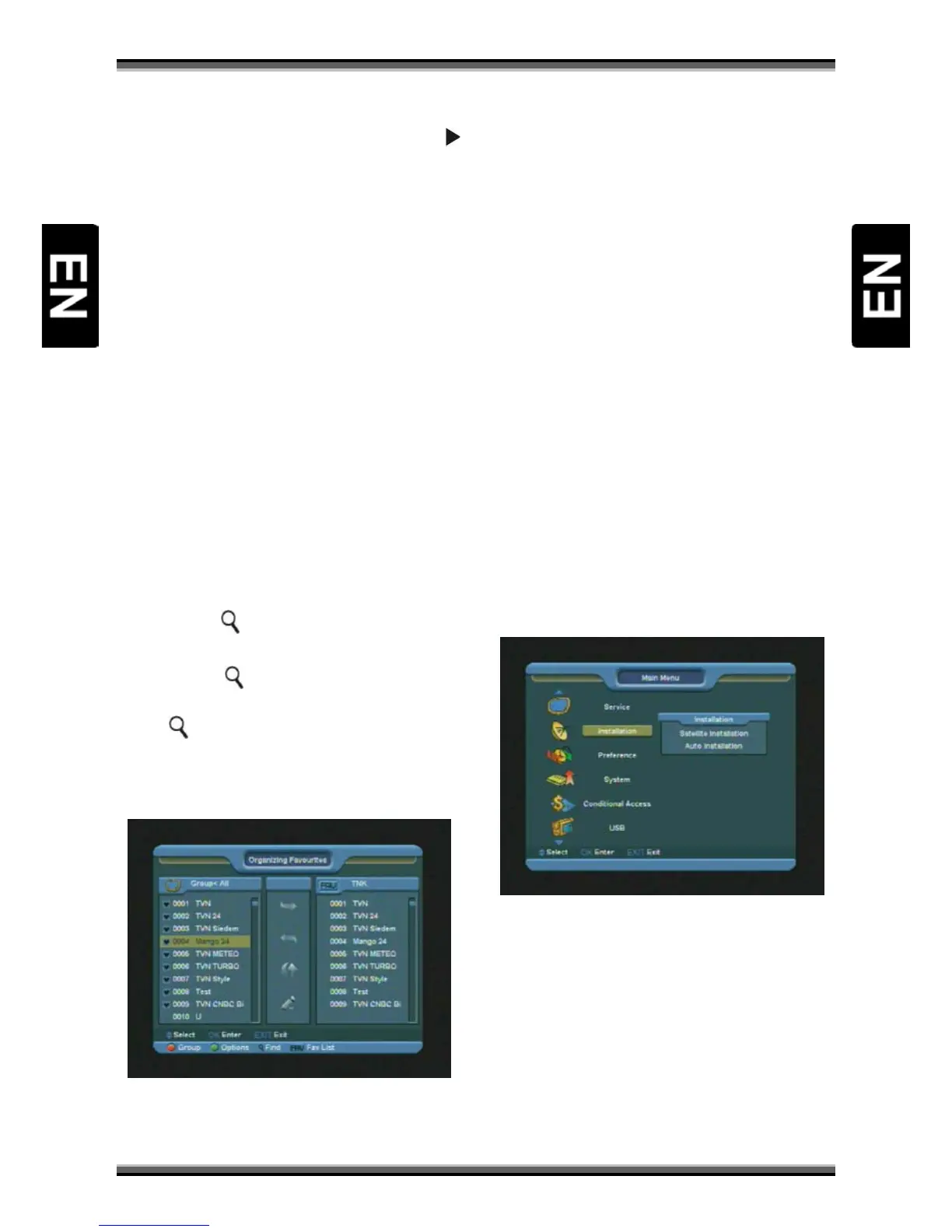
10.2. Organizing favourites
When you enter to “Organizing favourites” menu,
there will display the screen like below.
1.You can move highlight by press [↑/↓] keys in the
left and right side list window.
2.You can press [P+/P-] keys to implement the
Page Up/Page Down function.
3.You can use [←/→] key to switch between list of
all channels at the left, list of channel in actual
selected FAV list at the right and edit functions in
the middle of the screen – Add, Remove, Move,
Rename.
4.Press color key to implement the corresponding
function – Group, Options, Find (described in
previous chapter).
5.Press
FAV(FAVORITE) key when cursor is active in
left window, to choose actual FAV list.
6.You can press [EXIT] key to enter full screen
playing mode.
11. Menu “Installation”
When you enter to “Installation” menu, there will
display the screen like below:
In “Installation” menu:
1.Press [↑/↓] key to select menu items among
Satellite Installation, Auto Installation, Satellite
Guide.
2.Press [OK] key to enter the selected item.
11.1. Satellite Installation
11.1.1. Satellite
1.Satellite: Press [OK] key to enter the Satellite list.


 To Next Page