U
U
s
s
e
e
r
r
m
m
a
a
n
n
u
u
a
a
l
l
16
10. Menu “Service”
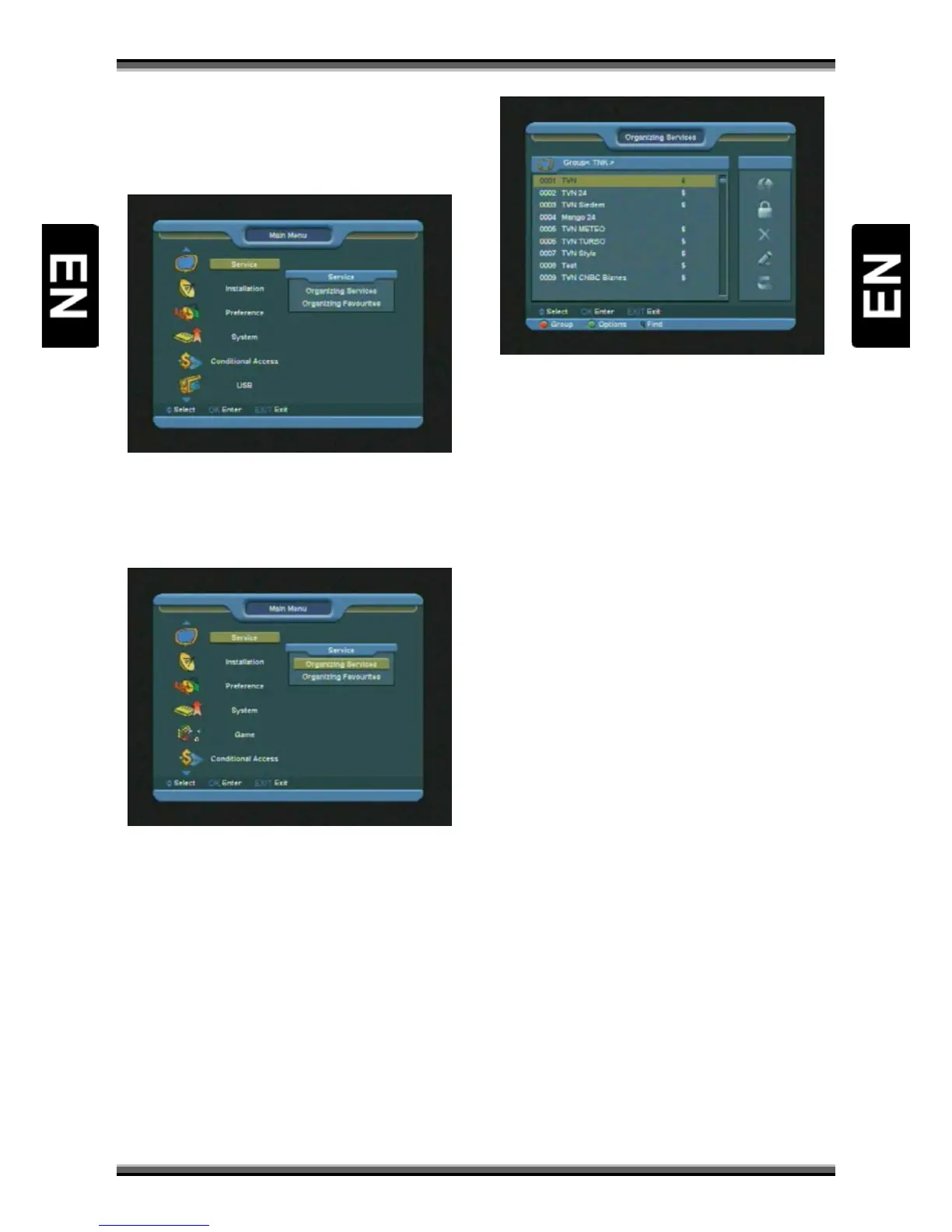
When you press [Menu] key to enter menu, there
will display the picture like below:
1.Press [↑/↓] key to select menu pages among
Service, Installation, Preference, System, Game,
Conditional Access, USB and Internet (optional).
2.Press [OK] key to enter the selected item.
In “Service” menu:
1.Press[↑/↓] key to select menu items among
Organizing Services and Organizing Favourites.
2.Press[OK]key to enter the selected item.
10.1. Organizing Services
When you enter to “Organizing Services” menu,
there will display the screen like below.
1.You can move highlight by press [↑/↓] keys to
preview the current highlighted program in the
right side preview window.
2.You can press [P+/P-] keys to implement the
Page Up/Page Down function.
3.You can use [←/→] key to switch between list of
channels and list of channel edit functions – Move,
Lock, Delete, Rename, Skip.
4.Press color key can implement the
corresponding function – Group, Options, Find.
5.You can press [Exit] key to enter full screen
playing mode.
10.1.1. Move
You can reorder and move the service to the
preferred position. Mark the desired services using
[OK] button, use → button to choose Move mode
and press [OK] button, then use↑,↓ buttons to
move and press [OK] button to confirm.
10.1.2. Lock
You can restrain and lock the services. Mark the
desired services using [OK] button, use → button
to choose Lock mode and press [OK] button to
confirm.
10.1.3. Delete
You can delete the services. Mark the desired
services using [OK] button, use → button to
choose Delete mode and press [OK] button to
confirm.


 To Next Page