Monitor Settings
22
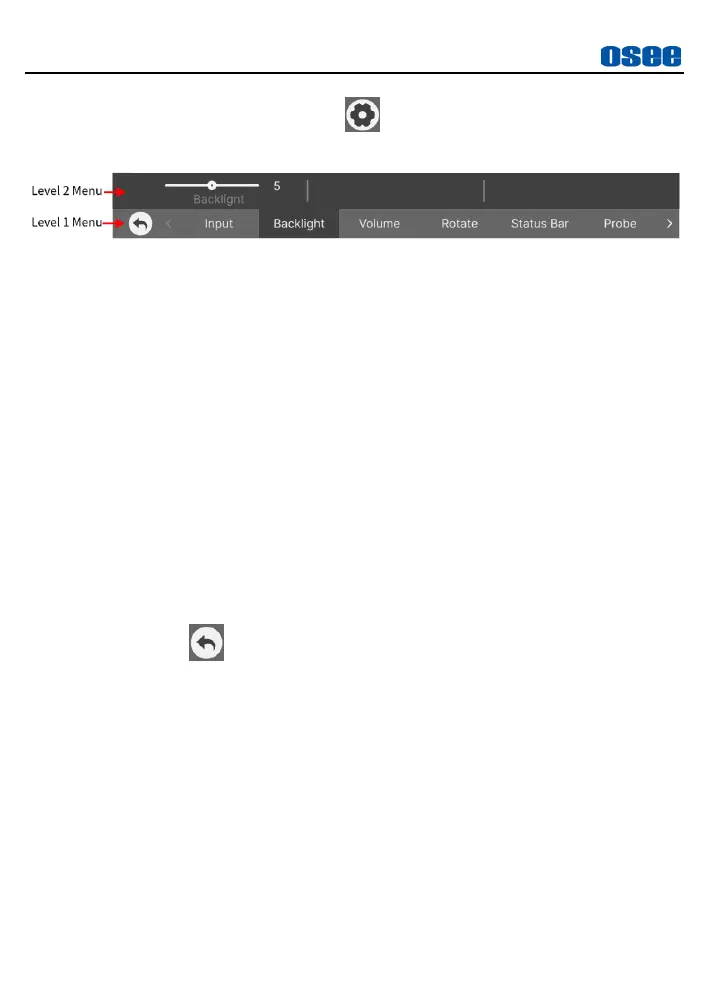
Tap on the monitor settings button to display monitor settings menu
on screen, as shown in Figure 5.1-1:
Figure 5.1-1 Structure of Monitor Settings Menu
The menu bar is divided into two parts: Level 1 Menu and Level 2 Menu.
Follow the instructions below:
Level 1 Menu for Monitor Settings
It lists all items for monitor settings on the bottom of the screen, including
Input, Backlight, Volume, Rotate and so on.
Swipe left and right on this bar to navigate the items of the monitor
settings, tap one to select it. The background of the selected item will be
darkened.
Level 2 Menu for Monitor Settings
The details of the selected menu item are located just above the Level 1
menu bar. You can check the parameters of the current menu item.
Tap its parameters in Level 2 menu. Tap continuously to switch among its
options. When operating a slide caliper in Level 2 menu, swipe left to
decrease the item value, and swipe right to increase its value.
Tap on the return button to exit monitor settings menu.
5.2 Monitor Settings Items
The following will introduce the contents and functionality of the monitor
settings menu items.
5.2.1 INPUT
The INPUT menu provides HDMI input, as shown in Table 5.2-1:


 To Next Page