3.13.2 Configure cal
The Configure Cal option enables you to change the field
calibration type and various calibration parameters.
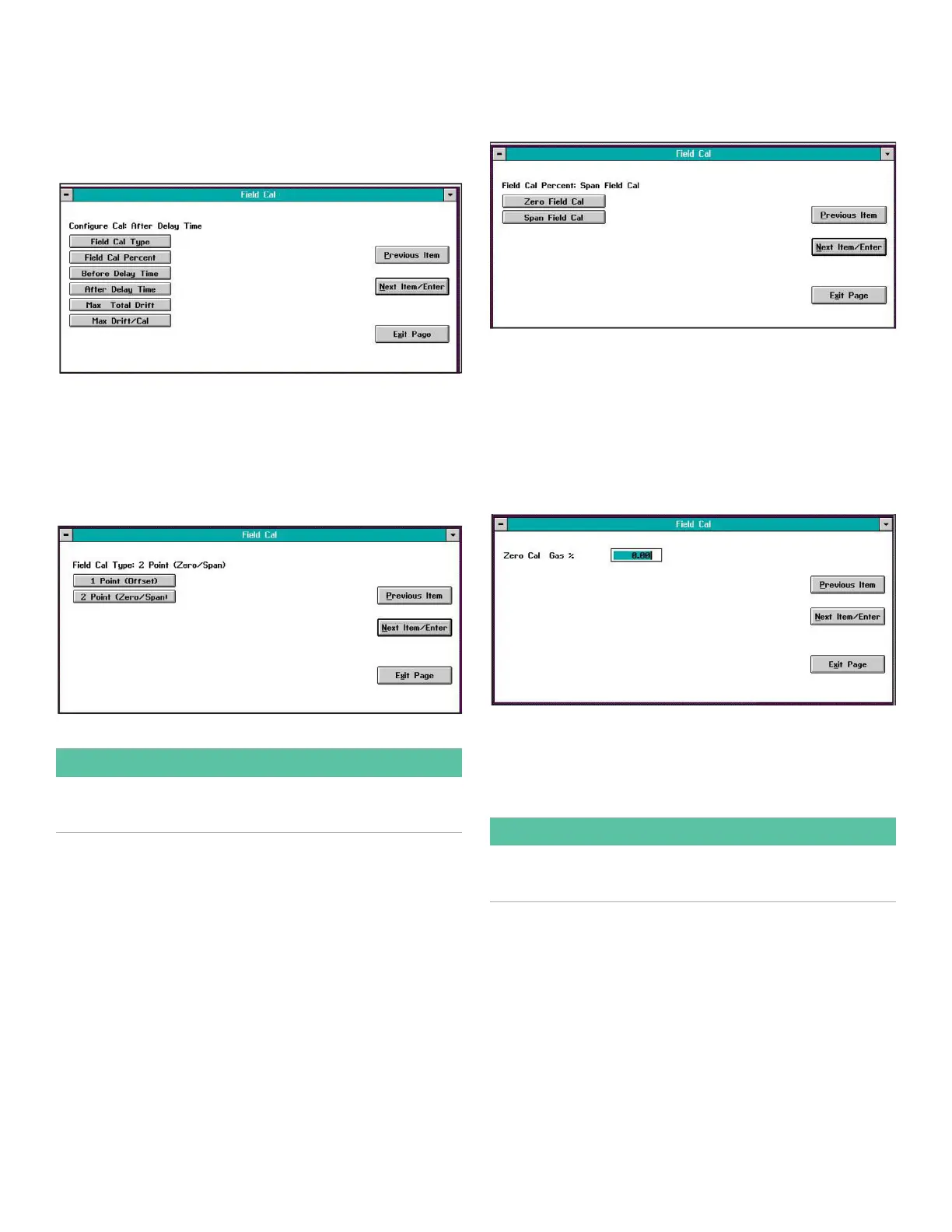
Clicking on the Configure Cal button opens a window like
that shown in Figure 17 below.
Figure 17: Configure cal window
Click on the desired option button and proceed to the
appropriate section for a discussion of that option.
3.13.2a Field cal type
A typical Field Cal Type window is shown in Figure 18 below.
Figure 18: Field cal type window
IMPORTANT:
The factory setting is the 2 Point (Zero/Span) calibration
type.
Click on the appropriate button to select the desired
calibration type. Then, click on any button on the right to
return to the Configure Cal window
3.13.2b Field cal percent
A typical Field Cal Percent window is shown in Figure 19
below.
Figure 19: Field cal percent window
The above menu is used to specify the oxygen percentages
of the zero and span calibration gases that will be used. The
recommended gases are listed on the XMO2 Calibration
Data Sheet.
Click on the Zero Field Cal button to enter the percentage of
oxygen in your zero gas. A window similar to Figure 20 below
opens.
Figure 20: %O2 Entry window
Type the zero gas oxygen percentage in the text box, and
click the Next Item/Enter button to confirm the entry (click
Previous Item or Exit Page button to leave the window
without changing the existing percentage).
IMPORTANT:
The factory setting is for a 0.00% zero gas and a 20.93%
span gas (air).
Repeat the above procedure to enter your span calibration
gas oxygen percentage. Then, click on any button on the
right to return to the Configure Cal window.
21


 To Next Page