4.3.2c Completing the process
By using the window in Figure 49 on page 30 and clicking on
the Next Item/Enter button after each entry, you will be able
to enter a value for each of the following parameters:
Note: The following list assumes that you are using both
pressure and background gas compensation. If you are
not using pressure compensation, the Pressure and Prs mV
parameters do not appear. If you are not using background
gas compensation, the BK mV parameter does not appear.
• %O2
• Prssure
• O2 mV
• BK mV
• Prs mV
After entering the last parameter, you will be returned
to the screen shown in Figure 49 on page 30. Finish the
programming of this section by completing the following
steps:
1. Repeat the procedure beginning at Figure 47 on page
30 until you have entered data for each parameter at all
of the points listed.
2. Click on the Exit Page button to return to Figure 45 on
page 30.
3. Repeat the procedure beginning at Figure 45 on page
30 until you have entered data for each of the labeled
background gases.
4. Click on the Exit Page button to return to Figure 43 on
page 29.
5. Repeat the procedure beginning at Figure 43 on page
29 until you have entered data for each of the listed
pressures.
6. Click on the Exit Page button in Figure 43 on page 29.
You have now completed the programming of the Factory
Cal menu and you should be back at the main meter
window.
4.4 The advanced menu
The final option in the Edit Functions menu (refer to Figure 34
on page 27) is Advanced. To select this option, click on the
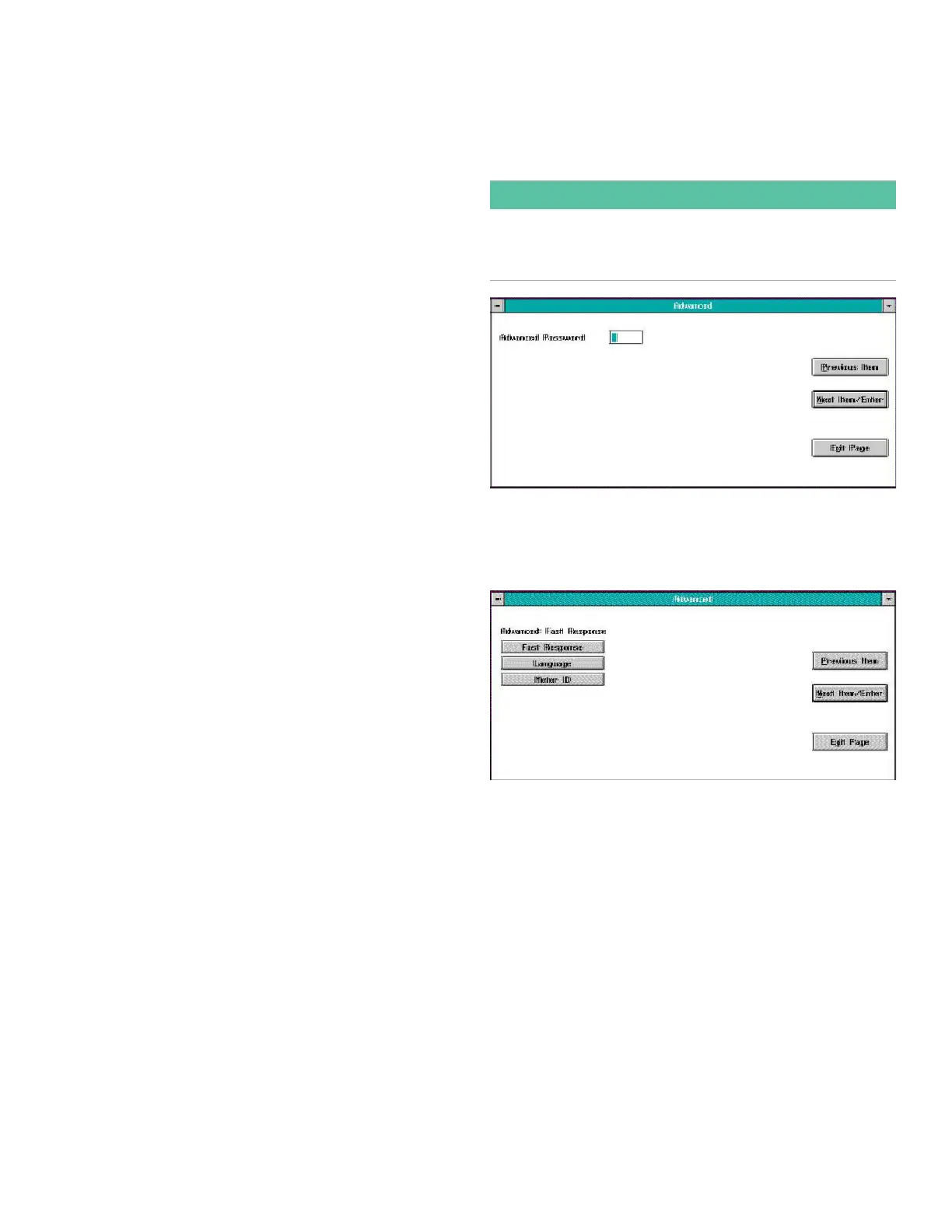
Advanced button, and a window similar to Figure 50 below
opens.
IMPORTANT:
You cannot enter this menu unless you have a valid
password. Your assigned password is listed on the page at
the end of this chapter.
Figure 50: Password window
Enter your password in the text box above and click on the
Next Item/Enter button. Then, a window similar to Figure 51
below opens.
Figure 51: Advanced main menu
The following options are available in this menu:
• Fast Response - a software enhancement resulting in
faster performance under certain conditions
• Language - change the language used for the XMO2
menus
• Meter ID - change the meter identification number
To select one of the above options, click on the
corresponding button in the window above and proceed to
the appropriate section for instructions.
31


 To Next Page