Appendix D. Programming with PanaView
D.1 Introduction
The PanaView™ graphical user interface offers interactive
communications between Windows-based PCs and
Panametrics instruments compatible with IDM protocol,
such as the XMO2 oxygen transmitter. [Compatible 32-bit
Windows operating systems include Windows 98SE, NT 4.0
(with Service Pack 6), 2000, XP and ME.] With PanaView, you
can:
• Load and save site file data
• Create and save graph and log files
• Display text output and graphs of live measurement
data
• Create custom templates for displaying text, graph and
log data
• Interface with multiple Panametrics instruments.
This document focuses on particular applications suitable
for the XMO2 transmitter. For general PanaView applications
such as creating graph and log files, displaying live
measurement data, and creating custom templates, please
refer to the general PanaView User’s Manual (910-211).
D.2 Wiring the RS232 interface
All IDM-protocol instruments utilize an RS232 interface to
communicate with a PC. For details on wiring your RS232
interface, refer to Establishing the RS232 Communication
Link on page 16, and the Panametrics document EIA-RS
Serial Communications (916-054).
D.3 Setting Up the communications
port
Use the steps below to establish communications with the
XMO2.
1. Open the “New Meter Browser” window and expand the
network tree. Then, highlight the My Computer (Name)
branch by clicking on it.
2. Pull down the “Edit” menu by clicking on it in the menu
bar.
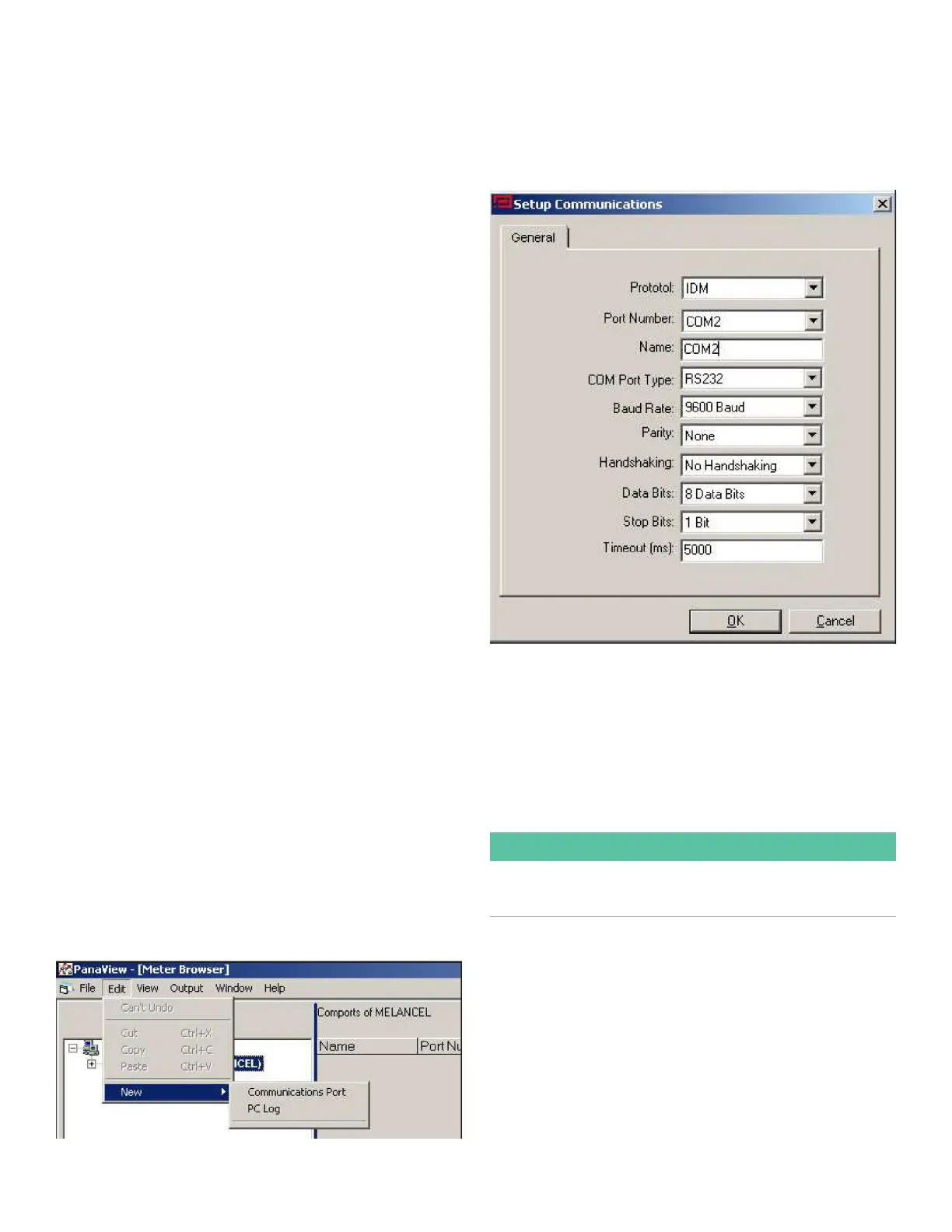
3. Click on the “New” menu option to open a submenu
opens with two choices (see Figure 77 below).
Figure 77: Edit menu
4. Click on the “Communications Port” option to select it.
The Setup Communications screen appears similar to
Figure 78 below.
Figure 78: Setup communications screen
5. Open the Protocol menu (the first of the drop-down
menus) and click on IDM.
6. Select any suitable available baud rate. A baud rate
of 19200 is appropriate for almost all applications.
However, if you experience periodic communication
reliability problems, you may wish to consider lowering
the baud rate on your instrument and in PanaView.
IMPORTANT:
Be sure all the communications port settings match those
made in setting up the meter serial port.
7. Click on [OK] to complete data entry.
64


 To Next Page