Chapter 4. Programming with instrument data
manager
4.1 Introduction
The XMO2 is factory-programmed and ready for immediate
use. However, you can access its programming with your
PC, using the Panametrics Instrument Data Manager (IDM)
software. IDM also allows you to upload or download site
files, display data, and log and view real-time data and
diagnostic data in numeric, bar chart or line chart formats.
For further information on the display and logging functions,
refer to the Instrument Data Manager User’s Manual (910-
185). Since Chapter 3, Startup and Operation, describes the
Field Cal and 4-20 mA Output options, this chapter covers
the Error Handler, Factory Cal and Advanced options in the
Edit Functions menu.
Note: Be sure you have properly installed Instrument Data
Manager on your PC before attempting to program the
XMO2.
4.2 The edit functions menu
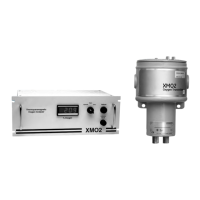
To access the XMO2 calibration, pull down the Edit Functions
menu from the Instrument window.The menu consists of the
five commands displayed in Figure 34 below. To access any
of the commands, simply select it from the menu.
Note: As a programming aid, the relevant portions of the Edit
Functions menu have been mapped in Appendix C.
Figure 34: Edit functions menu
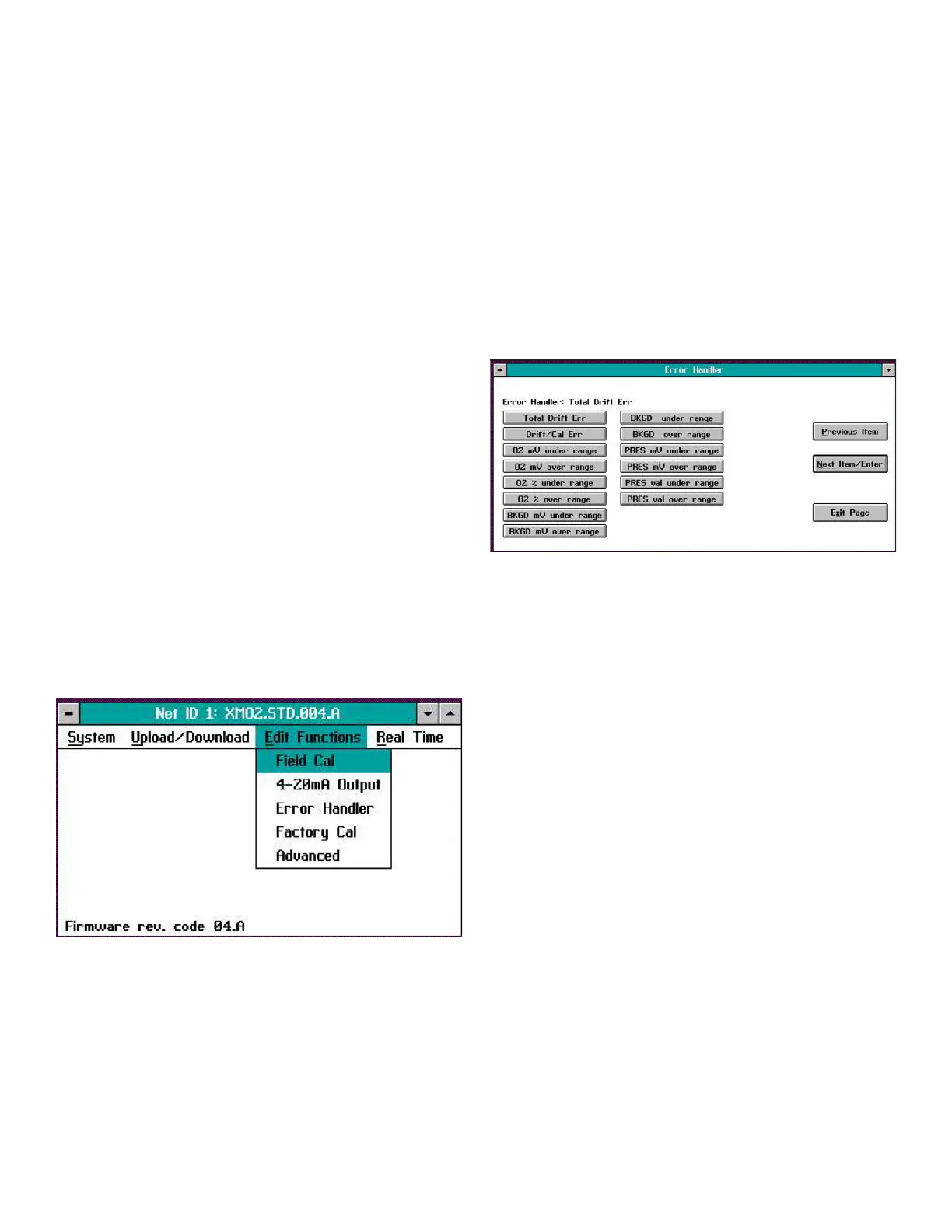
The following three buttons appear at the right of all menu
windows (see Figure 35 on page 27):
• Previous Item - returns you to the previous window
(either the command menu or the previous parameter
entered).
• Next Item/Enter - confirms the selection or data entered,
and either opens the next window or returns you to the
command menu (depending on your position in the
program).
• Exit Page - returns you to the command menu.
4.2.1 The error handler menu
Note: For information on the Field Cal and 4-20 mA Output
options, refer to Chapter 3.
The Error Handler menu allows you to configure the manner
in which the XMO2 responds to various error conditions.
When you click on the Error Handler button in the Edit
Functions menu (Figure 34 on page 27), a window similar to
Figure 35 below opens.
Figure 35: Error handler window
There is a button in the above window for each of the
following error conditions:
• Total Drift Err
• Drift/Cal Err
• O2 mV under range
• O2 mV over range
• O2 % under range
• O2 % over range
• BKGD mV under range
• BKGD mV over range
• BKGD under range
• BKGD over range
• PRES mV under range
• PRES mV over range
• PRES val under range
• PRES val over range
To configure the XMO2’s response to any of the above
error conditions, click on the corresponding button in the
window above and proceed to the appropriate section for
instructions.
27


 To Next Page