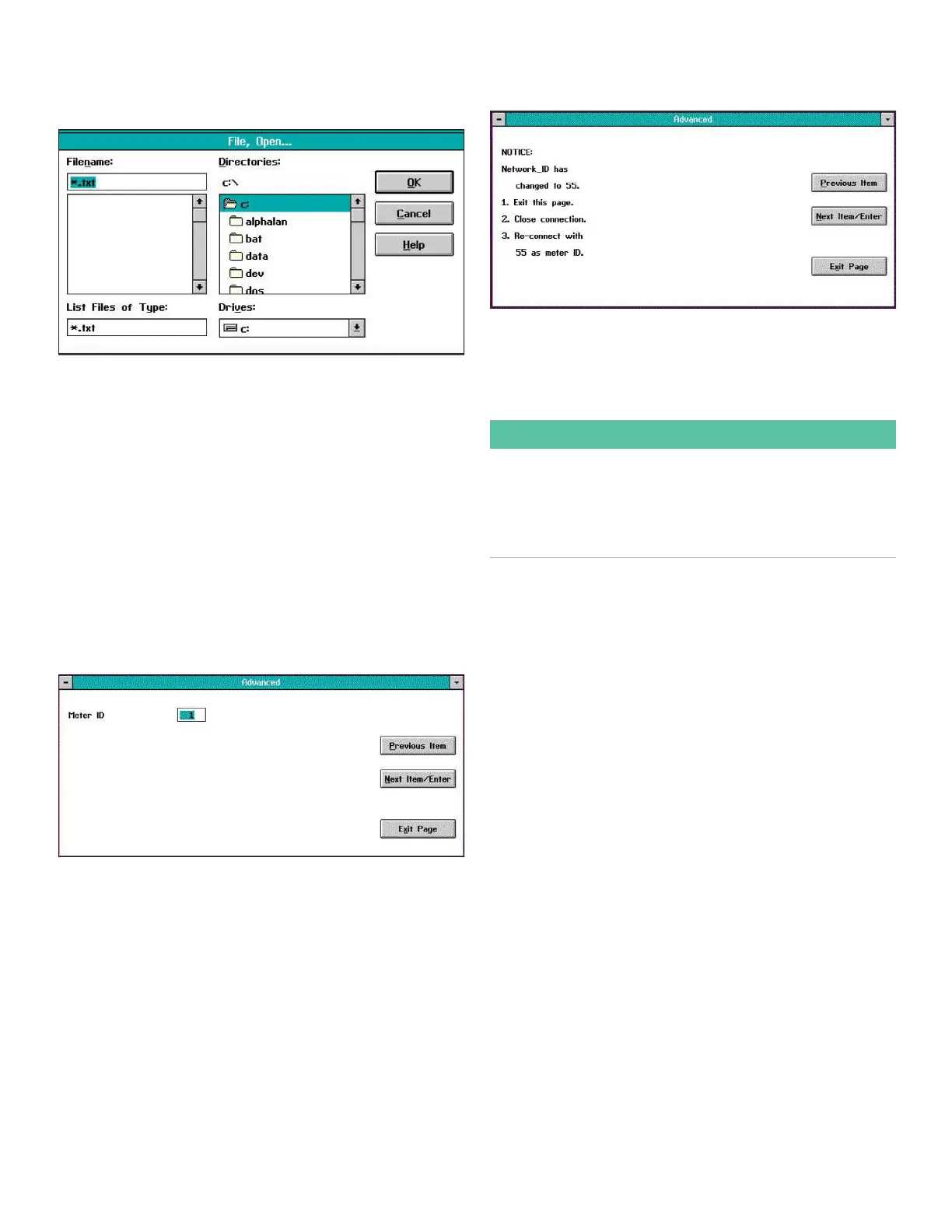
To load your translated menu string file into the XMO2, click
on the Download from PC button to open a window similar
to Figure 55 below.
Figure 55: Downloading a data file
In the above window, navigate to the location and name of
your translated menu string file on the PC and click on the
OK button. The new file will be loaded into the XMO2. After
you power down the meter and restart it, all of the menus
will be displayed in the new language.
If after loading a new text file in a different language, you
wish to return to the original English menus, simply click on
the Restore to Defaults button. The XMO2 will reload a copy
of the factory default.txt file from its memory and the menus
will once again appear in English.
4.4.3 Meter ID
When you click on the Meter ID button, a window similar to
Figure 56 below opens.
Figure 56: Meter ID window
At the above window, you may either leave the existing
meter ID number without change, or enter a new meter ID
number. In either case, click the Next Item/Enter button to
confirm the entry (or click the Previous Item or Exit Page
button to leave the window without changing the meter ID
number).
If you changed the existing meter ID number, a window
similar to Figure 57 below opens.
Figure 57: Instructions for new meter ID number
Note the instructions above for reconnecting your XMO2 to
the PC using the new meter ID number. Then, click on the
Next Item/Enter or Exit Page button to return to the Advanced
main menu.
IMPORTANT:
Once you have entered a new meter ID number, you
cannot immediately change the number again. You must
exit the page, close the connection, and reconnect the
meter using the new meter ID number. If you wish, you may
then repeat the process to enter another meter ID number.
33


 To Next Page