D.5 Changing meter settings
Through PanaView, XMO2 users can handle remote
programming of the meter. They can:
• Program and change a meter’s operating parameters
• Set up, start, and stop logs
• Calibrate and test inputs and outputs
• Clear various
To access the meter programming:
1. Enter the New Meter Browser option from the “File” menu.
2. Expand the network tree until you reach the desired
meter.
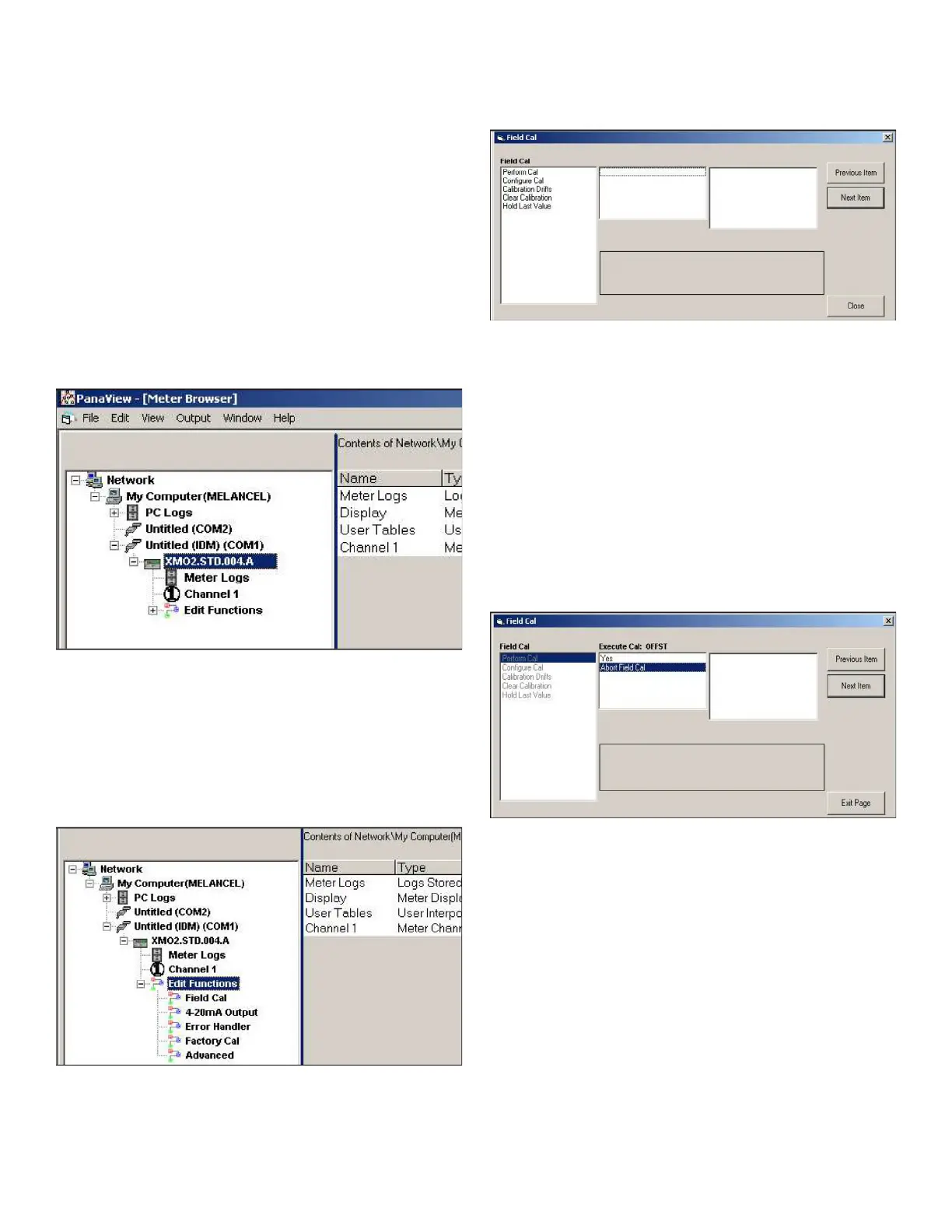
3. Then expand the meter tree as shown in Figure 83
below.
Figure 83: New meter browser with meter branch
4. From the meter tree, expand the Edit Functions option.
The window now appears similar to Figure 84 below,
with a list of available menus. The five menus listed are
those available through the IDM interface, as discussed
in Chapters 3 and 4. Refer to the menu maps on Figure
75 on page 62 and Figure 76 on page 63 as a guide to
programming.
Figure 84: Meter tree with edit functions option
5. To open a particular menu, double-click on that menu
on the tree. For example, if you double-click on the Field
Cal menu, a window opens similar to Figure 85 below.
Figure 85: Field cal window
Note: For more information about the five menus, please
refer to Chapter 3, Startup and Operation, and Chapter 4,
Programming with Instrument Data Manager.
6. To enter a particular option:
a. Highlight and double-click on the desired option in the
left pane. Figure 86 below shows the first entry (Perform
Cal) in the Field Cal option. The title above the center
pane lists the current entry, while the center pane
displays the available selections for that entry.
b. Click on the desired choice; if the entry requires a
numeric value, change the value displayed in the right
pane.
Figure 86: Perform cal option in the field cal menu
c. Do one of the following:
• Click on [Next Item] to proceed to the next menu item,
or
• Click on [Previous Item] to return back through the menu
to a previous item.
Note: If you click on either [Next Item] or [Previous Item]
without changing the settings, the current settings remain
unchanged.
66


 To Next Page