36
BASIC OPERATIONS
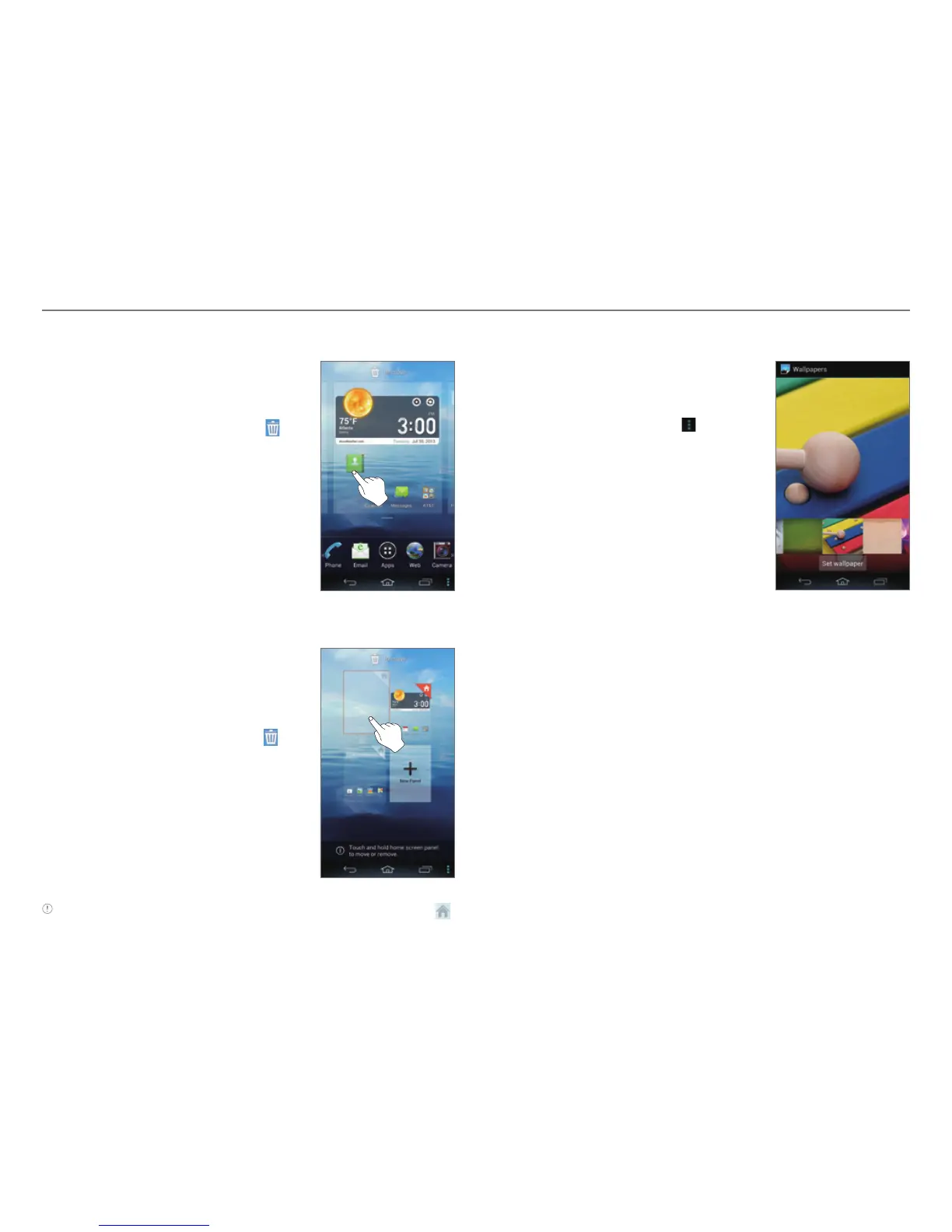
Arranging an Icon, Widget, or Folder
1. On the Home screen, tap and hold
an item.
2. Drag it to a desired location.
x To delete an item, drag it to
at the top of the screen.
Arranging a Panel
1. On the Home screen, pinch your
fingers together.
2. Tap and hold a panel.
3. Drag it to a desired location.
x To delete a panel, drag it to
at the top of the screen.
x Tap New Panel to add a new
panel. You can create up to
seven panels.
Note To set a panel as the primary panel for the Home screen, tap .
Setting the Home Screen Wallpaper
1. On the Home screen, tap and hold
an empty area.
x You can also flick the Home
screen upward or tap
.
2. Tap Wallpaper.
3. Tap Live Wallpapers, Wallpapers,
Gallery, or Downloaded
Wallpapers.
4. Select and tap a wallpaper and tap
Set wallpaper.
x When you tap a wallpaper in
the Gallery tab, you can crop
the image.


 To Next Page