Install Drivers for 9000 Boards
16
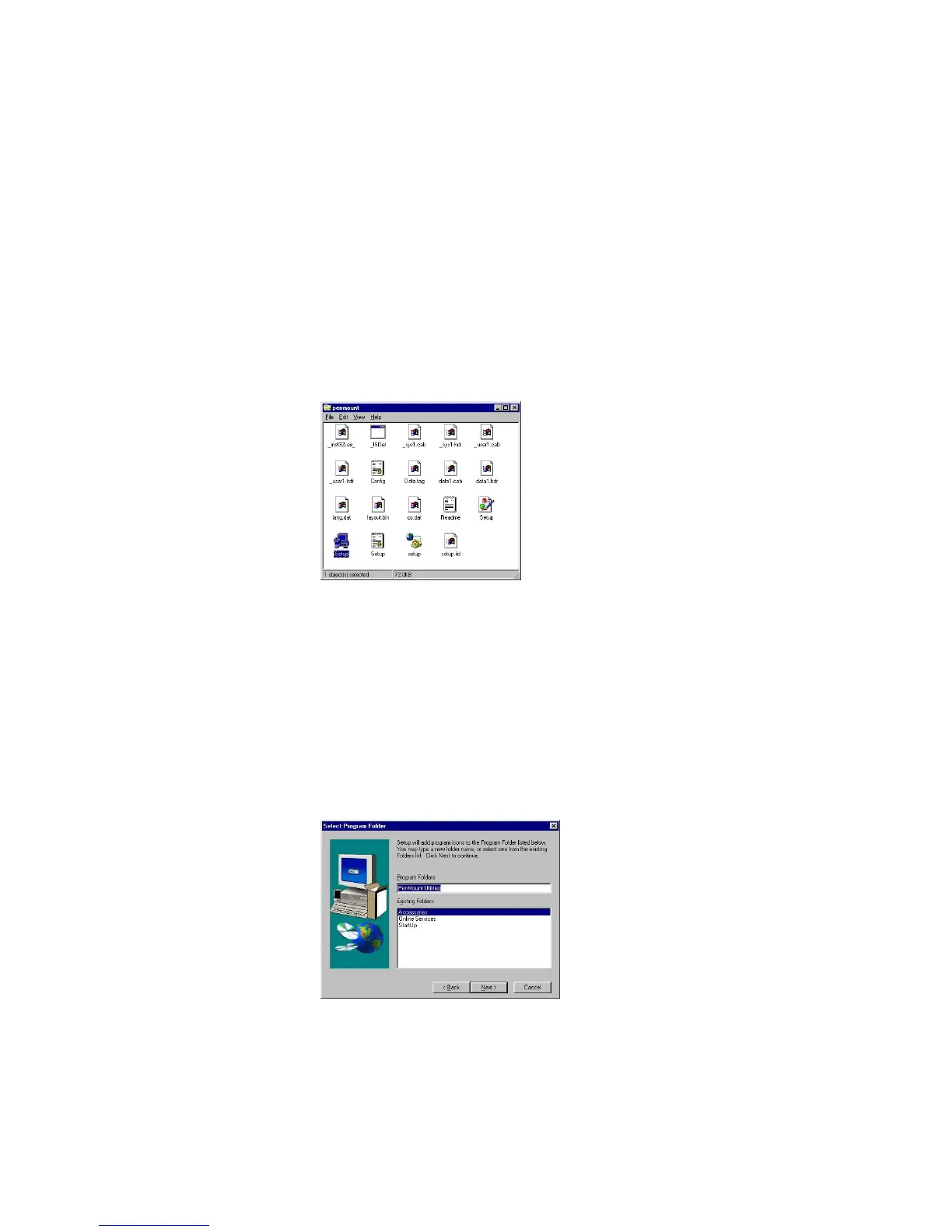
_SYS1.CAB _USER1.HDR
_USER1.CAB SETUP.LID
SETUP.BMP DATA1.HDR
DATA1.CAB LAYOUT.BIN
CONFIG.INI README.TXT
If you have an older version of the PenMount Windows 95 driver installed in
your system, please remove it first. Follow the steps below to install the
PenMount Windows 95 driver:
1. When the system first detects the control board, a screen appears that
shows “Unknown Device.” Press Cancel.
2. Select "Run" in the "Start" menu.
3. Find "setup.exe" in the Windows 95 driver folder.
4. The PenMount logo appears, then "Installation Wizard," ‘PenMount
Utilities” and a "Welcome" message appear. Select “Next.”
5. The Software License Agreement screen and Information screen
appear. Select "Yes" and "Next".
6. The Choose Destination Location screen appears. To install PenMount
Utilities into the folder: C:\Program Files\PenMount\Win9x, select
"Next’ or modify the folder name to one you would like to use.
7. The Select Program screen appears. The default is "PenMount
Utilities". Select "Next” or change it.
8. The Start Copying Files screen appears. Select "Next" to copy files to
the system.
9. The Setup Complete screen appears. Select "Finish".



 To Next Page