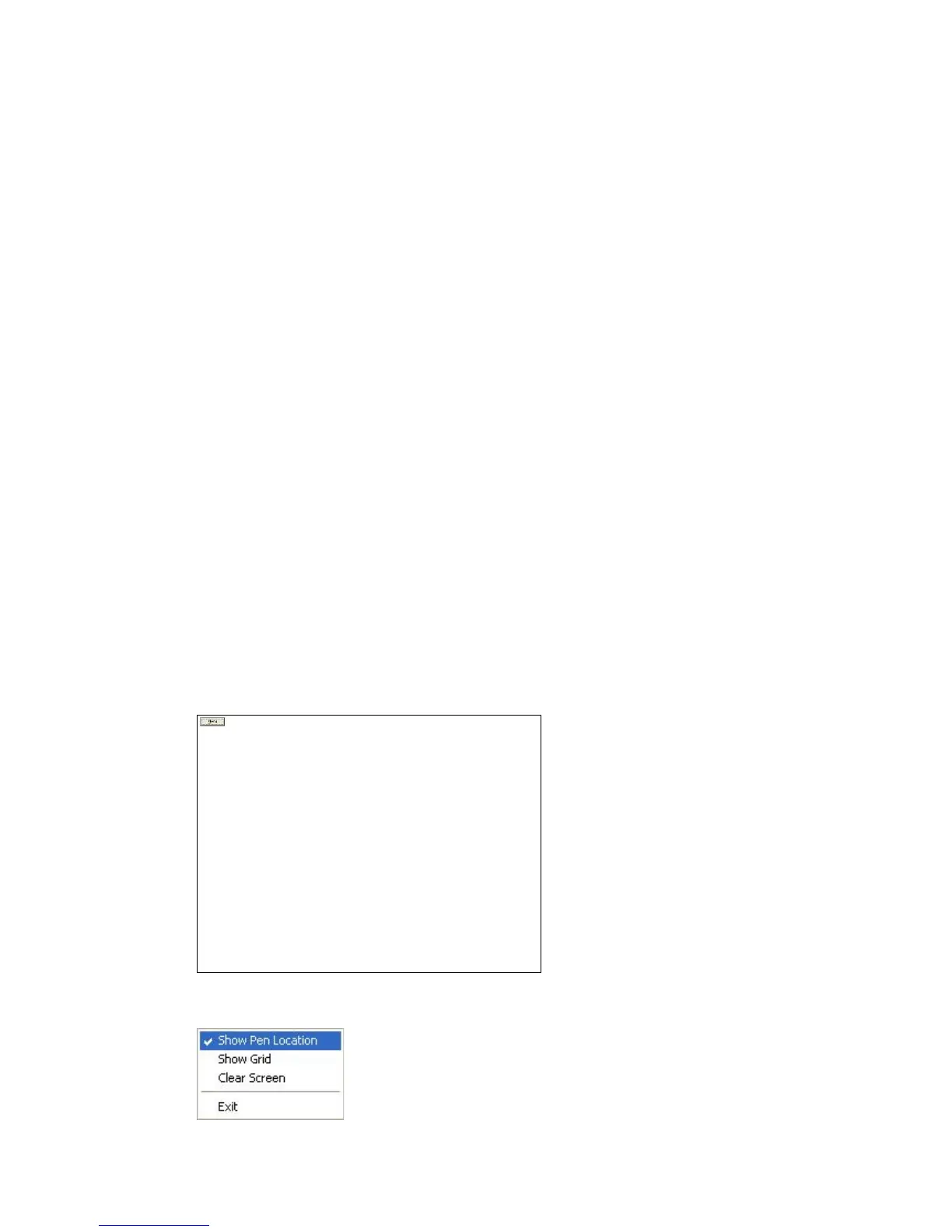
Driver Software Functions
58
4. Use each driver’s Calibrate function to calibrate each computer’s touch
screen.
5. You must calibrate each touch screen before configuration is complete.
4.5. Rotation
There are currently a number of software packages on the market that support rotating
monitors 0°, 90°, 180°, and 270°. However, you will not be able to use a touch screen
unless it is matched to the appropriate rotation. Our rotation configuration function allows
you to match the touch screen easily when you rotate your monitor.
If you use a rotating monitor, you will need a display card such as from nVidia, Intel, SMI
or ATI and software such as Portrait Pivot Pro. For software operation and features,
please refer to your software manual.
Configuring the rotation function is easy. Select this option and a ‘point’ appears for you
to touch. Once the point is touched, the software driver understands which degree you
plan to rotate your display. The rotation function supports 90, 180 and 270-degree
rotation.
4.6. Draw
To test or demonstrate the PenMount touch screen operation. The display shows touch
location. Click Draw to start. Touch the screen with your finger or a stylus and the
drawing screen registers touch activity such left, right, up, down, pen up, and pen
down.
Touch the screen with your finger or a stylus and the drawing screen registers touch
activity such left, right, up, down, pen up, and pen down.
Click Menu button for more functions.



 To Next Page