Install Drivers for 9000 Boards
21
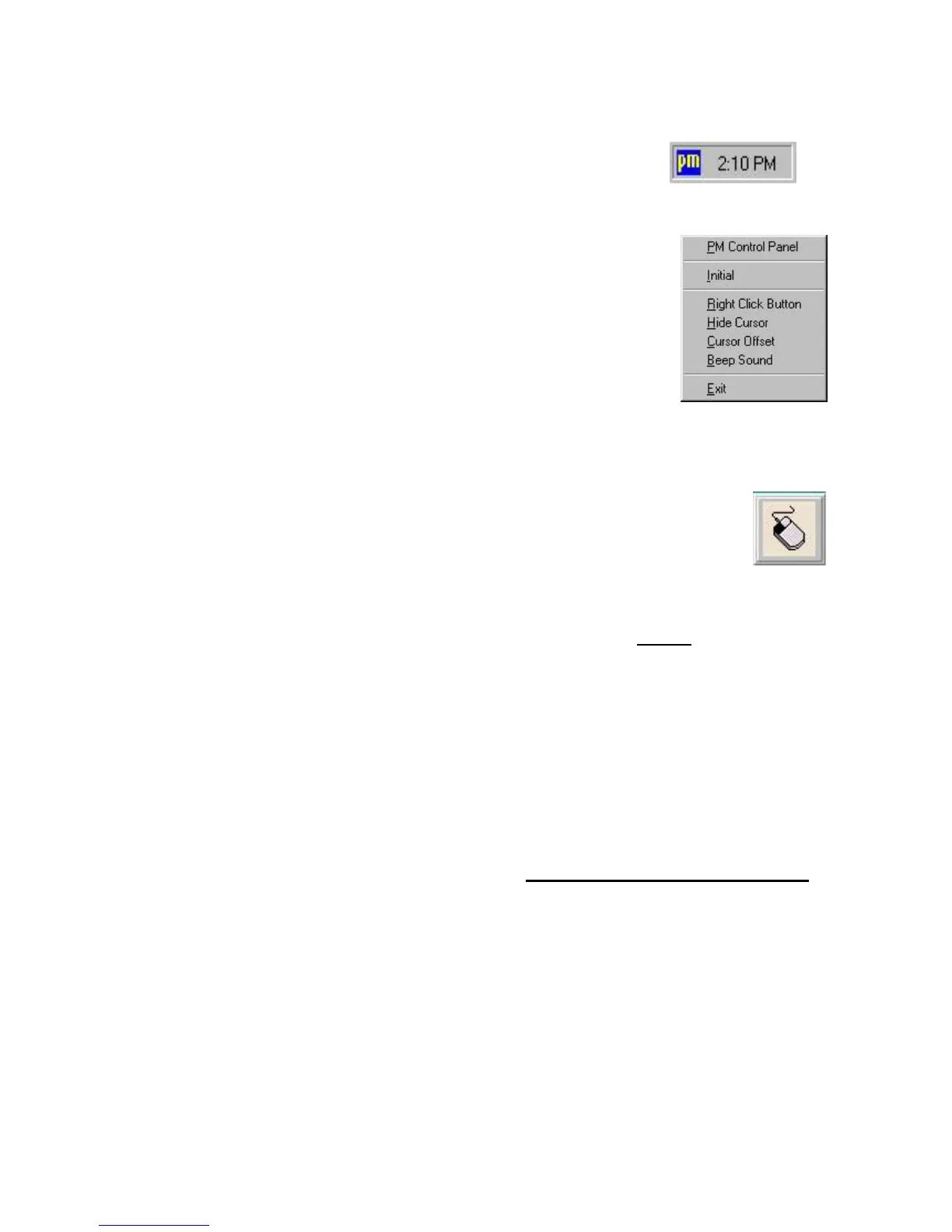
3.3.3.2. PenMount Monitor Menu Icon
PenMount monitor icon (PM) appears in
the notification area of Windows 95 system
when you turn on PenMount Monitor in
PenMount utilities.
PenMount Monitor has the following
functions.
Initial
This resets the PenMount controller chipset. Normally,
you do not need to use this function. The Windows 95
driver checks the controller chipset automatically.
Right
Click
Button
When you select this function, a mouse
icon appears in the right-bottom of the
screen. Click this icon to switch between
Right and Left Button functions.
Hide
Cursor
Set to hide or show cursor.
Cursor
Offset
Adjust the cursor offset. See Setting of PenMount
Control Panel on page 19.
Beep
Sound
Turn on or off the beep.
Exit
Exit PenMount Monitor function.
3.3.3.3. PenMount Rotating Functions
PenMount Windows 95 Driver supports several display rotating
software packages. See Chapter 4. Driver Software Functions
on page 51 for more information. PenMount drivers for Windows 95,
98/ME, NT, and 2000/XP/2003/VISTA/7 support the following
display rotating software packages:
- Portrait’s Pivot Screen Rotation Software
- ATI Display Driver Rotate Function
- nVidia Display Driver Rotate Function
- SMI Display Driver Rotate Function
- Intel Display Driver Rotate Function
Configure Rotate Function
1. Install the rotation software package.



 To Next Page