Install Drivers for 9000 Boards
32
11. After rebooting, go to “Programs”, “PenMount Utilities”, and then
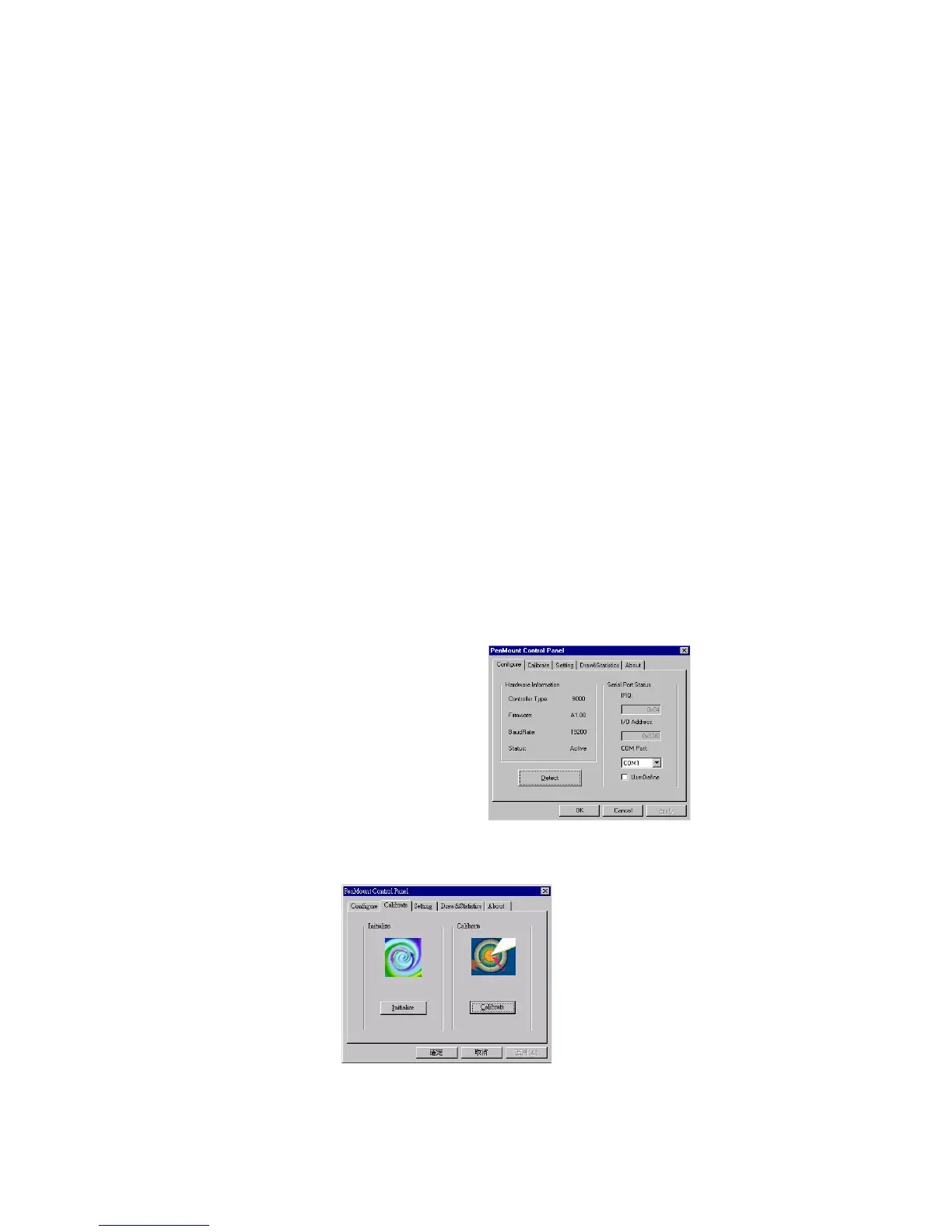
“PenMount Control Panel”. The PenMount Control Panel appears.
Select Calibrate and begin calibration to adjust the mapping of the
touch screen and display.
3.5.2. Configure PenMount Windows NT Driver
While rebooting, the computer finds the new 9000 control board
automatically. The touch screen is connected but not calibrated. Follow the
procedures below to carry out calibration.
3.5.2.1. PenMount Control Panel
You can access the PenMount control panel from the “PM” icon in
the notification area. The functions of PenMount Control Panel are
explained below.
Configure
This item configures the driver to use with the hardware by setting
COM port, IRQ number and I/O address.
Controller Type
This shows the PenMount controller type, which
is DMC9000.
Baud Rate
Baud rate is fixed at 19200 for DMC9000.
Detect
Click this button to auto-detect COM port, IRQ
number, or base address.
User Define
Lets you input this data from your keyboard.
Calibrate:
This item provides Initialize and Calibration functions.



 To Next Page