Install Drivers for 9000 Boards
40
Calibrate
This function offers two ways to calibrate your touch screen. ‘Standard
Calibration’ adjusts most touch screens while ‘Advanced Calibration’
adjusts aging touch screens.
Standard
Calibration
Click this button and arrows appear pointing to red squares.
Use your finger or stylus to touch the red squares in
sequence. After the fifth red point calibration is complete. To
skip, press ‘ESC’.
Advanced
Calibration
Advanced Calibration uses 9, 16 or 25 points to effectively
calibrate touch panel linearity of aged touch screens. Click
this button and touch the red squares in sequence with a
stylus. To skip, press ‘ESC’.
Command
Calibration
Command call calibration function. Use command mode
call calibration function, this can uses 4, 9, 16 or 25
points to calibrate.
E.g. Please run ms-dos prompt or command prompt.
c:\Program Files\PenMount Universal Driver\DMCCtrl.exe
-calibration 4 (Standard Calibration)
DMCCtrl.exe - calibration ($)
4= Standard Calibration 4
9= Advanced Calibration 9
16= Advanced Calibration 16
25= Advanced Calibration 25
To calibrate your touch screen:
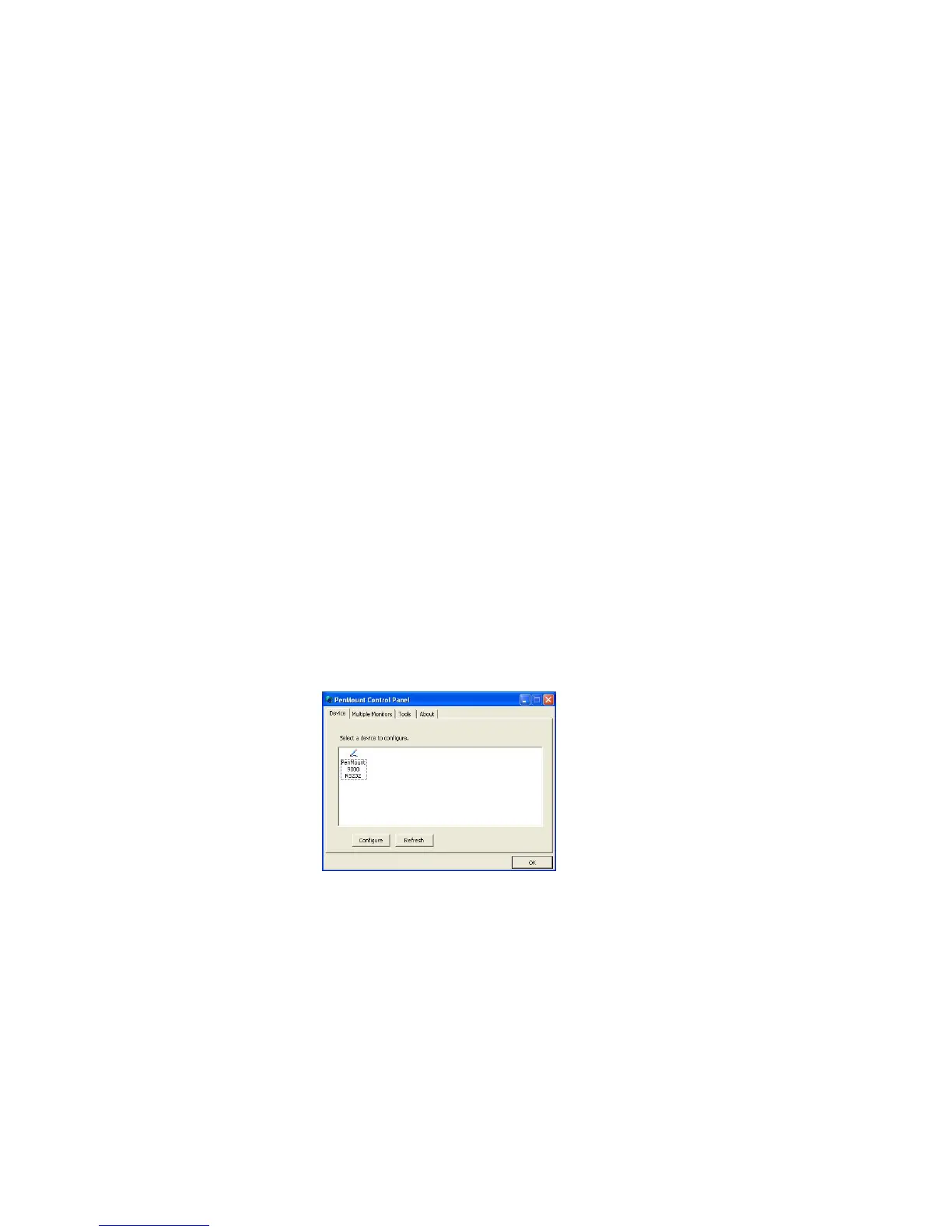
1. Please select a device then click “
Configure
”. You can double click the
device too.
2. Click “
Standard Calibration
” to start the standard calibration or
“
Advanced Calibration
” for Advanced Calibration.



 To Next Page