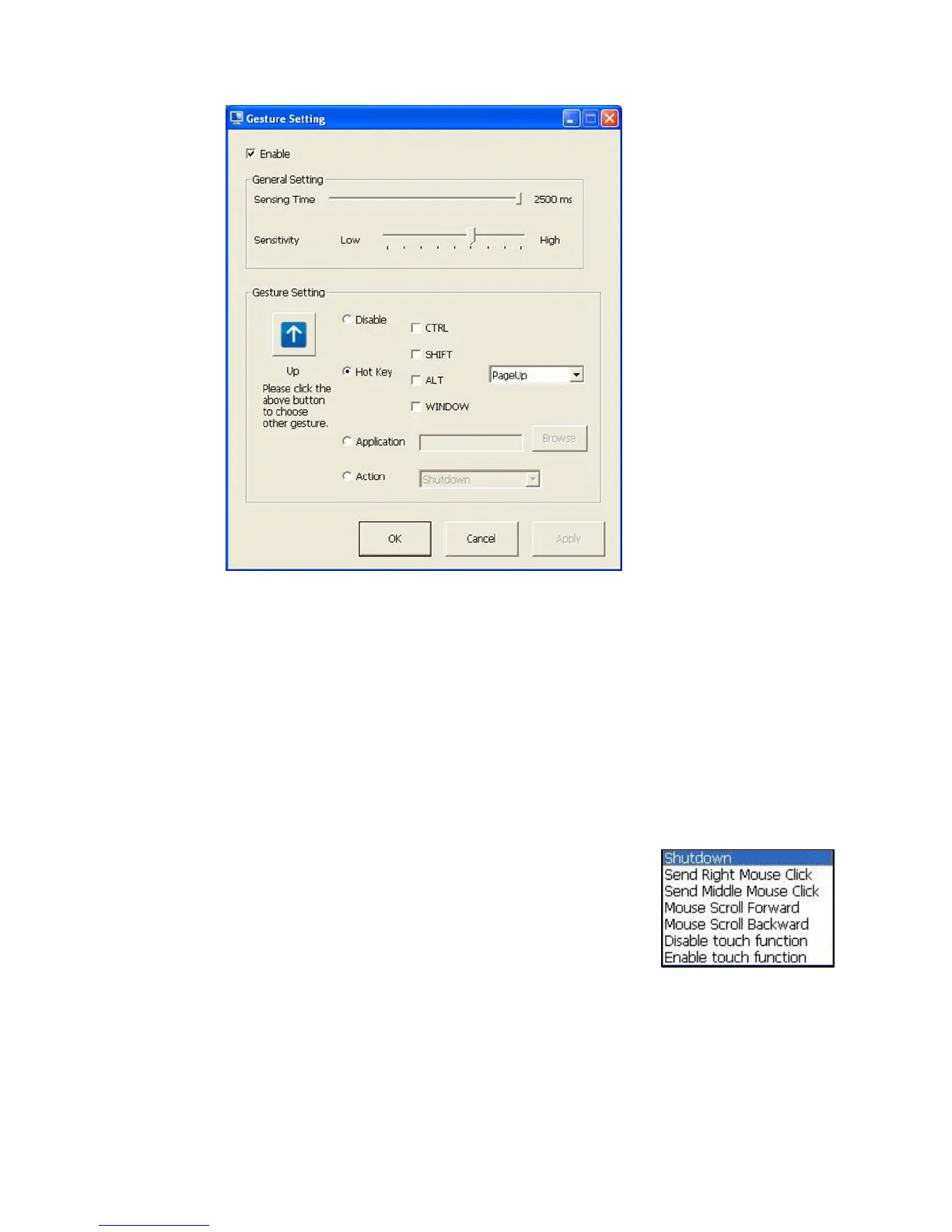
PenMount Gesture AP
65
a. Enable/disable
Check Box.
Select/deselect the
box to enable/disable
PenMount Gestures.
b. General Setting Box
b-1. Sensing Time -
Move the slider to
adjust PenMount
Gestures Sensing
Time between 200
ms (0.2 sec) and
2500 (2.5 sec). The
shorter the sensing
time is configured,
the faster the gesture
has to be done.
b-2. Sensitivity – Move
the slider to adjust
how sensitive you
want your finger
stroke on the
touchsceen to be
sensed.
c. Gesture Settings Group Box. This group box allows you to individually
configure each gesture.
d. Gesture Select Button. Press this button to select the specific gesture you are
going to configure. When the gesture icon turns to blue, it is enabled. When it is
gray, it is disabled. See the following for details.
d-1. Disable Button. When this button is selected, the gesture is disabled.
d-2. Hot-key Configure Button. Configure the hot-keystrokes for specific gesture.
The hot-key can include up to 5 keystrokes. When that gesture is sensed, the
configured keystrokes will be reported.
d-3. Application Invoke Button. Configure to invoke a specific application with
particular gesture. So that when the gesture is sensed, the specific application
will run.
d-4. Action Configure Button. Configure to make use of
PenMount Gesture AP’s built-in shortcuts. So that
when a particular gesture is sensed, a specific action
will be taken. PenMount Gesture AP have the
following shortcuts built in:
Note: For Disable touch function, after touch function is disabled, the
mouse-pointer won’t move following your finger sliding on the touch screen
and your finger tapping won’t trigger any action, however, gestures will still
be sensed.
(Note: If you select
Disable touch function
, the curser will not react
to finger movement on the touch screen and the tapping will not
trigger any program action. However, the gesture recognition is still
functioning.)
b
d-4
d-3
d-2
d-1
c
d
a
b-1
b-2



 To Next Page