Control Panel Adjustments
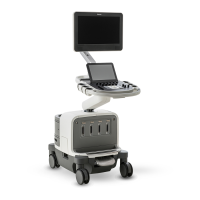
The control panel is mounted on an articulated arm that permits it to be positioned vertically
and in an arc from side to side. The control panel arm can also be locked for moving the system.
You can adjust the brightness of the control panel to compensate for ambient light. You can
also change the default brightness setting for the control panel.
Adjusting Control Panel Brightness
The control panel and touch screen brightness controls in the setups allow you to adjust the
brightness of the control panel and touch screen to compensate for changes in ambient light.
1. Touch Utilities.
2. On the System tab, touch Setups.
3. Do one of the following:
• Select System Settings, and click Display. Select a setting for Control Panel Brightness.
• Turn the CP Brightness knob, or touch CP Brightness until your preferred brightness is
selected.
Positioning the Control Panel
You can swivel the control panel, move it side-to-side, and move it up and down to improve
ergonomics.
1. Press the (On/Off) control to turn on the system.
2. Push the foot pedal fully down to engage the brakes. See “Using the Brakes and Steering
Locks” on page 115.
CAUTION
You must engage the brakes to change the position of the control panel. If the brakes are not
engaged, the release button on the front handle will light when pressed, but the control
panel will not unlock.
3. Press the release button on the front handle.
System Controls
Using the System
EPIQ 7 User Manual 4535 617 25341 121


 To Next Page