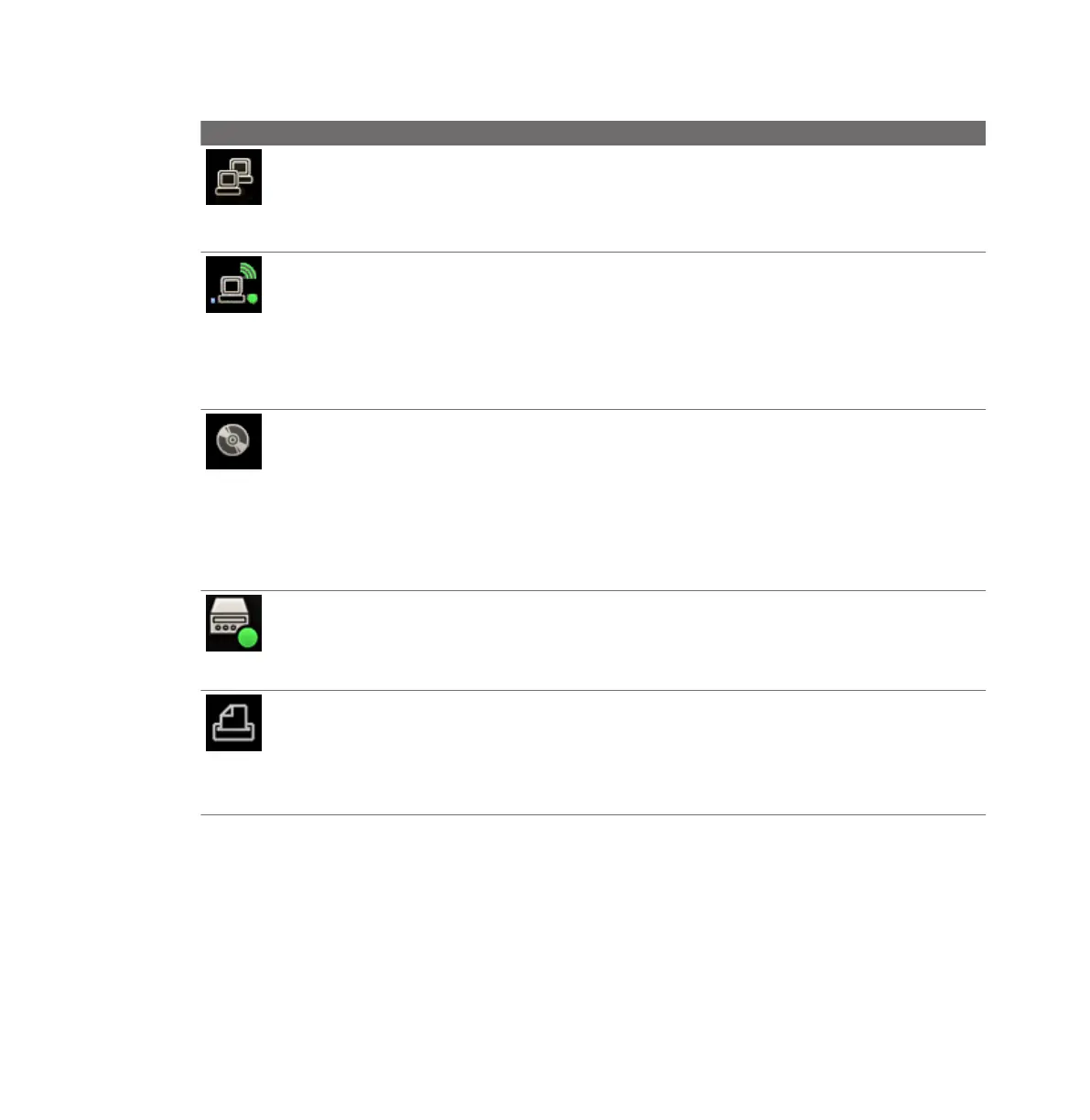
Icon Description
Indicates the status of the network and exports:
• Green dot: Connected
• Red X: Disconnected or error
Click the icon to view details of network status or export queue.
Indicates the status of the wireless network:
• Green dot: Connected
• Red X: Disconnected or error
• Blue vertical bands: Strength of wireless signal
Click the icon to open the DICOM Setup dialog box. This icon appears only if the DICOM
licensed options are installed.
Indicates the status of the DVD drive:
• No dot: Available
• Green dot: Writing data
• Yellow dot: Drive is empty (or malfunctioning)
• Red X: Failed
Click the icon to open the DVD Status dialog box. You can cancel, pause, or resume any data
transfer job listed.
Indicates the status of the DVD recorder (if installed):
• Green dot: DVD recorder is recording.
• Pause symbol: DVD recording is paused.
• Icon is hidden: DVD recorder is not recording.
Indicates the status of the current print job:
• Icon is displayed: a print job is being sent.
• Icon is hidden: a print job has been sent.
• Green dot: a print job is being printed.
• Red X: a print job has failed; an error occurred.
Power Management
The system includes a power management feature that monitors the power level of the
optional battery and notifies you when the battery is low on charge. Additionally, the power
management feature can safely shut down the system before the battery loses power.
Using the System
Power Management
130 EPIQ 7 User Manual 4535 617 25341


 To Next Page