wlan
11
3.2. The Main menu
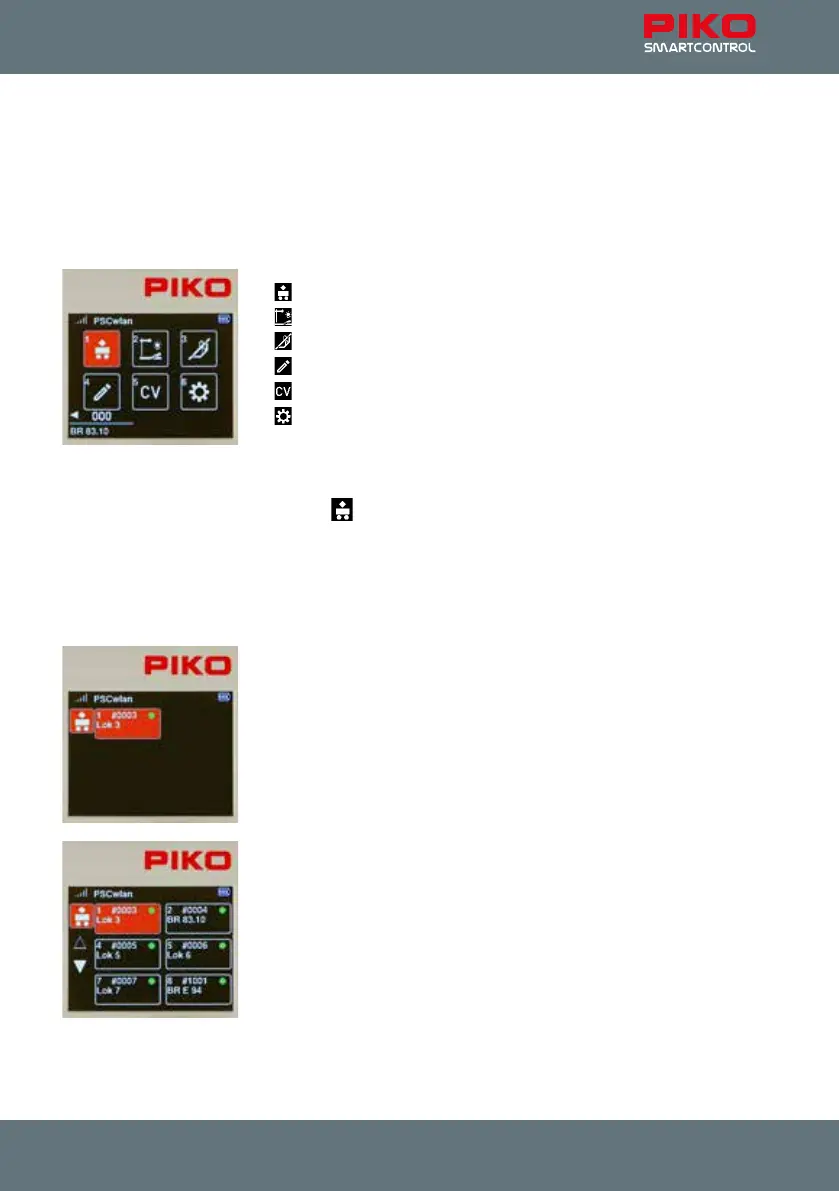
The menus for controlling rolling stock and accessories as well as device settings are available under
the main menu.
The menus displayed can either be selected with the keypad using their associated number (top left in
the menu eld) or selected using the navigation buttons (up / down / left / right) and then conrmed with
the "OK" button
1 [ ]: Locomotive menu (for selecting available locomotives)
2 [
]: Accessories menu (for selecting available accessories)
3 [
]: Routes menu (for selecting train routes you have created)
4 [
]: Edit menu (for editing locomotives, accessories, and train routes)
5 [
]: CV programming menu (CV programming and decoder updates)
6 [
]: Settings menu (for selecting device settings)
You can return to the main menu from each of these menus by pressing the "back" button.
3.3. The Locomotive menu [ ]
In the locomotive menu, you can choose from all available locomotives which one you want to operate.
Up to 16 locomotives can be run simultaneously. If a locomotive is selected and is currently running on
the layout, you can still switch to another one. The previous locomotive will continue to run at the speed
you left it at until you select it again and change its speed.
The locomotive menu is factory set to locomotive address 3.
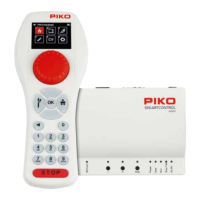
To begin operating a locomotive with the PIKO SmartController
wlan
, you
rst call it up from the locomotive selection list by pressing the number key
that matches the locomotive’s address (found in the top left of the eld).
The locomotive can also be selected by using the navigation buttons (up /
down / left / right) and pressing the “OK” button.
If numerous locomotive data sets have been created and they do not all
show up on the display, you can scroll down through the list and select the
locomotive you want to run.
If more than six locomotives are available, two triangles will appear above
and below the list. The solid triangle shows the direction in which further
locomotives can be reached using the "up" or "down" buttons. If the desired
locomotive is not in the list, it must rst be created in the locomotive data
editing menu (chap. 3.6.1). If the selected locomotive has not yet been
called up by the throttle you are using and "Last command applies" is not
activated in the throttle’s settings menu, a query window will appear asking
whether the locomotive should be selected. If this question is answered with
"Yes", then the locomotive will be requested from another throttle that may
be present. If the locomotive is not being operated from another throttle, it is
taken over directly by your throttle. If the locomotive was last called up by the previous throttle, it will
display a green dot in its data eld and is therefore immediately available.



 To Next Page