wlan
19
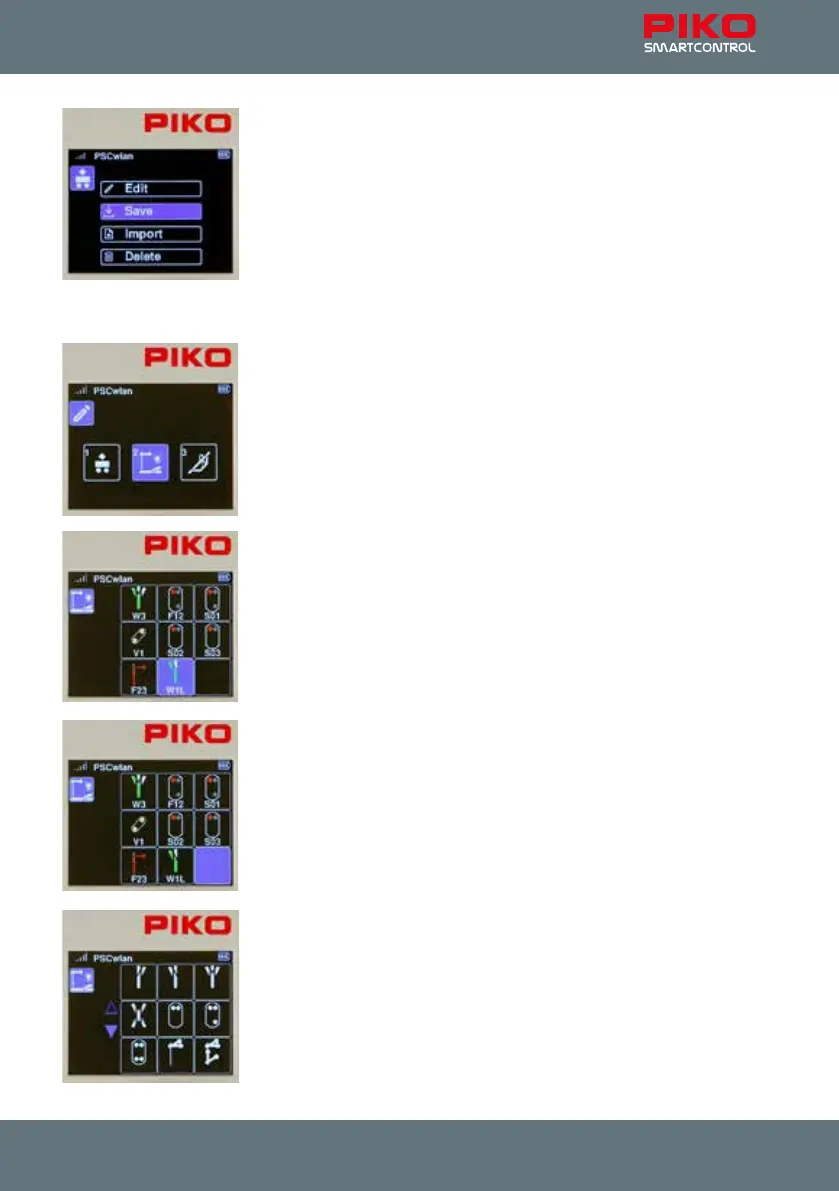
... to save the new locomotive data set with the "Save" icon.
At this point you can also delete this locomotive data record by using the
"Recycle bin" icon.
The display then reverts to the locomotive editor icon of the editor menu.
By pressing the "back button" a second time, the display will return to the
main menu, where the locomotive can then be selected and tested via the
locomotive menu (chap.. 3.3 "The Locomotive menu").
3.6.2 Edit accessories
To add a digital accessory to the SmartControl system, you rst select the
accessories symbol in the editor menu by using key 2 or by using the
navigation keys followed by the OK button.
The illustration to the left shows previously entered accessories and an
empty eld.
(No accessories have been programmed into the SmartController at the
factory.)
In this example, we will add a left-hand turnout to the empty eld and
designate it W4.
The empty eld for this new accessory is now highlighted by using the 5 key
or the navigation keys and conrmed with the OK button.
The following illustration shows symbols available for various accessories.
The left-hand turnout icon can now be selected using key 2 or the navigati-
on keys.
Here, too, the blue navigation arrows show that more symbol options are
available which can be reached using the "up" or, as in this case, "down"
button.



 To Next Page