System
wlan
24
3.6.3 Edit Route
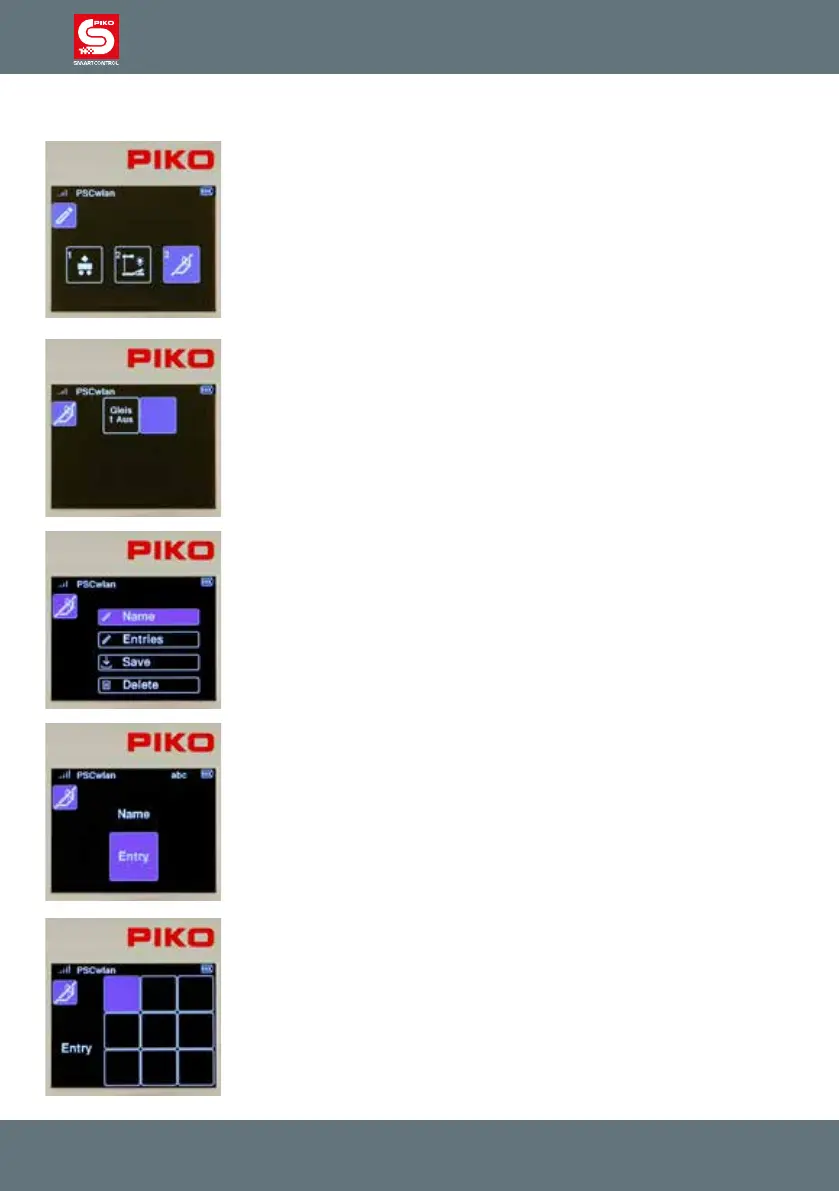
To create train routes, the route symbol is highlighted in the editor menu by
using key 3 on the keypad or using the navigation keys followed by the OK
button.
A sequence of circuits of the edited accessories , pause times, previously
edited routes, and so-called sub-routes can be added to a route. The limit
for the maximum number of additions to a route is 9*. This limit can be
signicantly expanded if necessary thanks to the sub-routes just mentioned.
A total of 18* routes are possible.
* Number in the starter set is lower.
The following view shows previously entered routes and one empty eld.
When new, the SmartController has no routes stored in it; it just displays an
empty eld.
This eld is selected using the OK button or the "2" key.
If routes have already been added, you can access an empty eld (to add a
route) by pressing its associated number or using the navigator buttons.
Like the editor menu for accessories, a selection menu will appear showing
each possible process.
For example, we will make a "station arrival" route. This route switches turn-
out W4 to straight, the three-aspect entry signal LS12 to green (Hp1) and
after a pause of 50 seconds back to red (Hp0).
The rst step is to enter the name of the new route.
To do this, select the "Name" eld and conrm with the OK button.
After conrming the Name eld by pressing OK, the new name can now be
entered using the telephone keypad method. The name is then conrmed
with a press of the OK button.
The "back" button takes us back to the selection menu for the possible
processing steps.
The "Entries" eld is then highlighted and activated with the OK button.
The display changes to the nine input elds for possible route commands.
The rst eld is now highlighted for entering the rst switching command and
conrmed with the OK button.



 To Next Page