System
wlan
38
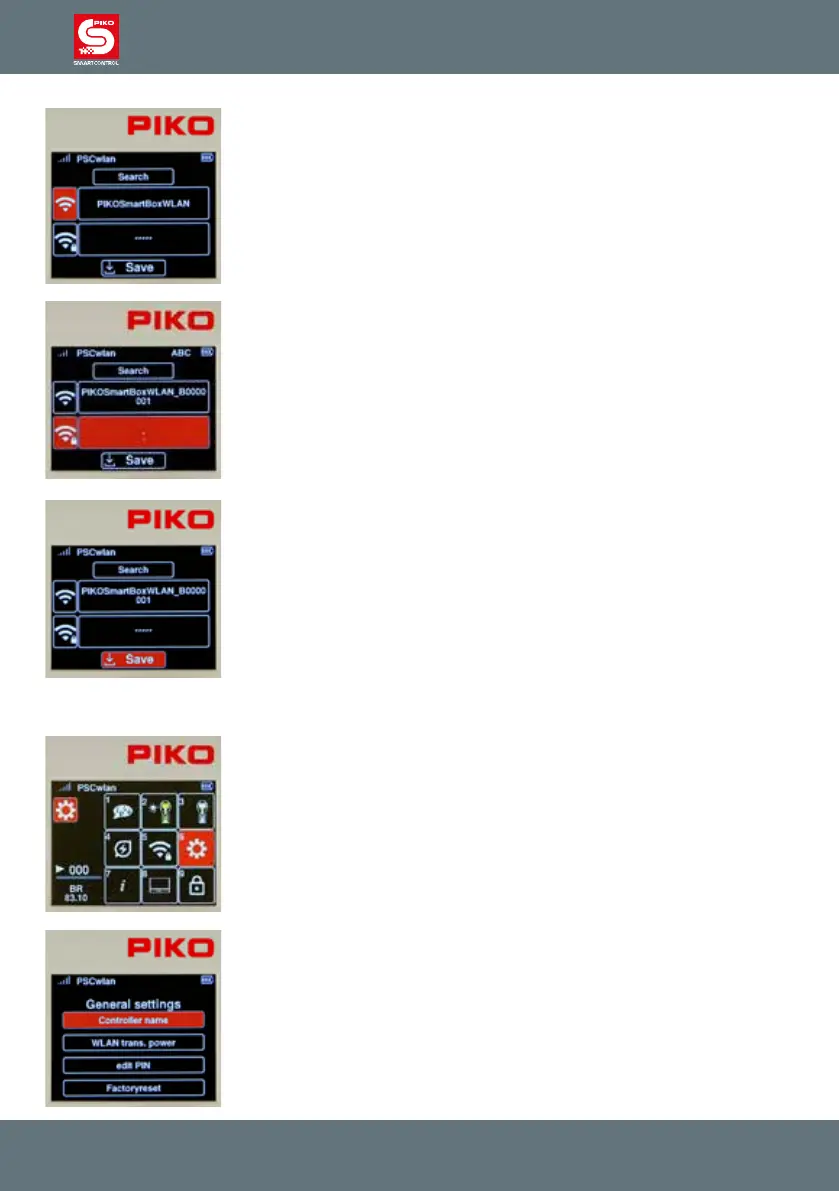
The selected Wi-Fi device now appears in the display. If you want to change
the name of this Wi-Fi device, press the "down key" and the activated eld
will change from "Search" to the Wi-Fi symbol.
Conrm this with the OK button. The name eld is now solid red and the
new name can be entered using the "telephone keypad".
Complete the name entry with the OK button.
The line with the "Wi-Fi / lock" symbol can be selected here to enter the
Wi-Fi password. The subsequent "OK" button will open the input eld, where
you can type a password that is automatically entered into the eld as
hyphens. If you want to exit this eld without making any changes, rst
delete the hyphen with the “left” navigation key and then exit the eld using
the “back” key. If, on the other hand, a password of at least 8 characters
should be assigned, this can be entered using the “telephone keypad” and
conrmed with the OK button. The factory password is "abcd1234".
Finally, your entries are saved via the "Save" eld followed by pressing the
OK button. The display will jump back to the settings menu to select further
settings.
3.8.6 General Settings (SmartController)
In the general settings menu, the throttle can be given a new name, you can
set the Wi-Fi transmission intensity, you can assign a new PIN to block
various input and operating options, and the Controller can be reset to the
factory settings.
To do this, press button 6 on the keypad in the settings menu, or navigate to
this eld and activate the menu with the OK button
By selecting the rst eld "Controller Name" the window changes to the
name input eld.



 To Next Page