EasyManua.ls Logo

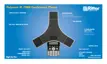
Polycom IP 7000 - User Manual

Polycom IP 7000
112 pages
Print Icon
To Next Page IconTo Next Page
Loading...
March, 2008 Edition
1725-40075-001 Rev. A
SIP 3.0.2
User Guide
for the SoundStation
®
IP 7000 Phone
SIP 3.0.2

Table of Contents

Other manuals for Polycom IP 7000

Questions and Answers

  • C
    Cole Anderson IISep 3, 2025
    How to fix flickering display on Polycom IP 7000 IP Phone?
    • M
      Mrs. Katherine Pace DDSSep 3, 2025
      If the display on your Polycom IP Phone is flickering, it might be due to certain types of older fluorescent lighting. Try moving the phone away from the lights or replacing the lights.
  • T
    Timothy LamSep 1, 2025
    What does a “hollow” phone icon on my Polycom IP 7000 IP Phone mean?
    • H
      Heather MasonSep 2, 2025
      A “hollow” phone icon displayed at the top of the screen of your Polycom IP Phone indicates that the phone is not registered to a server. Ask your system administrator to register the phone to a server.
  • D
    Daniel NortonAug 31, 2025
    Why is there no audible ring tone on my Polycom IP 7000?
    • G
      ggarciaAug 31, 2025
      If there is no audible ring tone on your Polycom IP Phone, the ringer volume might be low, or the Ring Type might be set to Silent Ring. To fix this: * Adjust the ringer volume by pressing either of the volume keys when the phone is in the idle state. * Check that the Ring Type is not set to Silent Ring.
  • M
    Michael PinedaAug 29, 2025
    What to do if there is no response when I press a feature key on my Polycom IP 7000?
    • L
      Lynn CarrilloAug 29, 2025
      If there is no response when you press a feature key on your Polycom IP Phone, the phone may not be in an active state. Try the following: * Press the keys more slowly. * Call the phone to confirm that inbound call display and ringing is normal, then try pressing feature keys within the call. * Confirm the line is actively registered to the call server by pressing the Menu key, then select Status > Lines > Line Information, and verify that your phone line is registered. * Reboot the phone to attempt re-registration with the call server.
  • J
    Jimmy CarneyAug 28, 2025
    How to fix a Polycom IP 7000 IP Phone with no audible sound from the speaker?
    • G
      Gregory MarksAug 28, 2025
      If there is no audible sound from the speaker on your Polycom IP Phone, the speaker volume might be low. During a call, press the volume keys to adjust the volume.
  • W
    Wendy ClarkAug 27, 2025
    Why is there no display on my Polycom IP 7000 or the display is incorrect?
    • J
      Jordan JonesAug 27, 2025
      If there is no display, the display is incorrect, or the display has bad contrast on your Polycom IP Phone, it's likely due to power not being correctly applied to the phone. Verify that power is correctly applied to the phone by checking that the display is illuminated and ensuring the network cable is properly inserted on the underside of the phone. If your phone uses Power over Ethernet (PoE), have your system administrator check that the switch is supplying power to the phone.
  • S
    sarah05Aug 25, 2025
    What to do if the dial pad does not work on my Polycom IP 7000?
    • M
      mrogersAug 25, 2025
      If the dial pad on your Polycom IP Phone does not respond, try the following: * Check for a response from other feature keys or from the dial pad. * Place a call to the phone from a known working telephone to check for display updates. * Verify if the LAN port is active by pressing the Menu key, then select Status > Network > Ethernet, and check the LAN port status. * Check the termination at the switch or hub end of the network LAN cable and ensure that the switch/hub port is operational.
  • C
    Chelsea MartinezAug 23, 2025
    Why is there no dial tone on my Polycom IP 7000 IP Phone?
    • D
      Denise WhiteAug 23, 2025
      If there is no dial tone on your Polycom IP Phone, it's likely that power is not correctly applied to the phone. To resolve this: * Check that the display is illuminated. * Ensure the network cable is properly inserted on the underside of the phone. Try unplugging and re-inserting the cable.

Summary

Getting Started with Your Phone

Phone Components and Installation Guide

Details on phone parts, accessories, installation, and connecting network, power, and audio peripherals.

Phone Features and Navigation

Explains phone hardware features, icons, and how to navigate menus and input data.

Customizing Your Phone

Basic Phone Settings Configuration

Guides on adjusting language, display, sound quality, ringtones, and basic preferences.

Call Management and Contacts

Covers managing calls, contacts, call lists, incoming call settings, call diverting, and shared line features.

Using Basic Phone Features

Essential Call Operations

Covers fundamental call handling: making, answering, ending, muting, redialing, and holding calls.

Advanced Call Management and Services

Guides on conferences, transfers, forwarding, Do Not Disturb, speed dial, and voice mail.

Using Advanced Phone Features

Advanced Communication and Call Handling

Guides on using PC/mobile audio, managing multiple calls, and monitoring contact presence.

Phone System Management and Restart

Instructions for restarting the phone and managing system settings.

Troubleshooting Phone Issues

Installation and Power Problems

Addresses issues related to initial phone setup, configuration errors, and power/startup failures.

Operational and Hardware Issues

Resolves problems with phone controls, screen displays, audio, calling, and guides on hardware testing.

Polycom IP 7000 Specifications

General IconGeneral
Display TypeGraphical LCD
Display Resolution320 x 240 pixels
Audio FeaturesHD Voice, Acoustic Clarity Technology
Network ProtocolsSIP, H.323
Expansion Microphone SupportYes
SpeakerphoneFull-duplex
BluetoothNo
Wi-FiNo
Power over Ethernet (PoE)Yes
Audio CodecsG.711, G.722, iLBC
USB Ports1
Ethernet Ports2 (10/100/1000 Mbps)

Related product manuals