EasyManua.ls Logo

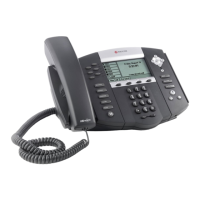
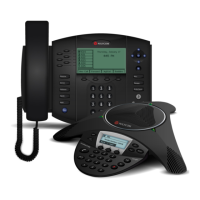
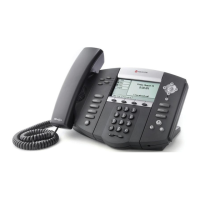
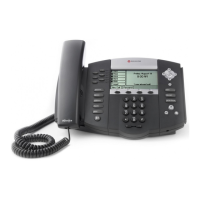
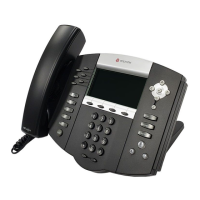
Polycom SoundPoint IP 670 - User Manual

Polycom SoundPoint IP 670
126 pages
Print Icon
To Next Page IconTo Next Page
Loading...
SIP 3.2 | July 2009 | 1725-12679-001 Rev. C
User Guide for the Polycom®
SoundPoint IP® 670 Phone

Table of Contents

Other manuals for Polycom SoundPoint IP 670

Questions and Answers

  • A
    Amber SimpsonAug 29, 2025
    What to do if Polycom SoundPoint IP 670 dial pad does not work?
    • T
      Thomas McbrideAug 29, 2025
      If your Polycom IP Phone dial pad isn't working, check for a response from other feature keys or the dial pad. Place a call to the phone from a known working telephone and check for display updates. Check if the LAN port is active by pressing the Menu key, then select Status > Network > Ethernet. From the Ethernet page, verify that the LAN port is active. Check the termination at the switch or hub end of the network LAN cable and ensure the switch/hub port connected to the telephone is operational. Before restarting your phone, contact your system administrator.
  • B
    brittanyjohnsonAug 28, 2025
    How to troubleshoot power issues on Polycom IP Phone?
    • A
      Ashley MejiaAug 28, 2025
      If your Polycom IP Phone has power issues, verify that no lights appear on the phone when powered up. Check if the phone is properly plugged into a functional AC outlet and that it's not controlled by a light switch. If plugged into a power strip, try plugging it directly into a wall outlet. Test the phone in another room with a known working outlet. If using PoE, the power supply voltage may be too high or too low.
  • A
    Alexis PowersAug 27, 2025
    What to do if my Polycom SoundPoint IP 670 has no display?
    • J
      John WhiteAug 27, 2025
      If your Polycom IP Phone has no display, an incorrect display, or bad contrast, ensure the screen is illuminated. Check the LAN cable is properly inserted at the back of the phone by unplugging and re-inserting it. If using Power over Ethernet (PoE), have your system administrator check that the switch is supplying power to the phone. You can also use the screen capture feature, but you need to contact your system administrator to determine if it is enabled.
  • T
    Travis AndersonAug 26, 2025
    Why is there no dial tone on my Polycom SoundPoint IP 670 IP Phone?
    • D
      deanna25Aug 27, 2025
      If there's no dial tone on your Polycom SoundPoint IP 670 desk phone, ensure the screen is lit. Check that the LAN cable is properly connected at the back of the phone by unplugging and re-inserting it. If you're using in-line powering, ask your system administrator to verify that the switch is supplying power to the phone.
  • J
    Joseph StewartAug 25, 2025
    How to fix Polycom SoundPoint IP 670 IP Phone 'Network Link is Down' error?
    • K
      Katie WarrenAug 26, 2025
      If your Polycom IP Phone screen displays “Network Link is Down”, check the cable connection at the switch or hub. Ensure the switch or hub is working by looking for flashing link/status lights, or contact your system administrator. Verify if the LAN port is active by pressing the Menu key, then go to Status > Network > Ethernet. On the Ethernet page, check the LAN port field. Reboot the phone to attempt re-registration to the call server. Contact your system administrator.
  • K
    Kristen CookAug 25, 2025
    What to do if Polycom IP Phone does not ring?
    • J
      Jennifer MoraAug 25, 2025
      If your Polycom IP Phone isn't ringing, first adjust the ringing level using the volume keys on the front panel. Also, check the status of the Handset, Headset (if connected), and Hands-Free Speakerphone.

Summary

Getting Started with Your Phone

Connecting Network and Power Source

Explains how to connect the phone to network and power sources.

Registering Your Phone

Details the process for registering the phone with the network for use.

Customizing Your Phone

Using the Basic Features of Your Phone

Placing Calls

Details various methods for placing calls using the handset, speakerphone, or headset.

Answering Calls

Provides steps for answering incoming calls using different audio modes.

Ending Calls

Instructions on how to end a call using the handset, headset, or speakerphone.

Transferring Calls

Explains consultative, blind, and attended transfer methods for calls.

Using the Advanced Features of Your Phone

Recording a Call

Details how to record active calls using a USB device.

Troubleshooting Your Phone

Power and Startup

Common issues related to phone power and initial startup.

Polycom SoundPoint IP 670 Specifications

General IconGeneral
Voice codecsG.711, G.722, G.729
Noise reductionYes
Microphone frequency150 - 7000 Hz
Caller ID-
Phonebook capacity- entries
Security algorithmsHTTPS
Supported network protocolsSNTP/FTP/TFTP/HTTP
Display resolution320 x 160 pixels
Ethernet LAN (RJ-45) ports2
Product typeIP Phone
Product colorGray
Dimensions (WxDxH)265 x 190 x 150 mm
Storage temperature (T-T)-40 - 70 °C
Operating temperature (T-T)10 - 40 °C
Operating relative humidity (H-H)20 - 85 %
CertificationFCC, RoHS, CE
Harmonized System (HS) code85171800
Weight and Dimensions IconWeight and Dimensions
Weight1260 g

Related product manuals