Poseidon SE7EN+ User Manual Appendix 3 Page 123
Update SE7EN+ rmware through the M28
One way to update the rmware in SE7EN, Battery, HUD, CPOD and the display is to use the
M28. Before performing any of the options below, make sure that your M28 is equipped with
the latest rmware. Refer to www.poseidon.com/products/computers/m28, otherwise your
M28 might downgrade your devices.
Option 1
The rmware control within the M28 is even more sophisticated. If you during predive
encounter a fw compability test error you can simply press both buttons of the M28, select
“fw update” located at the bottom of the menu. When selecting this function all inconsistent
parts of the rmware will be updated. A rmware update window will also be visible during
this process.
Option 2
This option can be used to update specic parts of the SE7EN+ or M28 accessories. This
function can be used when connected to the SE7EN+ or when you connect any of the
Poseidon products directly to the M28. Before any rmware can be updated the physical
products HUD/Display/CPOD needs to be connected and then the “Power out” option needs
to be enabled. To enable the “power out” function goto the “SYSTEM” app and press both
buttons. Select “Connect” and then “Power out” and the CAN connect icon will be visible in
the connecting status area.
To access and use the forced rmware update function use the buttons and select the
“System” app. Once in the app press both buttons to access the system menu. Select
“Force fw update”. You can now see a number of options, they are all listed and explained
below:
• Force fw SE7EN
Select this option if you want to update the internal rmware of the E-Module in the
SE7EN (Classic)
• Force fw BATTERY
Select this option if you want to update the rmware in the SE7EN+ battery module.
• Force fw HUD
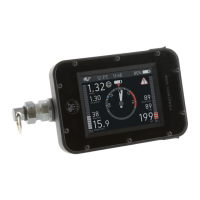
Select this option if you want to update the rmware in the SE7EN+ HUD.
• Force fw DISPLAY
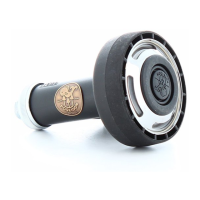
Select this option if you want to update the rmware in the SE7EN+ DISPLAY (PADDLE display).
• Force fw CUSB
Select this option if you want to update the rmware in the M28 charger cable.
Please note that the charger cable needs to be connected to any USB power source
when performing the update.
• Force fw CPOD
Select this option if you want to update the rmware in the CPOD.
• Force fw SE7EN+
Select this option if you want to update the internal rmware of the E-Module in the
SE7EN+
Devices that have a correctly installed rmware will not appear in this menu. They are
handled by the Firmware Update function to be syncronized to same rmware version as
your M28. Devices which do not have any rmware installed and therefore are missing in the
system, should be restored from the “Force fw update” menu. After restoration the device
should work as normal.
Once you select to update a certain part of the system a rmware update window will be
visible on the M28 so you can follow the update procedure. If you want to abort an ongoing
update procedure, simply press both buttons on the M28.
IMPORTANT:
New hardware revisions of the SE7EN E-module and CUSB
(M28 charger cable) require rmware version 2.04 / 2.67 or later.
Do not attempt to downgrade them to earlier rmware versions.


 To Next Page