PreSonus StudioLive
™
24.4.2
38
Quick Start:
Level
Setting
Overview Connecting
to a
Computer
Scenes,
Presets &
System
Menu
Technical
Information
Tutorials Trouble-
shooting
& Warranty
Controls
4 Controls
38
Owner’s Manual
39
Quick Start:
Level
Setting
OverviewScenes,
Presets &
System
Menu
TutorialsTechnical
Information
Trouble-
shooting
& Warranty
Controls
Controls 4
39
Software
Universal Control,
Capture, and
Studio One Artist
Hookup
Hookup
Software
Universal Control,
Capture, and
Studio One Artist
Connecting
to a
Computer
Input Channel Strip 4.34.3 Input Channel Strip
Gain Reduction Turns Gain Reduction Metering On and O.
Metering Button.
Displays the gain reduction of the input bus. Meters have a one-to-one relationship
with channels (that is, Meter 1 shows the gain reduction of Channel 1 and so on).
Aux Metering Button Turns Aux Bus Master Out Metering On and O.
Displays the output level of each of the aux sends.
Meters 1, 3, 5, 7, 9, 11, 13, 15, 17, and 19 display the
output levels of Aux Sends 1-10, respectively.
Meters 21 and 23 display the output level of EFX A and EFX B.
Fader Locate Button Turns Fader-Recall Metering On and O.
Displays the fader position of the stored scene. When recalling a fader position,
adjust the fader until only the center LED is visible in its meter.
4.3 Input Channel Strip
The StudioLive is equipped with all of the standard input controls of an
analog mixer. In addition, the StudioLive provides the added exibility
of routing a playback stream from your audio-recording software to the
mixer via the FireWire bus, just as if it were an analog input. This lets you
incorporate digital audio tracks into the main mix as well as inserting
plug-in eects and software instruments from your audio program.
4.3.1 Input Channel Controls
Trim Control Adjusts the Input Gain Level.
The Trim control adjusts the gain of the channel’s analog input.
It is very important to properly adjust this control in order to minimize noise and
avoid overload distortion Follow the Quick Start level-setting instructions on
page 5 before operating a channel.
Phantom Power Button Turns Phantom Power On/O.
The StudioLive is equipped with individual phantom power for every microphone
input. The 48V button will illuminate when phantom power is activated. For more
information on phantom power and the microphones that require it, please review
Section 8.1.
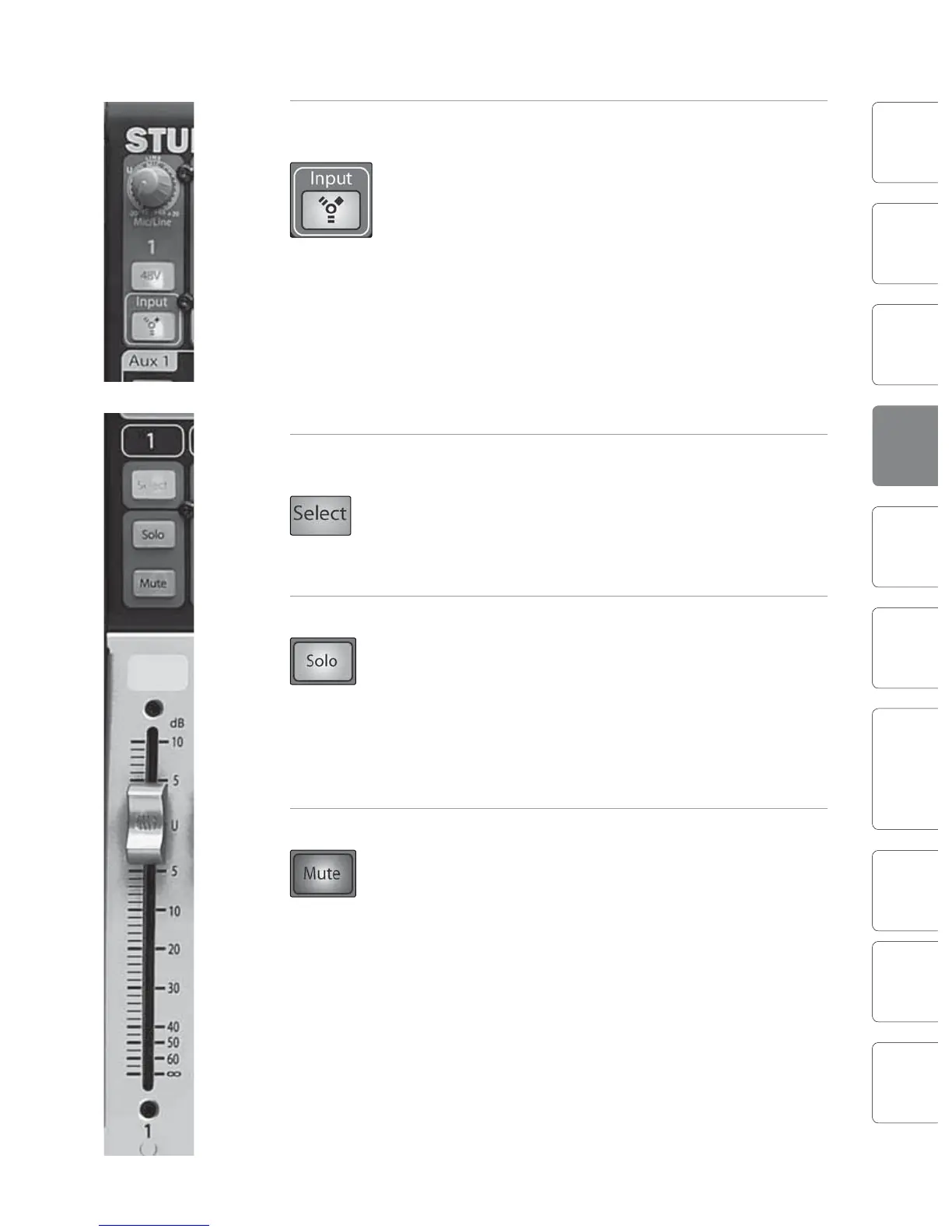
FireWire Input Turns FireWire Playback Streaming On/O.
Select Switch
The FireWire Input button routes a playback stream
from your audio software to the StudioLive’s channel
inputs, where it is routed and processed the same way
as analog input signals. For example, if you want a
particular recorded track to play back on mixer
channel 3, simply route that track in your audio
software to StudioLive Output 3. This button can also
be used to insert a plug-in eect into the mix. For
more information on this feature, please review
Section 6.4.2.
Do not engage this button when your StudioLive is not connected and
synced to a computer, as it will mute the analog input globally.
Input-Channel Select Enables Fat Channel Processing and Routing.
Button
As previously described in Section 4.1.1, the Select
button routes its channel through the Fat Channel,
allowing you to add dynamics processing, EQ, and
panning; assign the output routing; and more.
Solo Button Turns Soloing On and O.
This button will solo its channel to the main outputs
or to the monitor outputs, depending on whether PFL
or SIP is selected in the Solo bus section. Please review
Section 8.8 for details.
When a Solo button is enable, that channel
or bus will automatically be selected, and
its Select button will illuminate.
Mute Button Turns Muting On and O.
This button mutes its channel. It will illuminate red
when the channel is muted. When a mute button is
engaged, its channel will be muted in all of its
assigned outputs (Subgroups, Mains, and Aux Sends).











 To Next Page