PreSonus StudioLive
™
24.4.2
88
Quick Start:
Level
Setting
Overview Controls Scenes,
Presets &
System
Menu
Technical
Information
Tutorials Trouble-
shooting
& Warranty
Connecting
to a
Computer
Owner’s Manual
89
Quick Start:
Level
Setting
OverviewControlsScenes,
Presets &
System
Menu
TutorialsTechnical
Information
Trouble-
shooting
& Warranty
Software
Universal Control,
Capture, and
Studio One Artist
Hookup
Hookup
Software
Universal Control,
Capture, and
Studio One Artist
Connecting
to a
Computer
Capture 7.3
SOFTWARE: Universal Control, Capture, and Studio One Artist 7
7.3 Capture
7 SOFTWARE: Universal Control, Capture, and Studio One Artist
7.3 Capture
7.3.1 What is Capture?
Capture is an audio-recording application created exclusively for use
with PreSonus StudioLive-series mixers. To record from the StudioLive
mixer into Capture, you will need to install the StudioLive driver and
connect the mixer to a FireWire port on your computer. Once the
StudioLive mixer has been connected to your computer, and Capture
has been installed, simply launch Capture, and you are ready to record.
This section contains general information, including the
basic layout and workow of Capture and is a great place
to start for new audio-recording software users.
Versions
There is one version of Capture, which runs under the
Windows and Mac OS X operating systems. This manual
explains both the Windows and the Mac versions.
Tips
Several shortcuts and alternative methods or functions
are mentioned in this section. These tips are intended to
improve your workow and will be shown as follows:
Really Helpful Information
Also note that if you oat the mouse over most tools, buttons, or
windows in Capture for a few seconds, a Tooltip will appear that
names the function that the tool, button, or window serves.
Key Commands
Many operations in Capture have associated key commands (keyboard
shortcuts) that can be used instead of navigating menus with the mouse.
Several of these key commands use modier keys, some of which
dier depending on the operating system (Windows or Mac OS X).
Key commands with modier keys are shown with the Windows modier
key rst, as follows: [Win modier key]/[Mac modier key]+[key].
For example, [Ctrl]/[Cmd]+[C] means “press [Ctrl]+C
in Windows, or press [Cmd]+C in Mac OS X.”
Where there is no dierence between the Windows and Mac version of a
key command, only one key command will be displayed; for example: [F3].
Menu Functions
Many functions can be reached via hierarchical menus.
Where menu navigation is referenced, it will appear
as follows: Menu/Menu Entry/…/Function.
Non-Destructive Editing and Undo/Redo
Almost every user action in Capture can be undone and
redone. There is no limit to how far back actions can be undone
and how far forward undone actions can be redone.
Because of this, feel free to explore without worrying
you will permanently alter anything. In fact, just pressing
buttons might be the quickest way to learn.
High Quality Audio
To match your StudioLive's 32-bit oating-point DSP, Capture
features a 32-bit oating-point audio engine. An audio engine is the
“number cruncher” that does the math required to record and play
back digital audio. To put it simply, Capture will process your audio
as accurately as current technology allows and maintains the highest
sound quality possible. All you have to do is make great music!
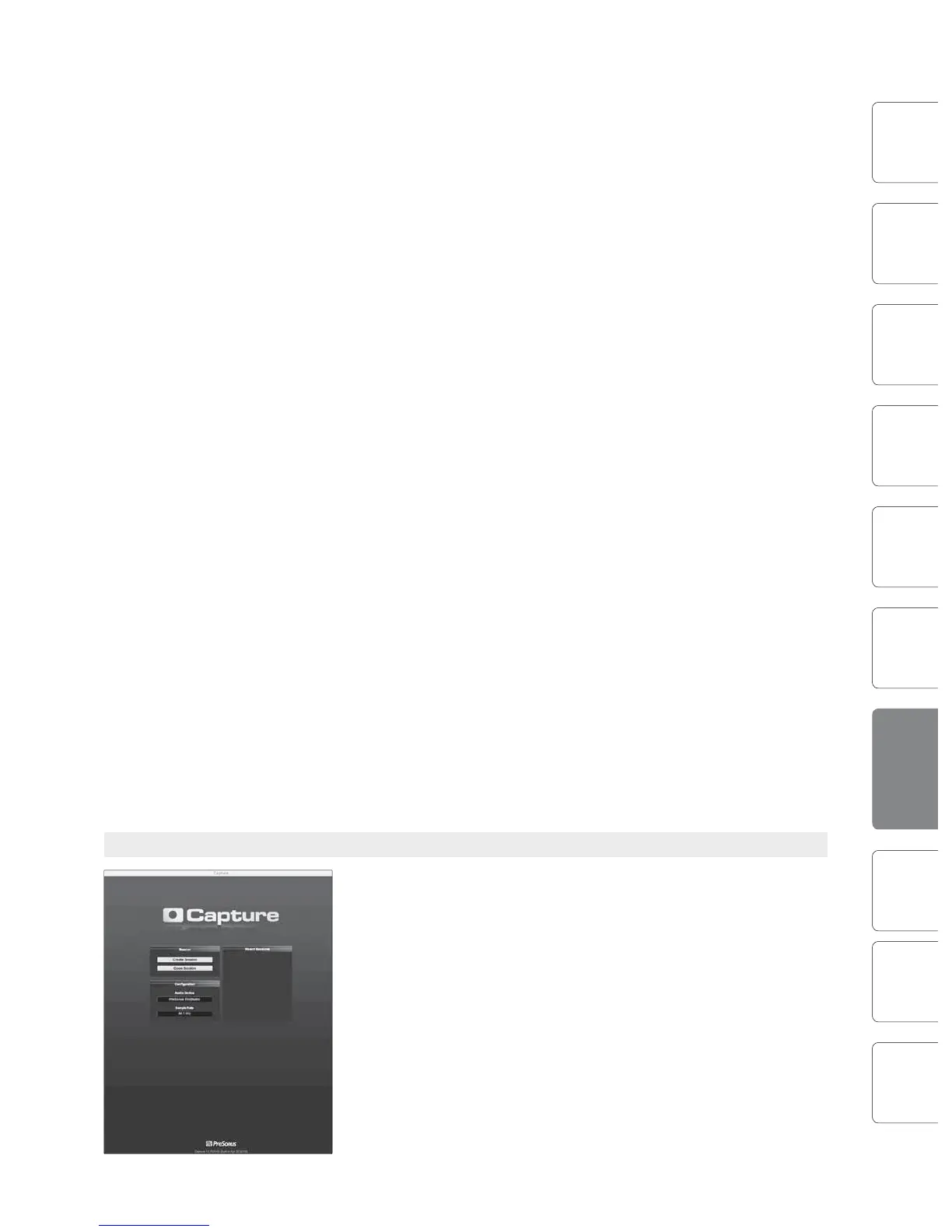
7.3.2 Start Page
When Capture is launched, by default you will be taken to the Start Page.
Create and Open Session
At the upper left of the Start Page are two buttons: Create Session and
Open Session. A Session is a document in which you can record and edit
audio. Click on the Create Session button to create a new Session or click
on the Open Session button to browse for and open an existing Session.
Recent Files
To the right of the Start Page menu section, the Recent Files list includes
links to the most recently opened documents. Click on any of these links
to quickly open the Session.











 To Next Page