PreSonus StudioLive
™
24.4.2
52
Quick Start:
Level
Setting
Overview Controls Technical
Information
Tutorials Trouble-
shooting
& Warranty
Scenes,
Presets &
System
Menu
Connecting
to a
Computer
Owner’s Manual
53
Quick Start:
Level
Setting
OverviewControlsTutorialsTechnical
Information
Trouble-
shooting
& Warranty
Scenes,
Presets &
System
Menu
Software
Universal Control,
Capture, and
Studio One Artist
Hookup
Hookup
Software
Universal Control,
Capture, and
Studio One Artist
Connecting
to a
Computer
Creating and Recalling a Scene 5.1
Scenes, Presets, and the System Menu 5
5.1 Creating and Recalling a Scene
5 Scenes, Presets, and the System Menu
SETTINGS
INPUTS & BUSES ASSIGN PAN SOLO MUTE SELECT LINK SENDS MODE
INPUT CHANNELS MAINS C OFF OFF CH1 OFF NULL
SUBGROUPS NULL C OFF OFF NULL OFF
AUXES 1-10 N/A C OFF NULL OFF PRE 1
FX A / FX B MAINS C OFF NULL BOTH SET TO F1
FX A & B NULL C OFF NULL POST
TALKBACK NULL
MAIN BUS C NULL
SOLO BUS AFL
MONITOR BUS MAIN
TAPE IN NULL
METER MODE NULL
MASTER CONTROL FX
The Fat Channel will be restored to the same setting for every input and
output on your StudioLive. Each of the dynamics processors and the four
bands of the EQ will be turned o. Their parameters will be set as follows:
FAT CHANNEL PARAMETERS
HIPASS NOISE GATE LIMIT COMPRESSOR EQ LOW L.MID H.MID HIGH
OFF KEY N/A OFF THR 0dB P/S PEAK n/a n/a PEAK
THR .05 s THR 0 dB RAT 2:1 Q 0.6 0.6 0.6 0.6
RNG N/AjATK20 ms FREQ 130Hz 320Hz 1.4kHz 5kHz
ATK 5 ms REL 150ms GAIN 0dB 0dB 0dB 0dB
REL 0.7 ms GAIN 0dB
MOD EXP KNEE hard
Before beginning any new mixing situation, it is always recommended to recall the
Zero Out (Board Reset) scene. This is the easiest way to ensure that there are no
lingering parameter settings that could cause you some trouble in your new mix.
To recall a Scene, press the Scene button and use the
Value encoder to scroll through the Scene library.
When you have found the Scene you wish to recall,
press the Recall button. By default, the StudioLive will
recall all stored parameters (Fat Channel settings,
channel muting and soloing, aux mixes, and internal
eects parameters) except fader and knob positions.
If you do not wish to recall a certain set of parameters,
simply use the Next and Prev buttons to navigate
through the screen. When the parameter that you
wish to disable is selected, turn the Value Encoder
counter-clockwise to move it to the No (o)
position. Once you have disabled the parameters
you do not wish to recall, press the Recall button.
The StudioLive’s recallable parameters are grouped as follows:
t Mute: All channel and bus mutes (Channels 1-24, Subgroups 1-4, FXA, FXB)
t FX: All parameters for the internal eects assigned to FXA and FXB
5.0 Scenes, Presets, and the System Menu
5.1 Creating and Recalling a Scene
The StudioLive allows you to create and store a library
of Scenes. A Scene is like a snapshot of your mix. It
stores each Fat Channel parameter for every input and
bus, as well as each fader’s position, the aux and
eects mixes, channel mutes and solos, and the input
selection (analog input or FireWire playback stream).
Creating a Scene requires simply dialing in a mix that
you would like to use at a later date and saving it. This
has obvious benets for both studio and live sound.
For example, in the studio, saving and recalling a
Scene allows you to move to another song or project
and come back to the current mix later. For live shows
with multiple bands, you can set up custom mixes for
each band at sound check and recall the mix when
that band goes onstage.
You also can save custom mixes for each
venue that a band plays repeatedly.
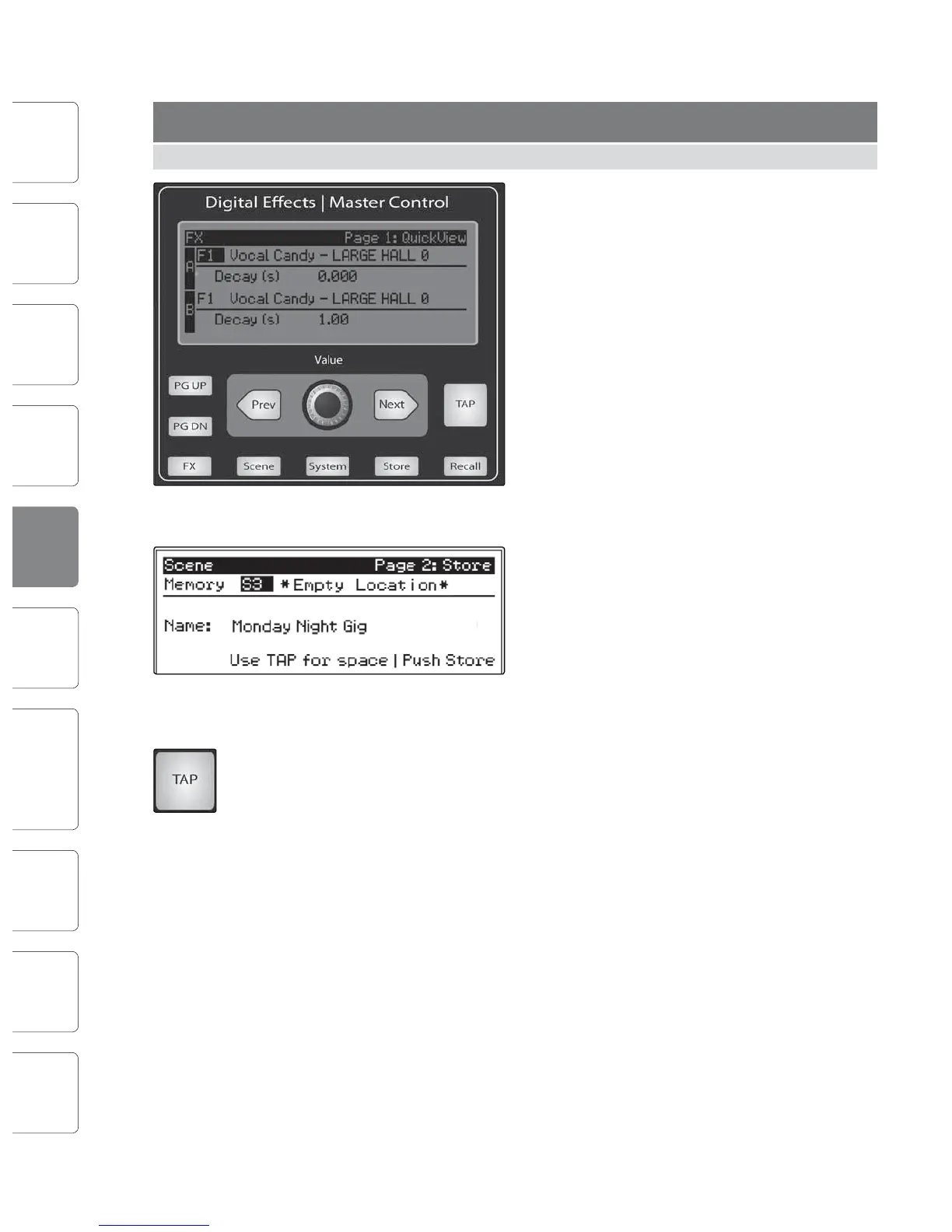
To save a Scene, press the Scene button and page
down to the second screen. The memory locations will
be selected. Use the Value Encoder to scroll to a free
location in the Scene library. Now name your scene:
Press the Next button to navigate to the rst letter of
the preset name and turn the Value Encoder clockwise
or counter-clockwise to change the letter.
The StudioLive allows you to customize the name with uppercase and
lowercase letters and a selection of numerals and punctuation marks.
Press the Tap button to quickly insert a space. Continue this process until you are
satised with your changes, then press the Store button. It will illuminate while the
scene is being written to the StudioLive’s internal memory. Once the Scene is
saved, the Store button will return to its unlit status.
Located at position S1 is a scene named Zero Out (Board Reset). This scene cannot
be overwritten and returns your StudioLive to its defaut factory setting. All you
have to do it lower the faders and return all trim knobs and output volume knobs
(Solo bus, 2 Track In, Aux Input A&B, Aux Output 1-10, FXA&B Output, Phones, and
Monitor) to their lowest position. Your StudioLive will be zeroed out as follows:











 To Next Page