PreSonus StudioLive
™
24.4.2
62
Quick Start:
Level
Setting
Overview Controls Scenes,
Presets &
System
Menu
Technical
Information
Tutorials Trouble-
shooting
& Warranty
Connecting
to a
Computer
Owner’s Manual
63
Quick Start:
Level
Setting
OverviewControlsScenes,
Presets &
System
Menu
TutorialsTechnical
Information
Trouble-
shooting
& Warranty
Software
Universal Control,
Capture, and
Studio One Artist
Hookup
Hookup
Software
Universal Control,
Capture, and
Studio One Artist
Connecting
to a
Computer
Installation for Window 6.2
Connecting to a Computer 6
6.1 System Requirements
6 Connecting to a Computer
6.0 Connecting to a Computer
The StudioLive 24.4.2 is more than just a mixer. It's also a very
powerful computer interface that allows you to record any mixer
input or bus with a Select button — and also control the mixer
from a separate laptop computer via Virtual StudioLive.
6.1 System Requirements
Below are the minimum computer-system requirements for your StudioLive
and Capture software.**
Macintosh
t Operating Systems:
t Mac OS X 10.5.2 or higher (including Mac OS X 10.6)
t Hardware:
t Minimum: PowerPC G4 1.25 GHz or Intel Core
Solo 1.5 GHz processor, 1 GB RAM
t Recommended: Intel Core Duo, or Intel Xeon processor, 2 GB or more RAM
Windows
t Operating Systems:
t Windows XP (SP2 or greater) 32-bit and 64-bit
t Windows Vista 32-bit and 64-bit
t Windows 7 32-bit and 64-bit
t Hardware:
t Minimum: Intel Pentium 4 1.6 GHz processor or
AMD Athlon 64 3000+ (Turion) , 1 GB RAM
t Recommended: Intel Pentium 4 2.8 GHz EM64T or better or
AMD Athlon 64 XP 3000+ or better, 2 GB or more RAM
NOTE: The speed of your processor, amount of RAM, and capacity, size,
and speed of your hard drives will greatly aect the overall performance
of your recording system. A faster processor and more RAM can
reduce signal latency (delay) and improve overall performance.
**Subject to change check www.presonus.com for updates.
6.2 Installation for Windows
After you insert the Installation CD into your CD-ROM drive,
the StudioLive installer will take you through each step of the
installation process. Please read each message carefully—ensuring
especially that you do not connect your StudioLive too soon.
We made the StudioLive installer as simple and easy to follow as possible. Please
read each message carefully to ensure the StudioLive driver is properly installed.
Before beginning the StudioLive installation setup, please close
all applications, including antivirus software, and disconnect the
StudioLive from your computer. After the installation is successfully
completed, don‘t forget to reenable your antivirus protection!
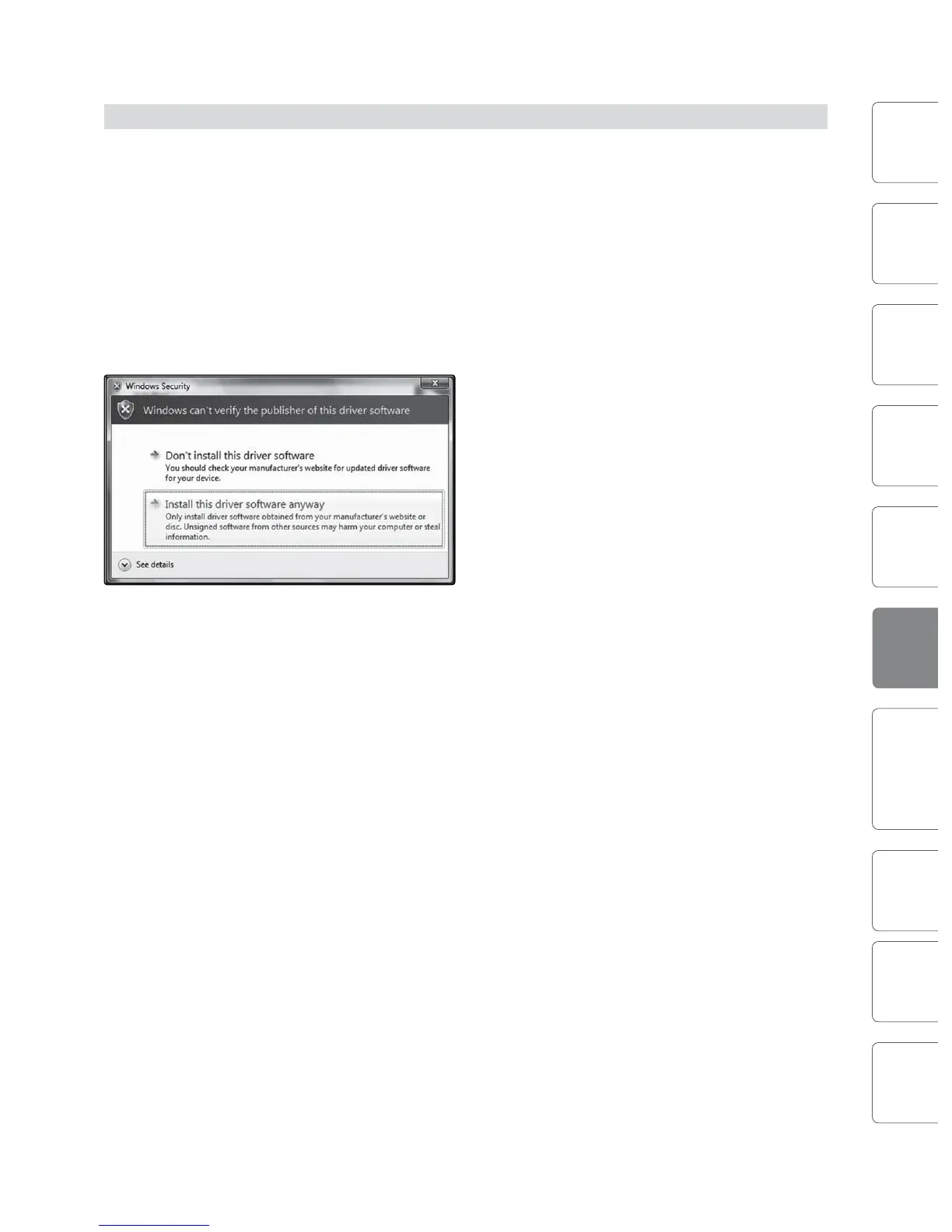
If you see any Windows Security alerts, click “Install
this driver software anyway” (Vista) or “Continue
anyway” (XP).
Follow the onscreen instructions to complete
the installation. When the installer has nished,
it will prompt you to reboot your computer.
Click “Finish” to automatically restart your PC. Once
your computer has rebooted, connect the StudioLive.
When the Found New Hardware wizard launches,
follow the recommended steps. Your StudioLive is
now synced to your computer and ready to use!











 To Next Page