PreSonus StudioLive
™
24.4.2
74
Quick Start:
Level
Setting
Overview Controls Scenes,
Presets &
System
Menu
Technical
Information
Tutorials Trouble-
shooting
& Warranty
Connecting
to a
Computer
Owner’s Manual
75
Quick Start:
Level
Setting
OverviewControlsScenes,
Presets &
System
Menu
TutorialsTechnical
Information
Trouble-
shooting
& Warranty
Software
Universal Control,
Capture, and
Studio One Artist
Hookup
Hookup
Software
Universal Control,
Capture, and
Studio One Artist
Connecting
to a
Computer
SOFTWARE: Universal Control, Capture, and Studio One Artist 7
7.1 Universal Control
7 SOFTWARE: Universal Control, Capture, and Studio One Artist
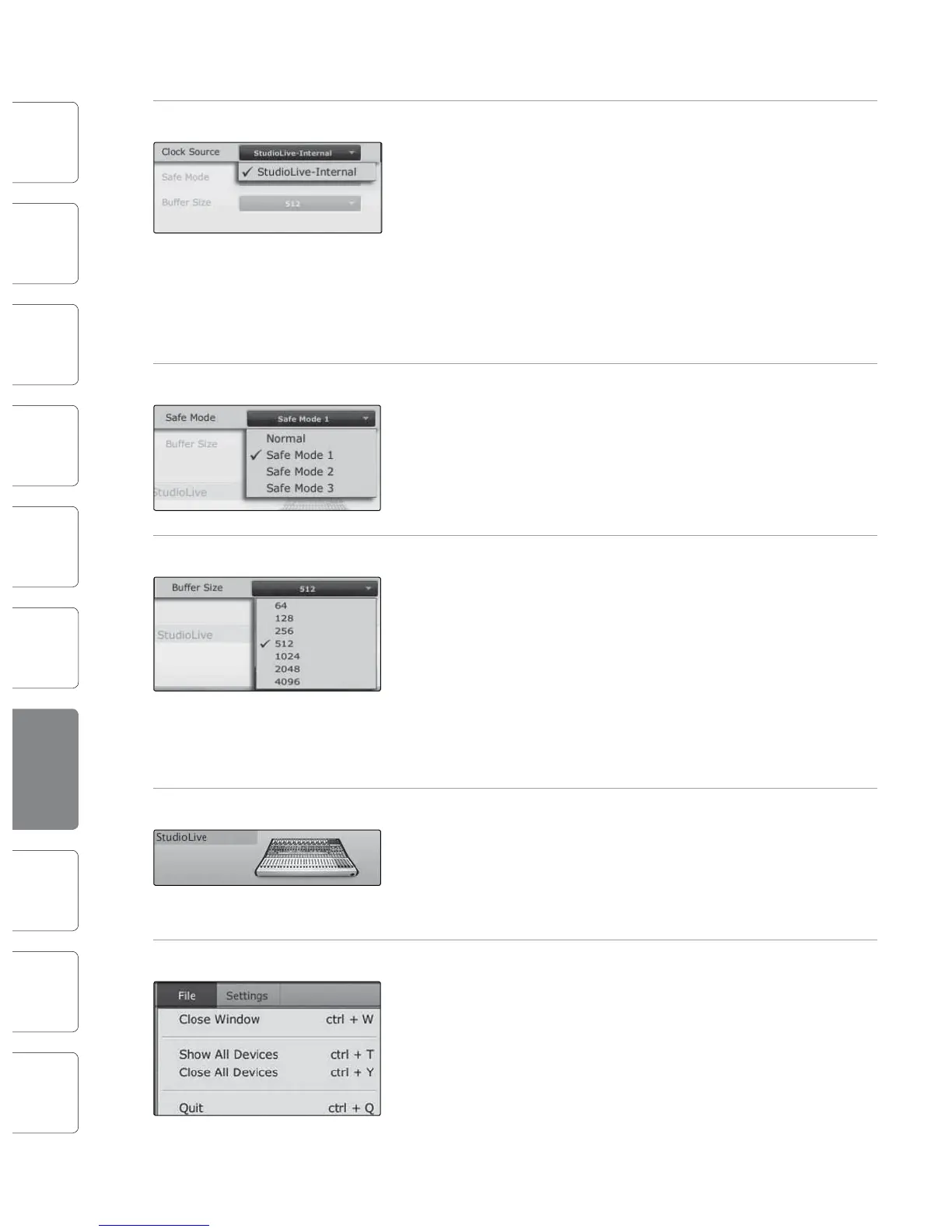
Clocksource Changes the Clock Source for Chained FireStudio-family Devices.
The StudioLive cannot slave to an external clock. However, if you are
cascading it with FireStudio-family products that do feature digital inputs,
the clock source becomes selectable.
The clock source setting will determine where the device chain is
receiving word-clock information. This keeps the chained devices
in sync with other digital devices and with each other. The menu
options are determined by the available digital inputs in the chain.
In general, you will want the StudioLive to be your Master
Clock, in which case set the clock to StudioLive-Internal.
Operation Mode Changes How the StudioLive Driver’s Buer Size is Set.
Normal Mode. Input and Output buers are both identical to the Buer
Size setting.
Safe Mode 1-3. Increases the output buer size for added stability.
Buer Size Selector (PC only) Changes the StudioLive Buer Size.
You can set the buer size from 64 to 4,096 samples. The buer size
determines the roundtrip time it takes audio data to be converted from
analog to digital and back to analog. As a general rule, the higher the
buer size, the better the system performance, but the less playable
virtual instruments and the like become. In general, 512 samples (11 to 12
milliseconds) will provide you with a large enough buer for optimum
system performance, but low enough to be unobtrusive. You should set
your buer size and sample rate prior to launching your host application.
On the Mac, the buer size is set from inside your host application.
Device Window Button Opens the Device Window.
Click on this button to open the VSL Virtual StudioLive application.
To give your StudioLive a custom name, double-click on the
default label (StudioLive) to open a text eld. When you have
nished entering your custom name, hit the Enter key.
File Menu Opens and Closes Launch and Device Windows.
From the File menu of the Launch Window, you can open and close both
windows, as well as quit the Universal Control application
Close Window. Closes just the Launch window.
Show All Devices. Opens the Device window for
all of the connected FireStudio-family interfaces.
Close All Devices. Closes the Device window for all
of the connected FireStudio-family interfaces.
Quit. Quits the Universal Control application.
Settings: Check Firmware Scans Your StudioLive and Updates the Firmware.
A rmware updater is built into the Universal Control application.
Periodically, a driver update will require that the rmware on your
StudioLive be updated. Whenever you install an update for the Universal
Control or add a new FireStudio-family product to your system, you
should use this feature to ensure that the rmware is up to date. If the
rmware needs to be updated, the update application will launch
automatically.
The rmware updater can also be used to reset your StudioLive 24.4.2
to factory default. To reset your StudioLive, hold down the CTRL and
ALT [OPTION] keys while clicking on "Check Firmware." Once the
rmware updater has nished, select "Reset" rather than "Restore."
Settings: Run at Startup Launches the Universal Control Application Automatically on Startup
(Windows Only).
When this is enabled, the Universal Control application will automatically
launch each time you boot your Windows PC.
Settings: Always on Top Allows the Launch Window to Stay in View When Other Applications Are in Use.
When this is enabled, the Launch window will remain in the foreground
when other applications are active, rather than being in the background
behind the current application’s window.
Universal Control 7.1











 To Next Page