Chapter 7: Monitor Profiles
42
Monitor
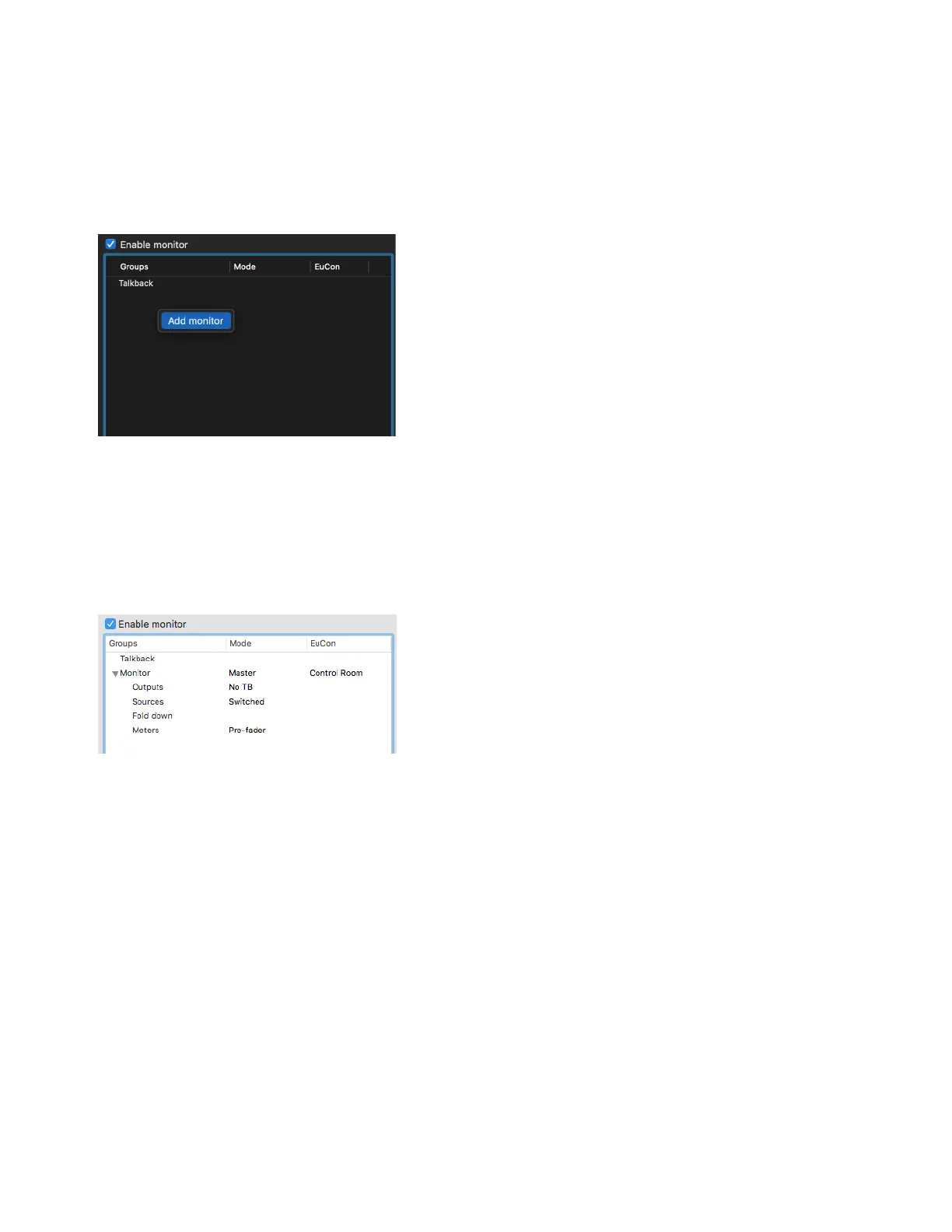
You must manually add or import monitor groups. Every monitor group includes the following attributes: Sources, Outputs, Fold
down
, and Meters. Each monitor group that you add can be designated as a Cue or Master monitor. Each monitor group can also be
assigned to EUCON monitor control.
To create a new monitor group:
1 Right-click in the left pane and choose Add monitor.
2 Right-click Monitor and choose Rename (or double-click the name in the Groups column), and type a descriptive name (such as
“CR” or “Control Room,” or “HP 1” or “Headphone 1”—use shorter names for displays on EUCON-compatible control surfaces).
3 Right-click on Monitor to set the Monitor mode to either Cue or Master.
4 If desired, right click on Monitor again to set the EUCON mode to Control Room, or one of Monitor A–D.
5 Click the reveal triangle to the left of the new Monitor group to show its attributes.
Now you can proceed to add and assign
Outputs and Sources. You can also add Fold downs and outputs for external Meters if desired.
To remove a Monitor group:
Right-click the monitor group and choose Remove monitor.
Monitor Output Sets
You can add multiple output sets of any format (channel width) to a Monitor group. If there are multiple Outputs, the selected Output
in the Monitor section of DADman is used for monitoring.
To add output sets to a Monitor group:
1 If necessary, click the reveal button to list the attributes of the Monitor group.
2 Right-click on Outputs under Monitor and choose Add new set. Once you have created a new output set, it can be added to additional
Monitor groups from
Add existing set in the Right-click menu.
Right-click to Add monitor
Monitor group with no assignments



 To Next Page