13
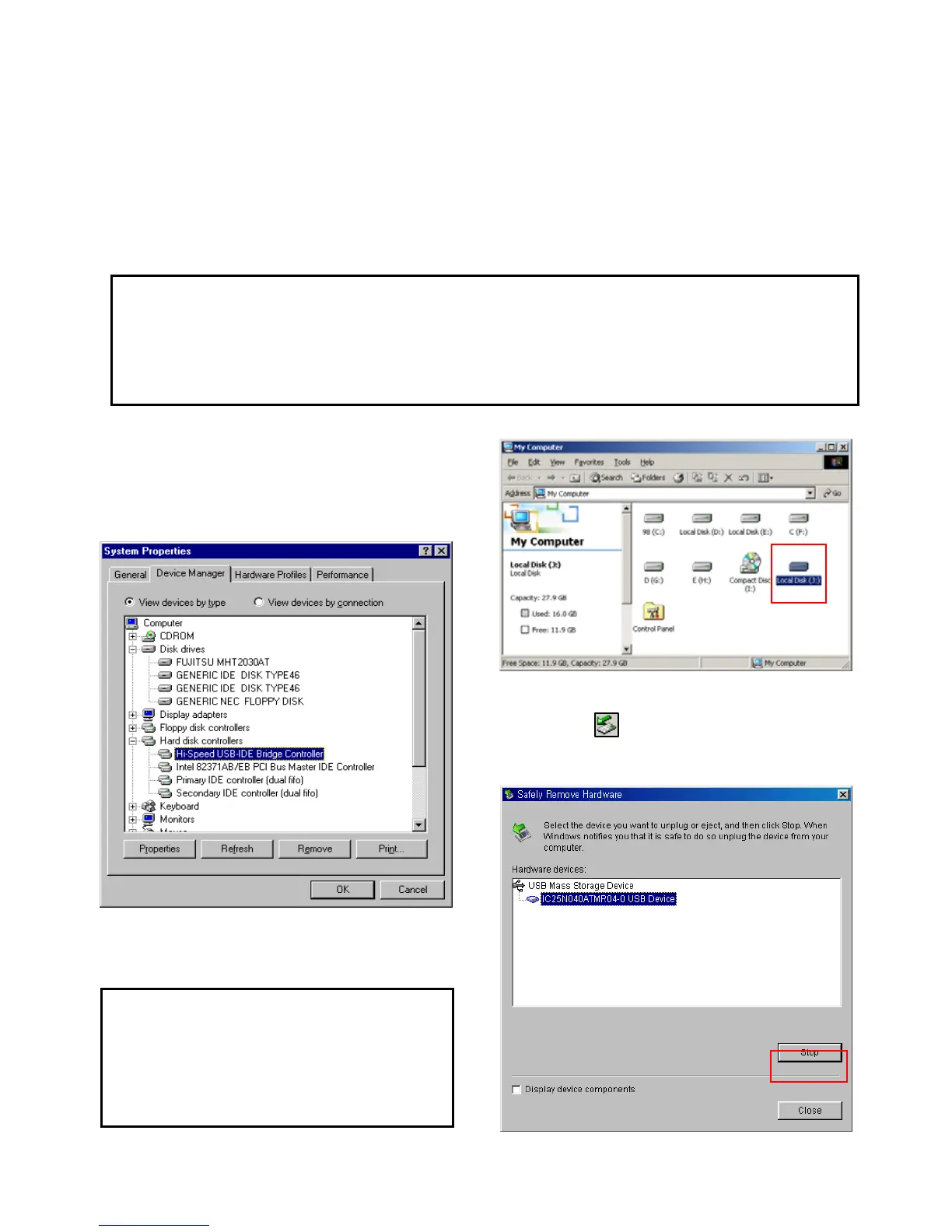
1) Click [Start > Settings>Control Panel >
System > Device Manager > Hard disk
controllers > Hi-Speed USB-IDE Bridge
Controller].
2) You can now find a new volume at ‘My
Computer’ or ‘Explorer’ and you can copy &
paste the files.
3) After file transfer, remove PBR-500 by using
remove icon at Windows right-down corner.
If you don’t follow this procedure, the transferred
files and PBR-500 may be damaged.
1.3 Copy & Paste the files through USB
PBR-500 can be an external hard disk drive in case when you connect it to a PC through USB connection
and you can copy & paste the files from / to your PC to / from built-in HDD in PBR-500.
* When you connect PBR-500 to a PC, you should connect power cable as well.
1.3.1 Windows 98SE
First, you have to install Windows 98 Driver before connecting to a PC.
Find the driver at the supplied CD.
After finishing installation, of Windows 98 Driver, connect PBR-500 to a PC through USB cable, and
plug power cable to PBR-500 as well.
If you can not find a new volume, then do
HDD format again.
Windows 98SE detects FAT32 file system
only.


 To Next Page