69
9.1.1. System Info.
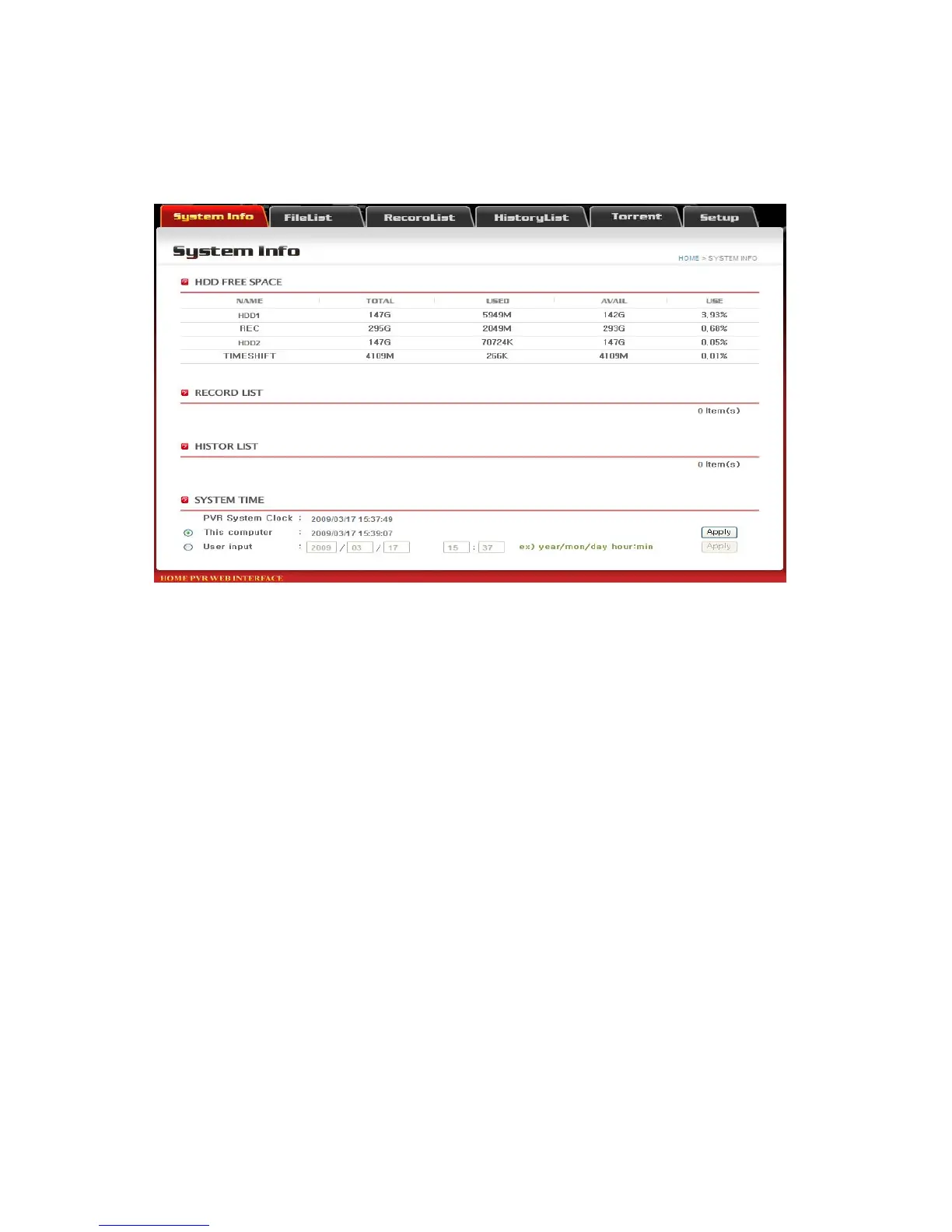
You can access to the PBR-500 through the web-browser and check the status such as the total or used capacity of each
partition, recording result, system time information, etc.
■ HDD FREE SPACE
-. Name : the name of each partition -. Total : the total capacity of each partition
-. Used : used capacity of each partition -. Avail : Available capacity you can use later of each partition.
-. Use : the used percentage of each partition.
-. HDD1 / 2 : this is a partition you can see at a PC and upload or download the files to / from here.
-. REC : the recorded files (Direct / Time-Scheduling Recording / EPG Recording) are supposed to be saved into this
partition and you can only see this partition through web-browser and can not see this at a PC by using USB cable
connection.
-. TIME SHIFT : the time-shift recorded file is written into this partition.
■ RECORD LIST
The Time-Scheduling Recording Lists or AV-IN Recording lists are shown at this field.
If you click the number beside [Item(s)], then it goes to [Record List] menu.
■ HISTORY LIST
It shows the recording result as “OK” or “Fail”
■ SYSTEM TIME
-. PVR System Clock : the current time information of the PBR-500 you are using now.
-. This Computer : the current time information of the PC you are using now.
-. User Input : if you want to change the current time of the PBR-500, then click this and set up of the time and press [Apply]


 To Next Page