40
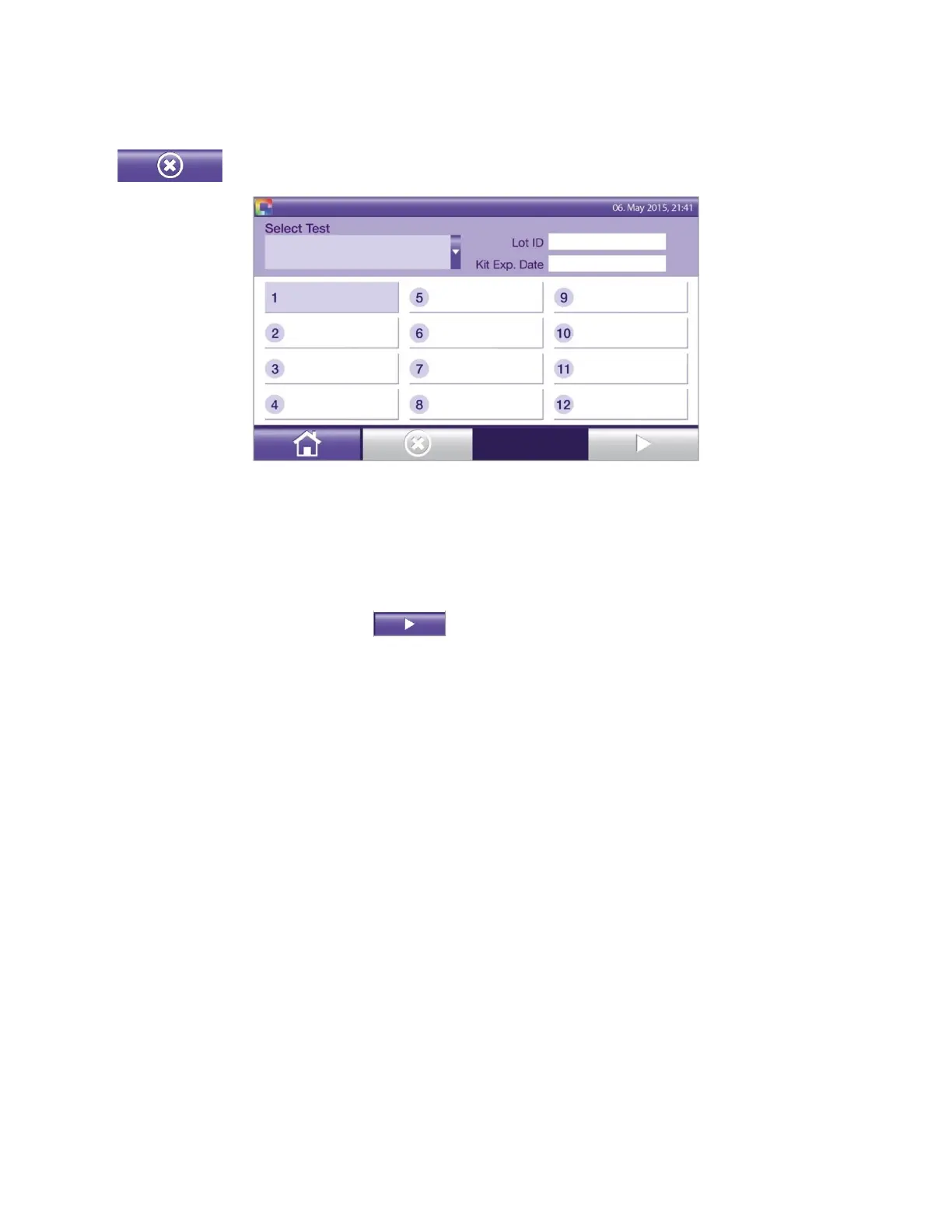
◼ Select the tubes you want to test (Figure 37).
Note: Selections can be reversed (undone) by touching the tube selected in error and then touching the
delete button. For example, if tube 1 was selected in error, touch tube 1 to highlight, then touch the
“X” button to undo the selection .
Figure 37
It is possible to assign multiple test methods in one run if the method files are compatible. After assignment of
the first test, the instrument drop-down menu offers only the tests that are compatible.
◼ To add a test with a compatible method file, select or scan the test information and assign tube locations
as described above.
◼ Touch the right arrow (next) button to advance to the sample ordering screen. See Assigning
Sample Type and ID section for further instructions.
Starting New Test (Test Selection: Autofill Mode On)
To start tests based on LIS Orders, please also see LIS Order Assignment section.
With the auto fill On, the tubes are selected first, then the user assigns the test method by selecting the test
one time. Refer to the Order Settings section for setting the Test selection auto fill mode.
A run consists of up to 12 tubes tested together in the same batch. Instructions for performing 1 test in a single
run and for performing multiple tests in a single run are described below.
One Test Method Per Run
◼ From the Main Menu, touch the New Test button to start a new test.
◼ The test method selection screen appears (Figure 38). The first tube is highlighted.


 To Next Page