MultiRAE User’s Guide
52
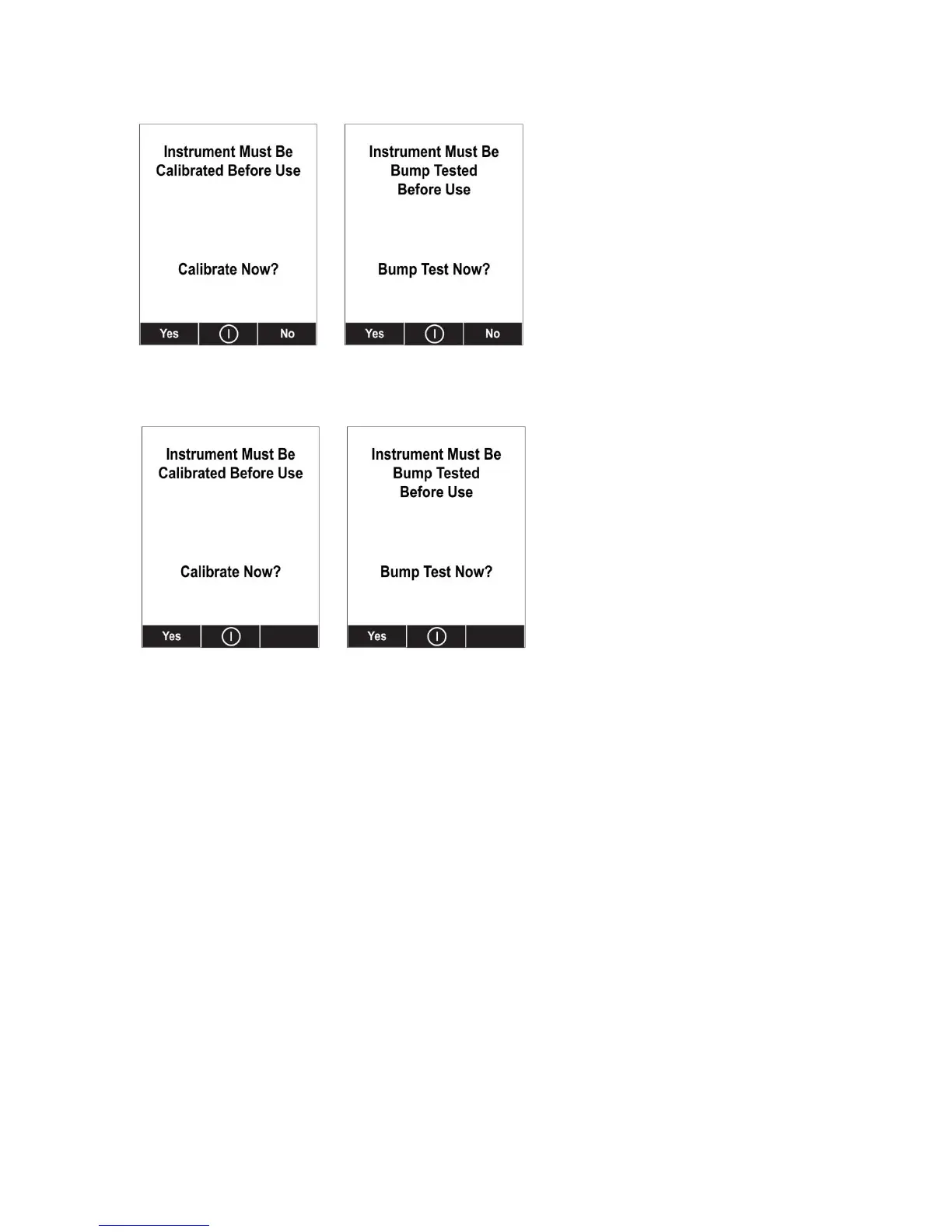
These are the screens that are shown on a MultiRAE after startup if “Can Bypass” is selected:
If “Can’t Bypass” is selected, the display looks like this, and only allows the options of performing the
test or shutting down:
16. Once you have made your selections in ProRAE Studio II, you must upload the changes to the
instrument. Click the icon labeled “Upload all settings to the instrument.”
17. A confirmation screen is shown. Click “Yes” to perform the upload, or “No” to abort.
Uploading takes a few seconds, and a progress bar is shown. You can abort the upload by clicking
“Cancel.”
18. Exit ProRAE Studio II.
19. Press [Y/+] on the MultiRAE to exit Communication Mode.


 To Next Page