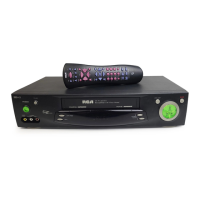
Recording a Program
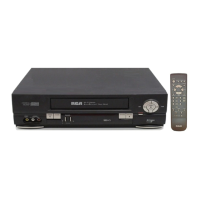
When editing or copying home videos, use this RCA VCR for the recording VCR
and the other VCR for playback. (Refer to hookup on page 6.)
To copy or edit tapes
1. Turn on the TV and both VCRs.
2. Tune TV to the VCR viewing channel, either 3, 4, or
TV’s line input.
3. If you have connected your VCR using Option A
(page 6), tune recording VCR to channel 3 or 4 —
the one selected on the back of the playback VCR.
If you have connected your VCR using Option B
(page 6), press INPUT on recording VCR to select
the line input. LINE1 appears in VCR’s display
panel.
4. Insert the tape you want to copy into playback
VCR. Insert a blank tape with safety tab in place
into the RCA recording VCR.
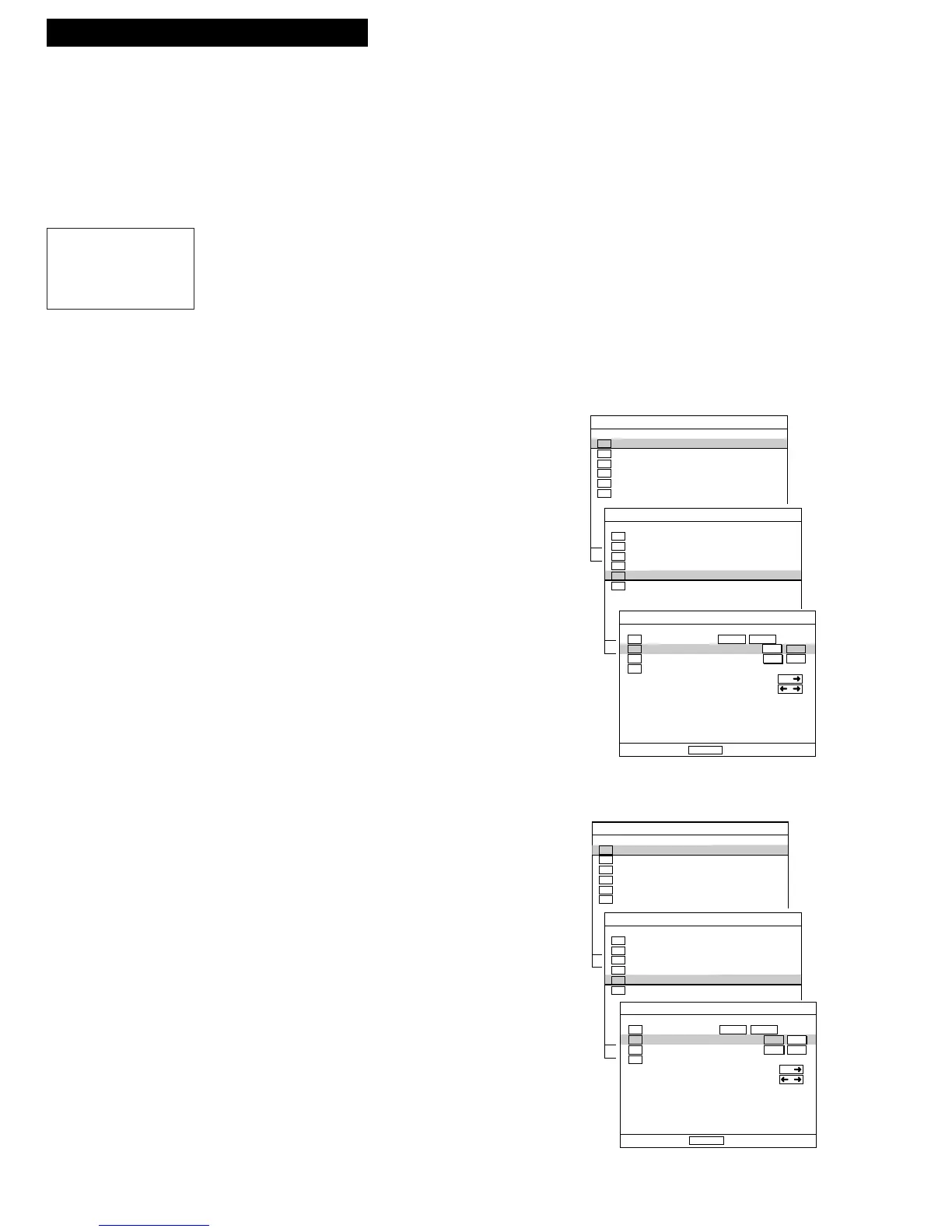
5. Press MENU for the Main Menu.
6. Press DOWN ARROW to select “VCR function
Setup” and press ENTER.
7. Press LEFT or RIGHT ARROW until
Tape dubbing
mode is ON, then press ENTER.
8 Press PLAY, then PAUSE on playback VCR when
you reach the point on the tape where you want to
begin copying.
9. Press RECORD, then PAUSE, on recording VCR.
10. Press PAUSE buttons on both VCRs at the same
time to begin copying the tape.
11. Edit out material by pressing PAUSE on the
recording VCR for a smooth edit. Press PAUSE
again to resume copying.
12. Press STOP on both VCRs when you are finished.
To play back the edited tape
1. Press LINE button to return to normal mode.
2. Press MENU for the Main Menu.
3. Press DOWN ARROW to select “VCR function
Setup” and press ENTER.
4. Press LEFT or RIGHT ARROW until Tape dubbing
mode is OFF, then press ENTER.
The picture quality may be poor when playing a
tape after editing if the tape dubbing mode is set
to ON.
Caution: The unauthorized
recording of television
programs and other
materials may infringe the
rights of others.
Using Two VCRs for Copying and Editing Tapes



 To Next Page